 Aloke
AlokeTranslation
Arabic and English in one screen, filling only the empty halves, plus the four staff languages for the Aloke apps.
- Aloke Owners
- Web, iPhone and iPad, Android
Every text on your page has two halves: Arabic and English. You write in Arabic and it arrives in English for whoever reads English. This tab gathers all of it on one screen: your page header, the sections, the dishes and combos, and offer names. (Web)
- In the Aloke Owners app, open «Your page» from the home screen, then «Translations». (iPhone and iPad, Android)
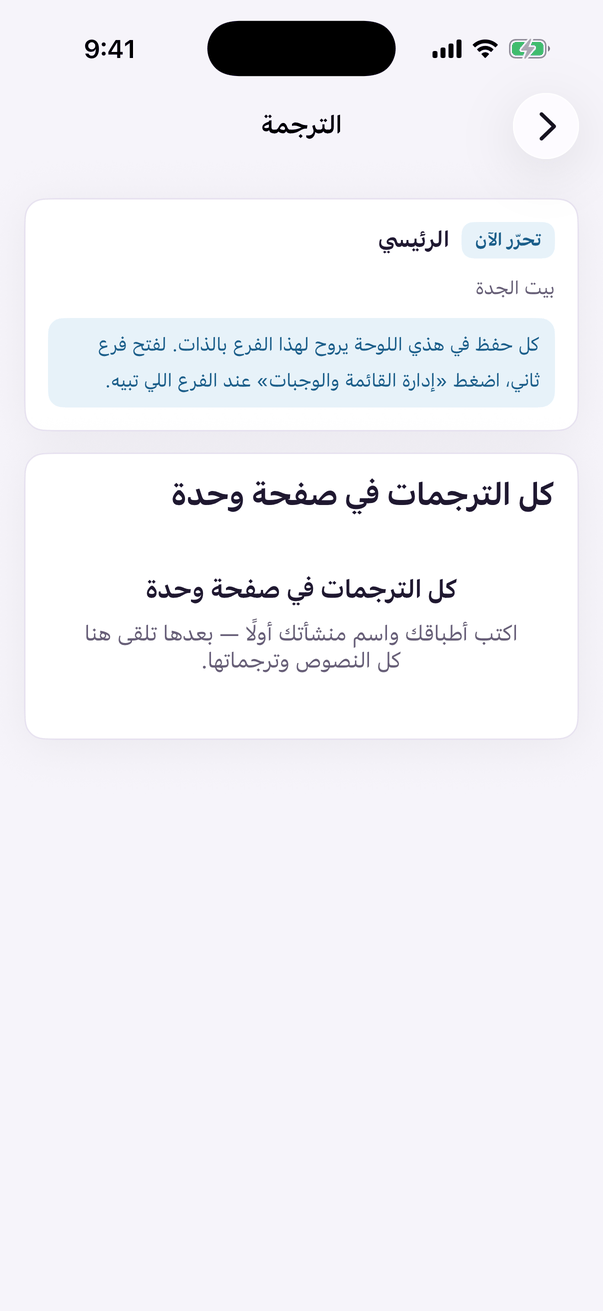
«Translations»: your menu in a second language. - Open the «Translations» tab and press «Translate what is missing». It fills the EMPTY halves only, anything you wrote yourself comes back untouched. (Web)
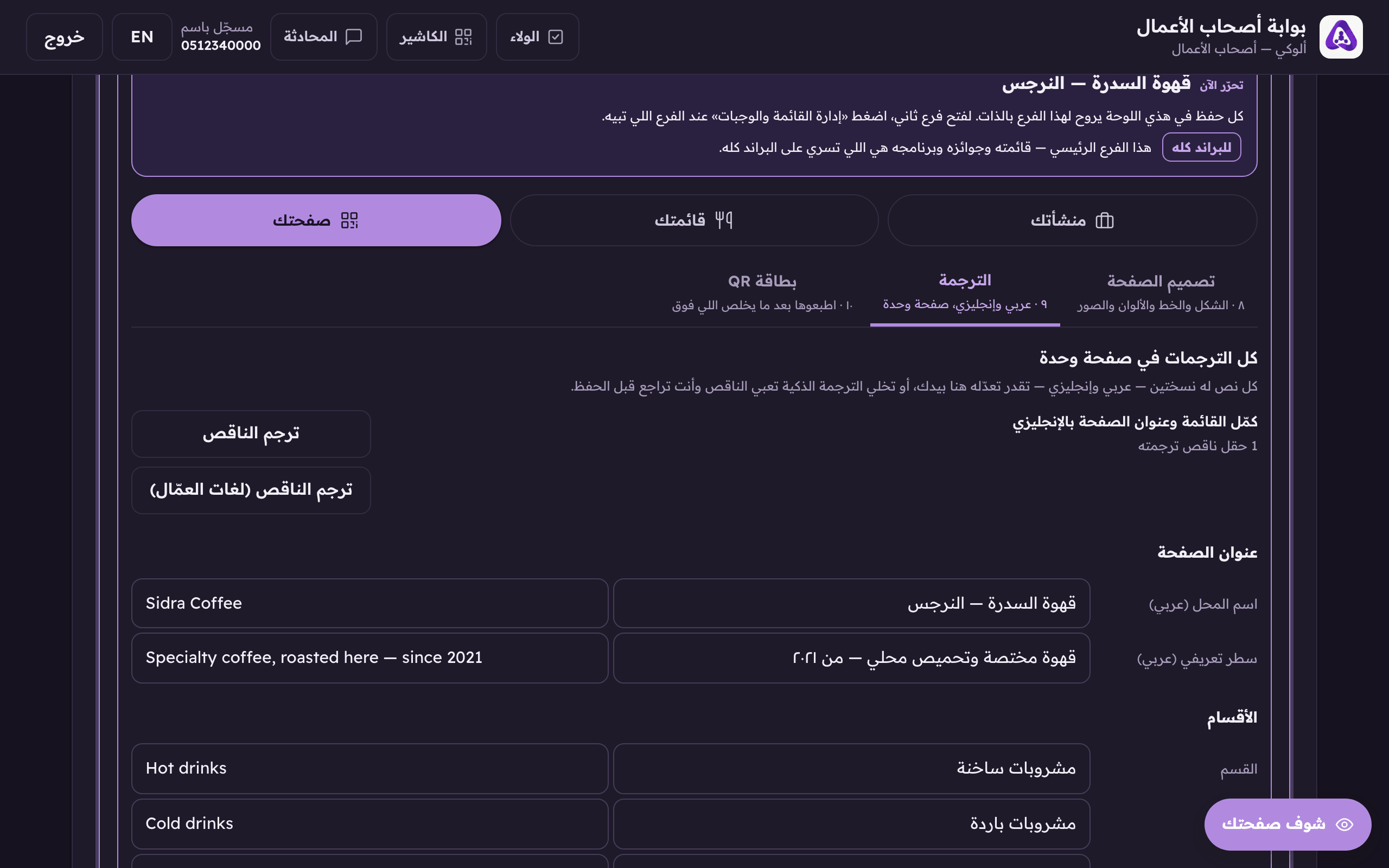
«Translate what is missing» fills in every name without an English version. You can still edit them. - Read the results over before saving. Nothing is stored until you press save.
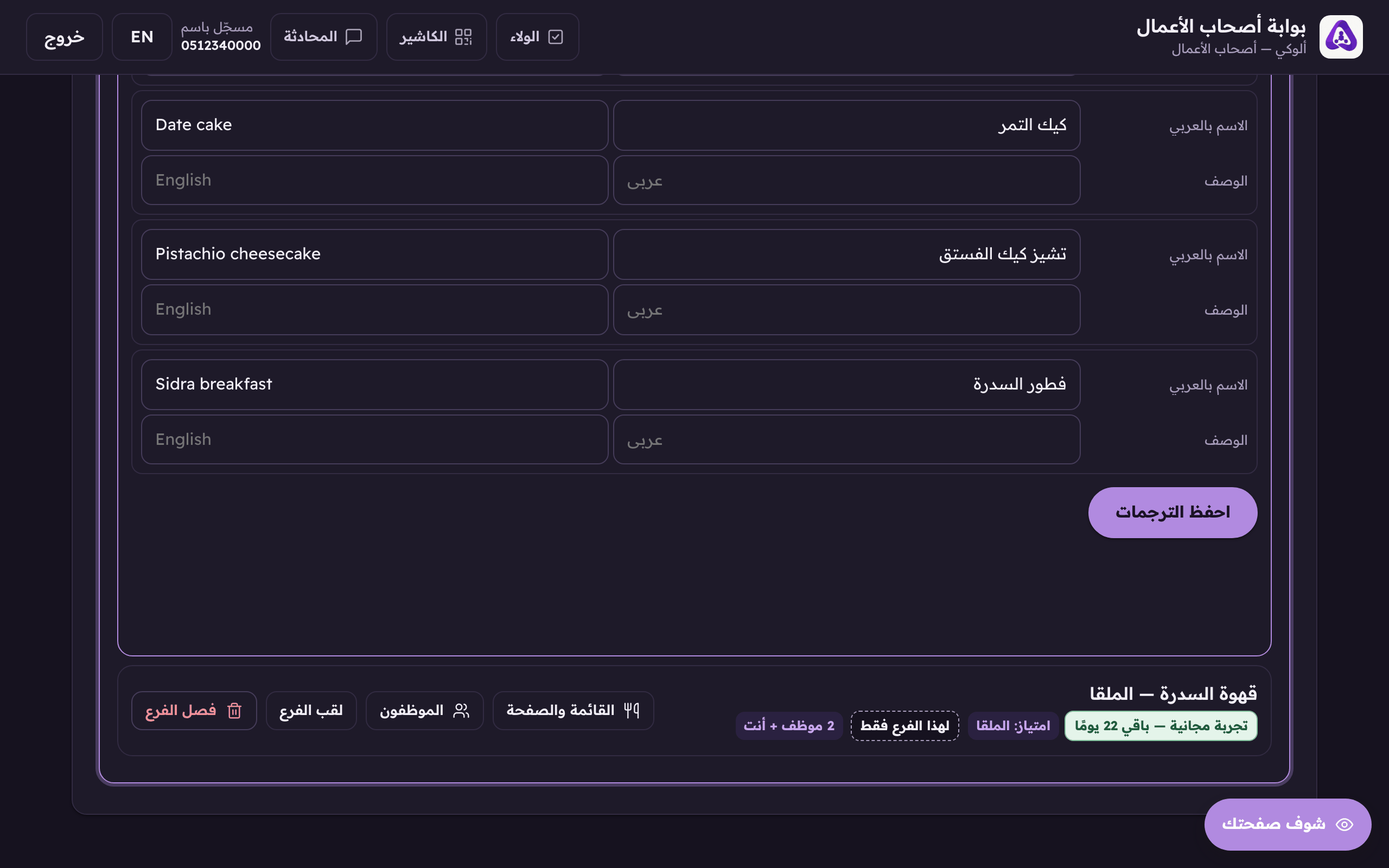
Read the translations over, then save them.
Staff languages: your menu in your crew's own script
Smart translate now translates for your crew too: four languages, Bengali, Nepali, Hindi and Urdu, for dish names, section headings and item options. The same press of «Translate what is missing» brings them all, and you never type a letter of them yourself.
- On the review card you will find a «staff languages» group: one line per dish, section and option, with how many translations it gains. Review it the way you review the English, and none of it is stored until you press «Save the translation».
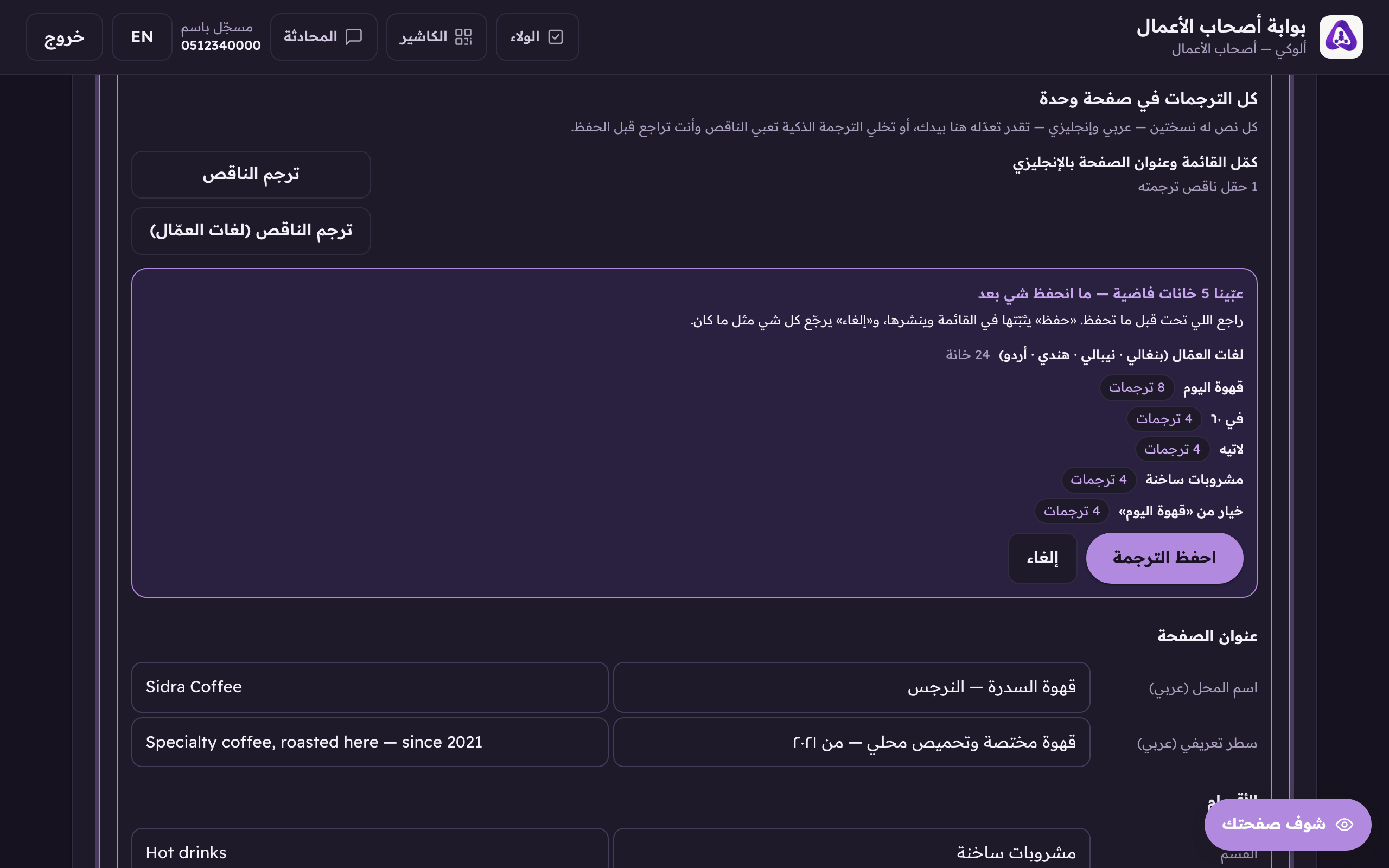
The «staff languages» group on the review card: one line per dish, section and option with how many translations it gains. None of it stored until «Save the translation».
- If a translation is not right, edit it by hand in the same box. Both ways work.
- And when you want the translation NOW, without editing and saving anything: on the «Translation» tab, beside the smart-translate button, you will find «Translate what's missing (staff languages)». One press translates everything still missing on your saved menu, the English half and the four staff languages, for dishes, sections and item options, saves it right away, and tells you how much was filled. It only ever writes into what is empty: a word you typed yourself stays exactly as it is. A long menu may have a remainder. The button says how much is left, and pressing it again finishes the rest. (Web)
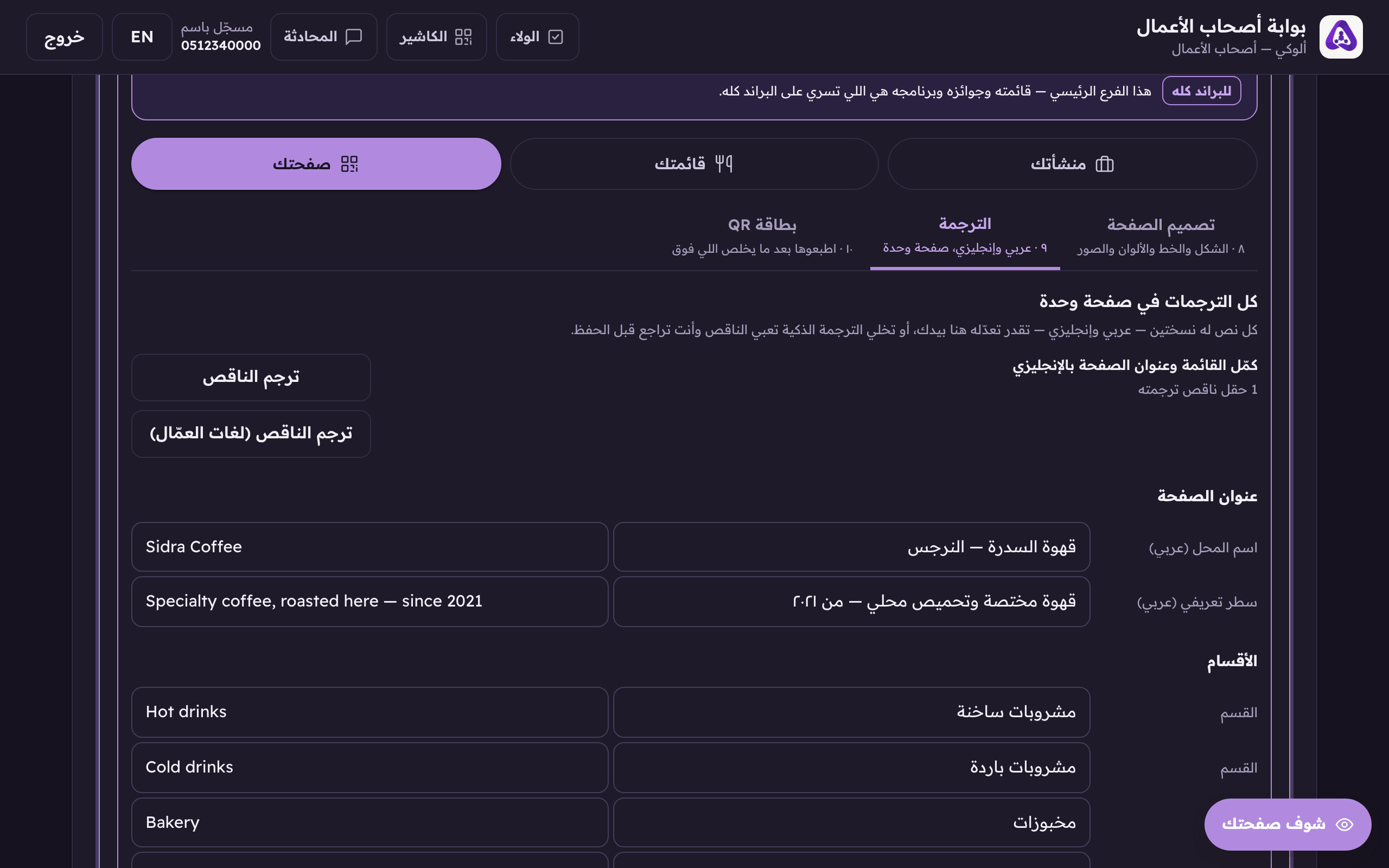
«Translate what's missing (staff languages)» translates everything still missing on your saved menu, the English half and the four staff languages, saves it right away, and tells you how much was filled and how much is left.