 Aloke
AlokeBusiness details and contact
Name, tagline, category, currency, branches, social accounts, and your page link.
- Aloke Owners
- Web, iPhone and iPad, Android
This tab is «who you are and how they reach you»: the name your customer reads, the line under it, your line of business, your phone, your branches, your social accounts and your page's address. It is the first thing you save. Before that you do not have a page, only a draft. (Web)
- In the Aloke Owners app, open «Your business» from the home screen. (iPhone and iPad, Android)
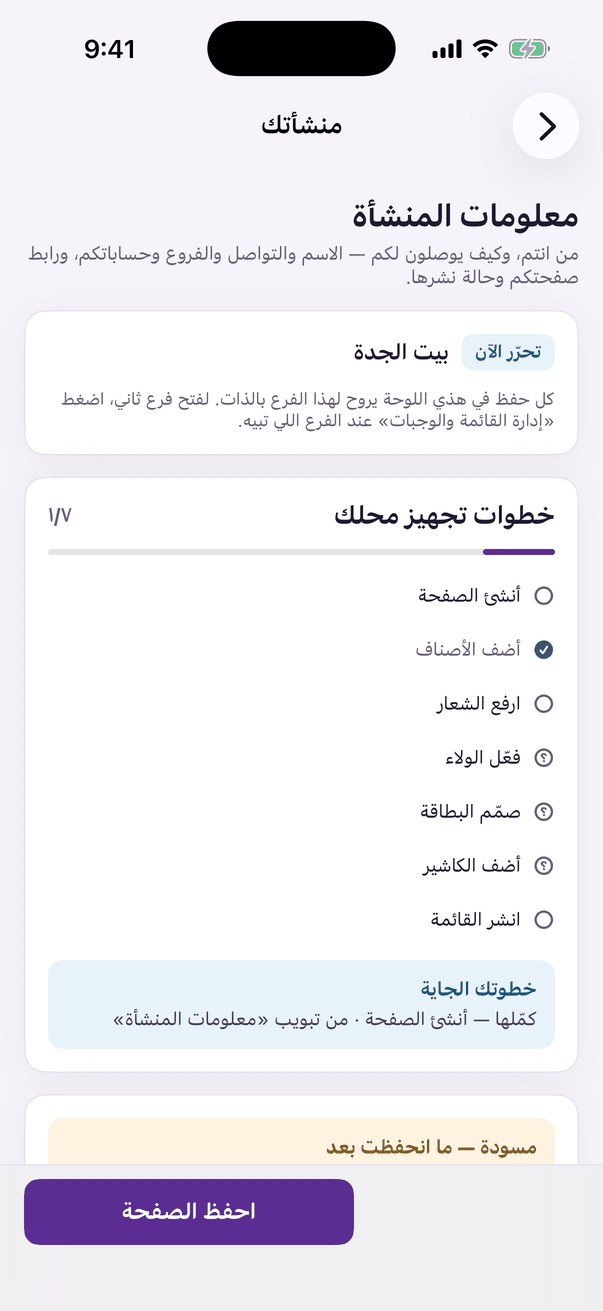
«Your business»: name, contact and logo. - Type the shop name exactly as you want customers to see it. Arabic and English; the English half can be filled in later from the «Translations» tab. (Web)
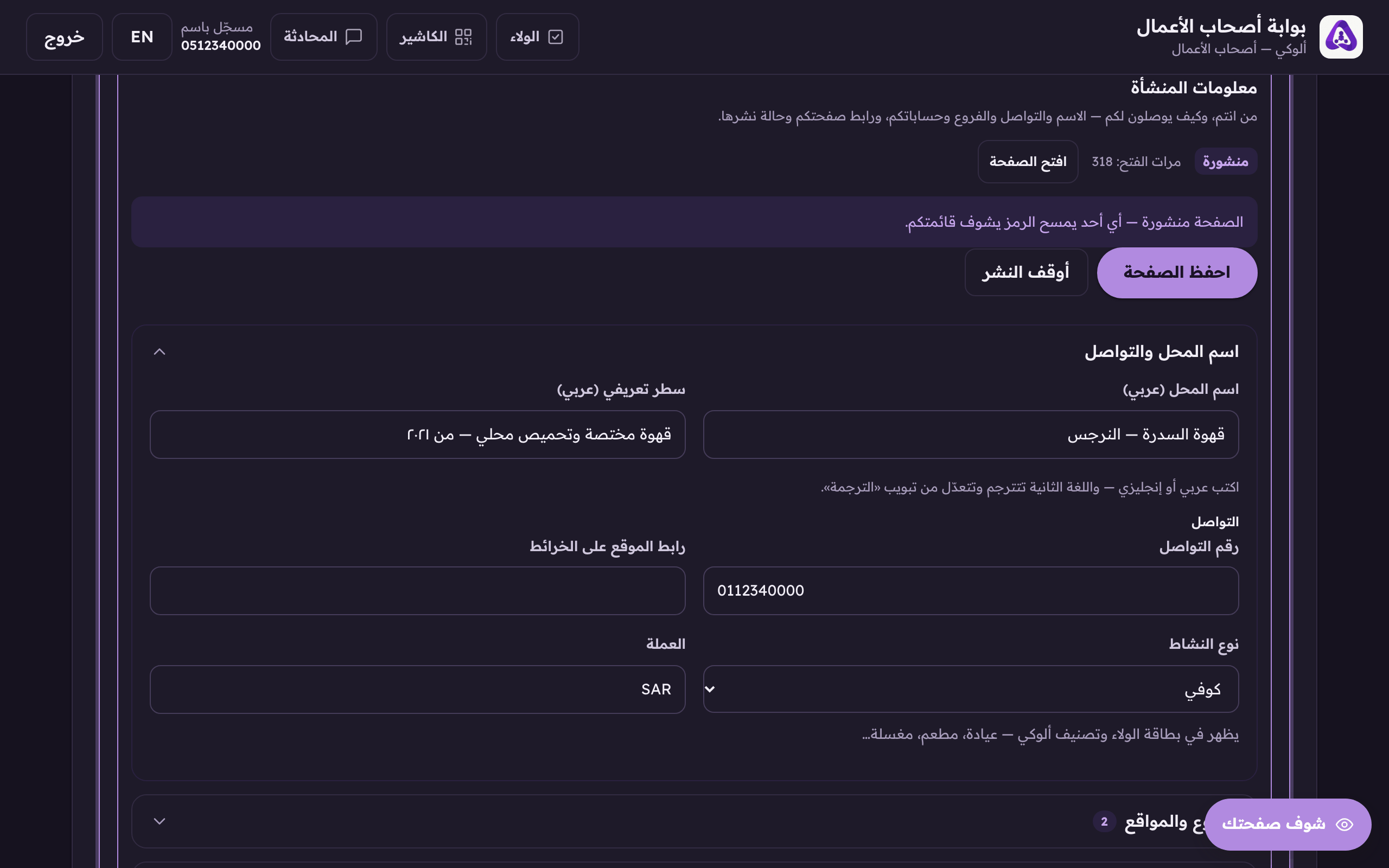
The business name exactly as you want customers to see it. - Add a short tagline. It prints directly under the name, for example «Specialty coffee since 2015».
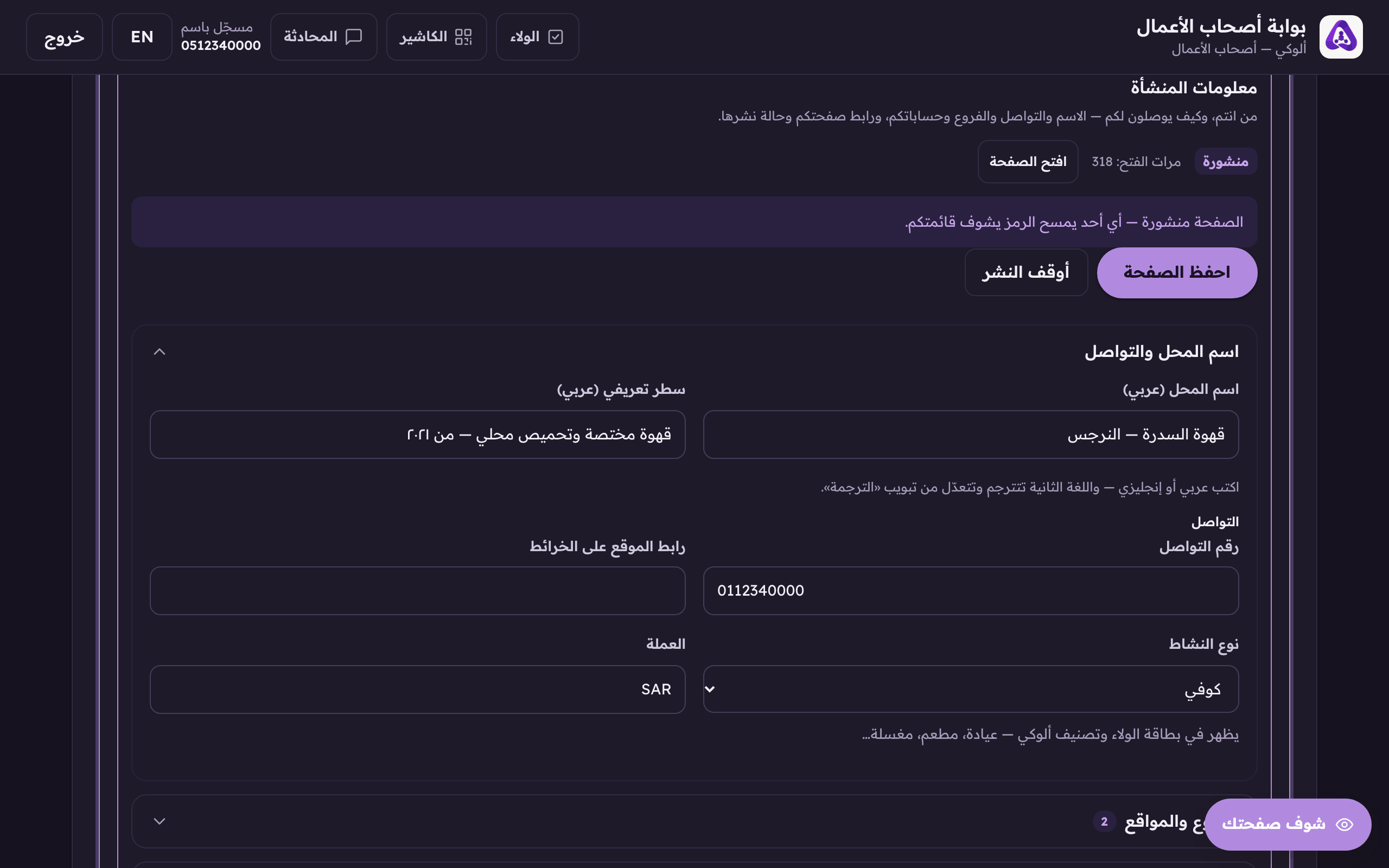
A short tagline. It prints under the name on your page. - Pick your line of business. It decides how Aloke recommends you and it also shows on the loyalty card: restaurant, café, clinic, laundry…
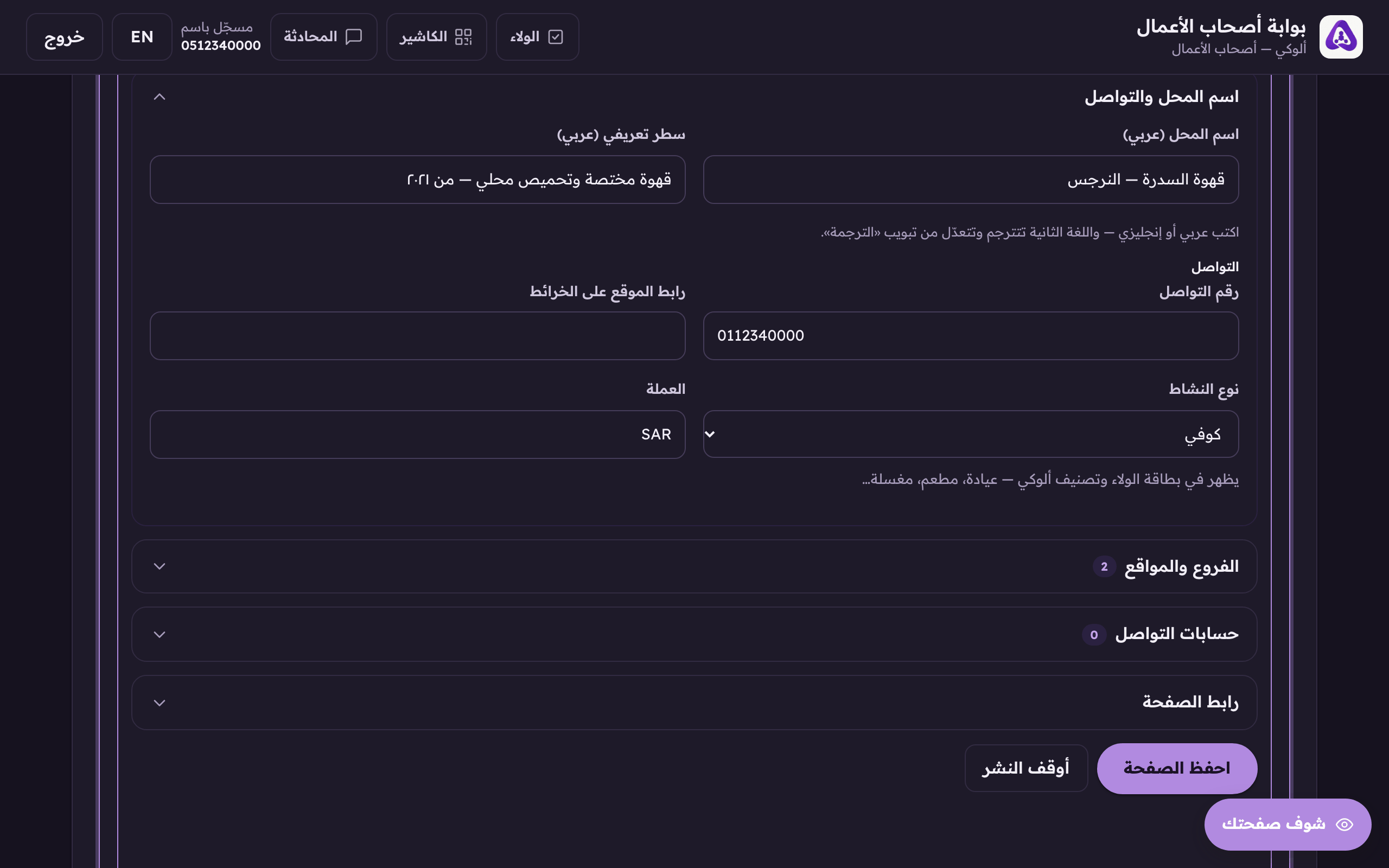
The category decides how Aloke recommends you. Pick the closest one. - Enter the contact number. This is the number a customer taps on your page to call you.
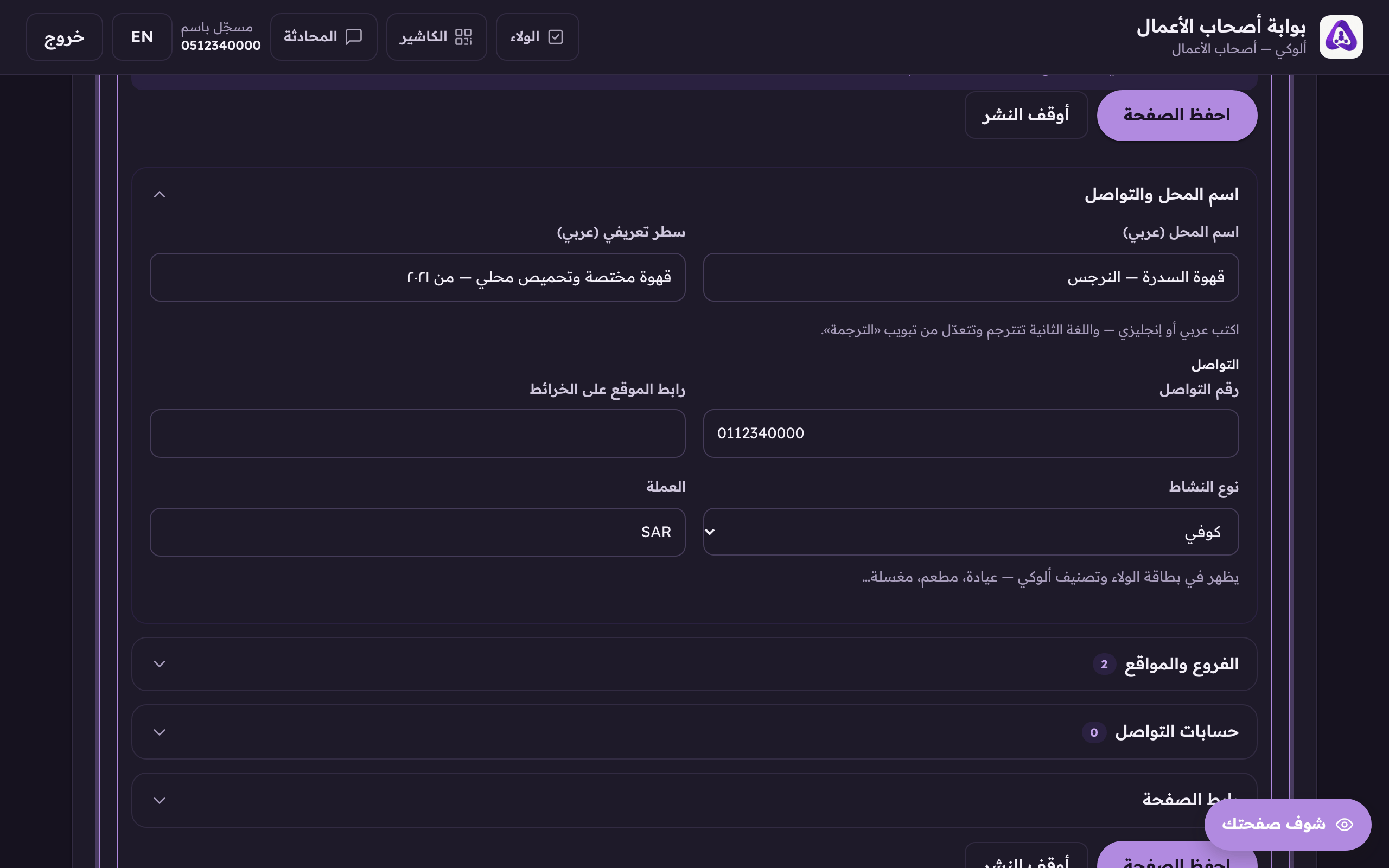
The number a customer calls from your page. - Choose the currency your prices are in.
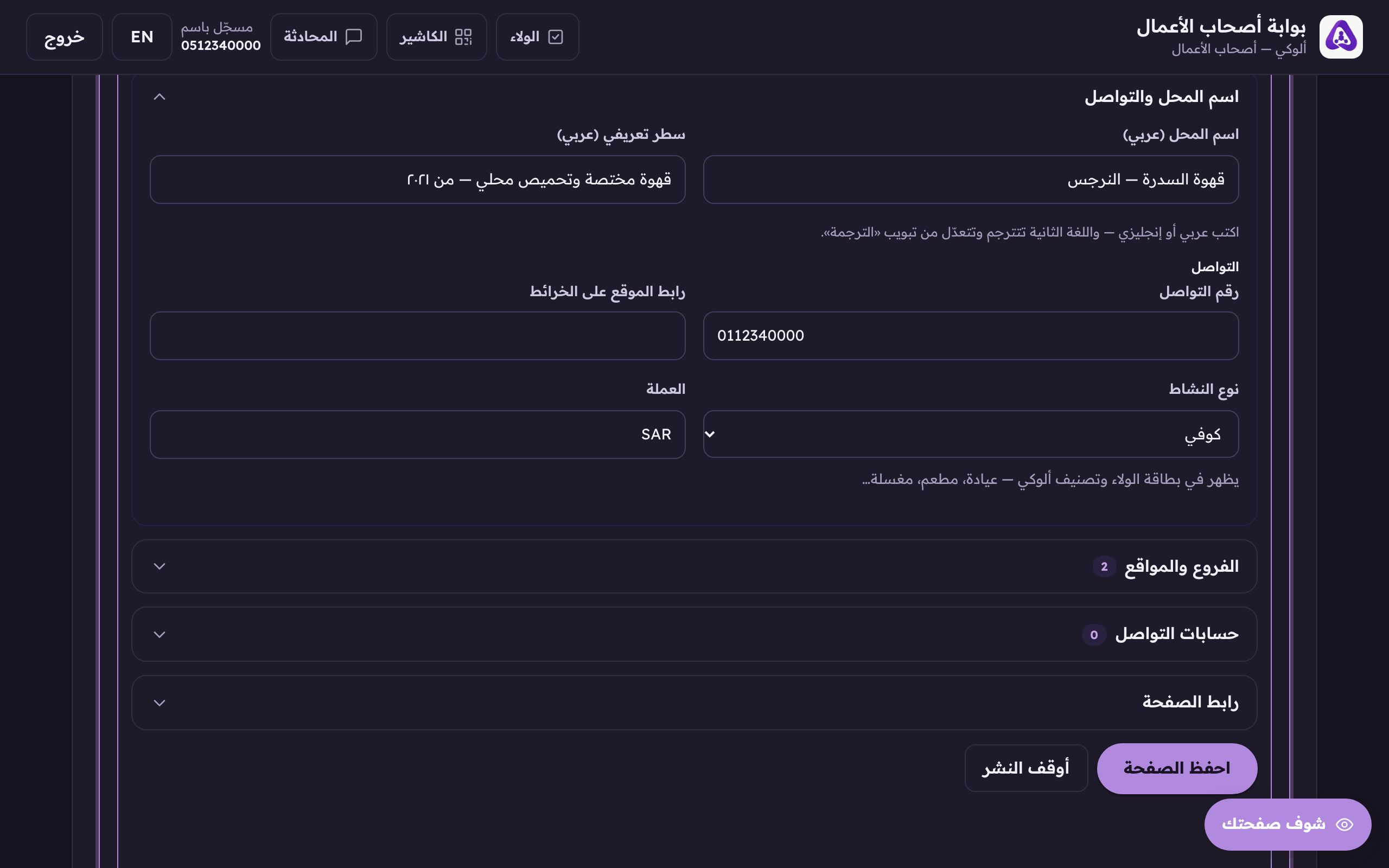
The currency printed beside every price on your page. - Fill in whichever social accounts you have and leave the rest empty.
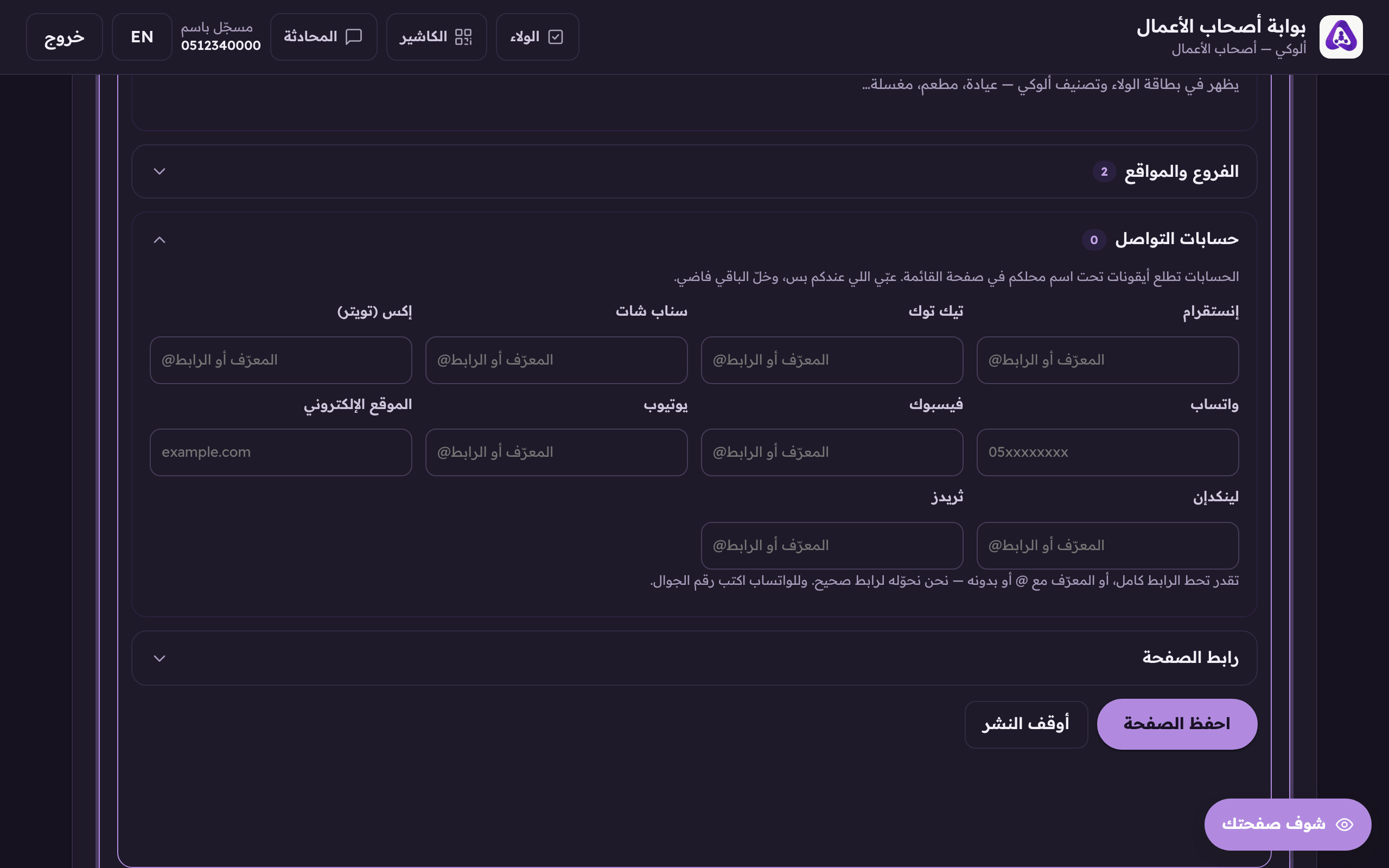
Your social accounts. They appear as icons on your page, and anything left empty simply does not show. - Open the «Branches and locations» fold. Under it is your page's location, filled in for you from the place we matched when you verified your shop. (Web)
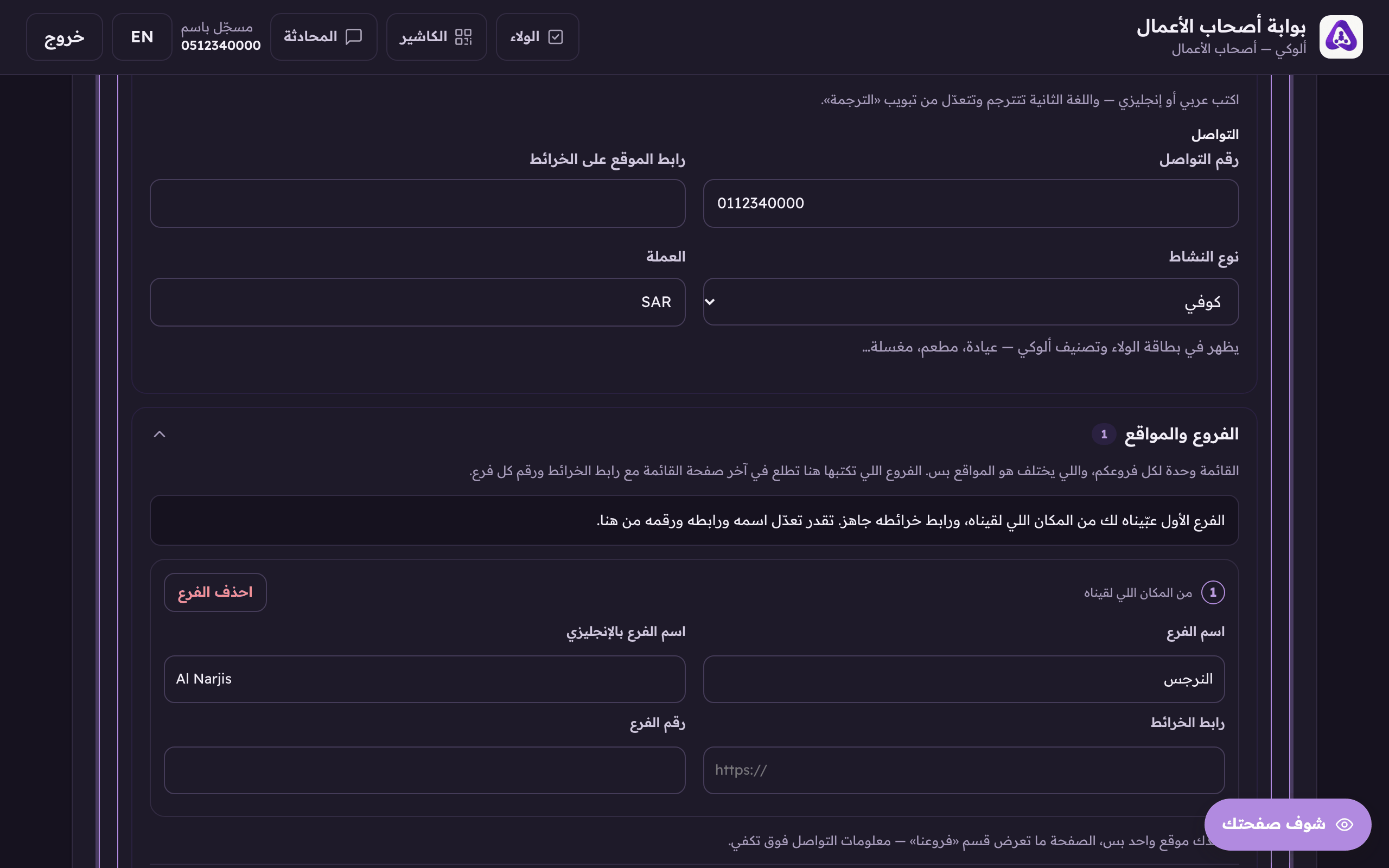
«Branches and locations» inside «Business details». Your page's location sits under it, and «Add a branch» for the whole brand under that. It appears on the home branch only. - Check the row: the branch name, its English name, the maps link and the branch's number. Change any of them. Your word wins. «Remove branch» takes the whole row out.
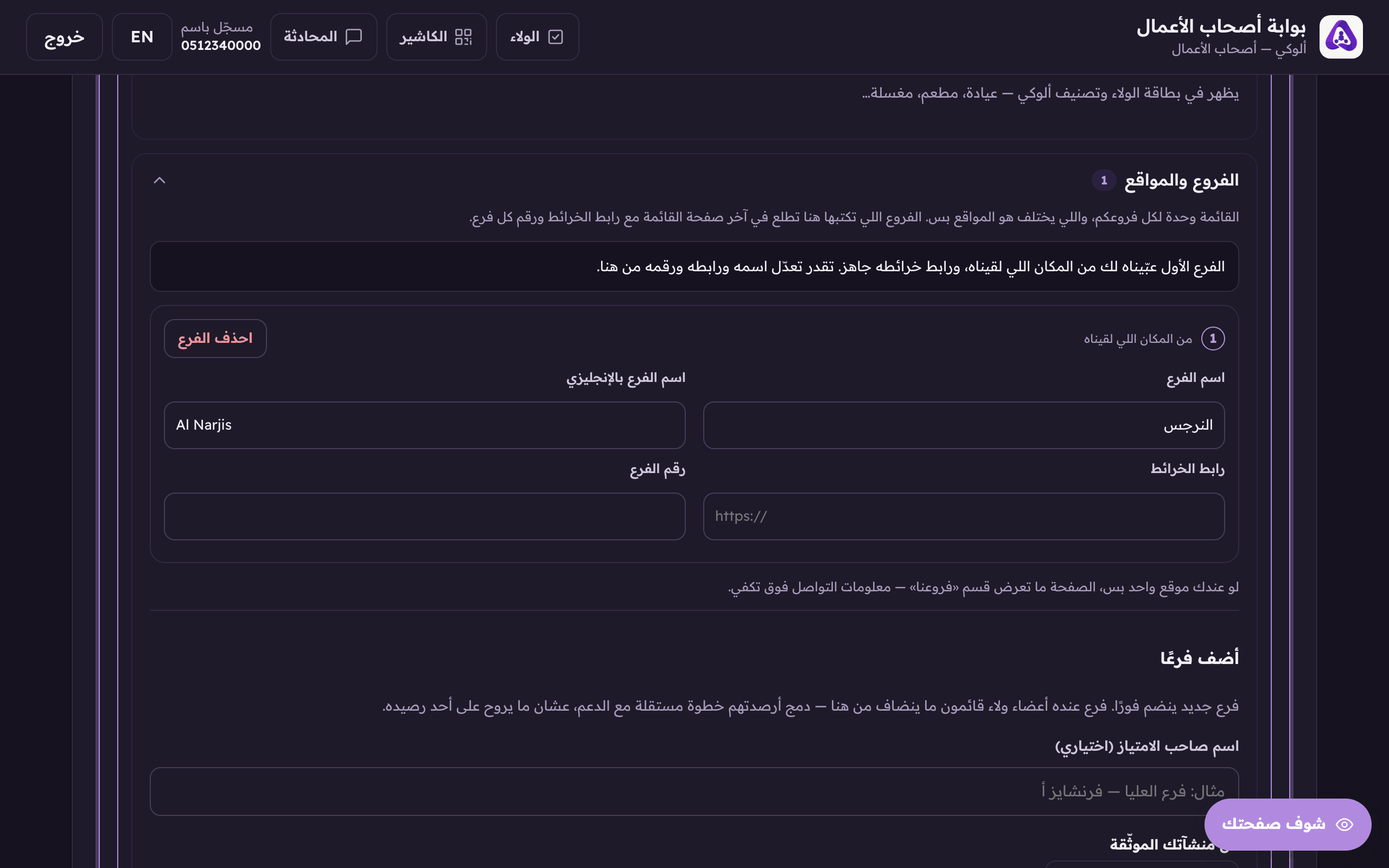
The first location is filled in for you from the place we matched, edit its name, its map link and its number. There is no button that types a second one in: a branch arrives through the claim. - Choose your link name. It is the last part of your page's address, in Latin letters or digits. Keep it short and easy to type.
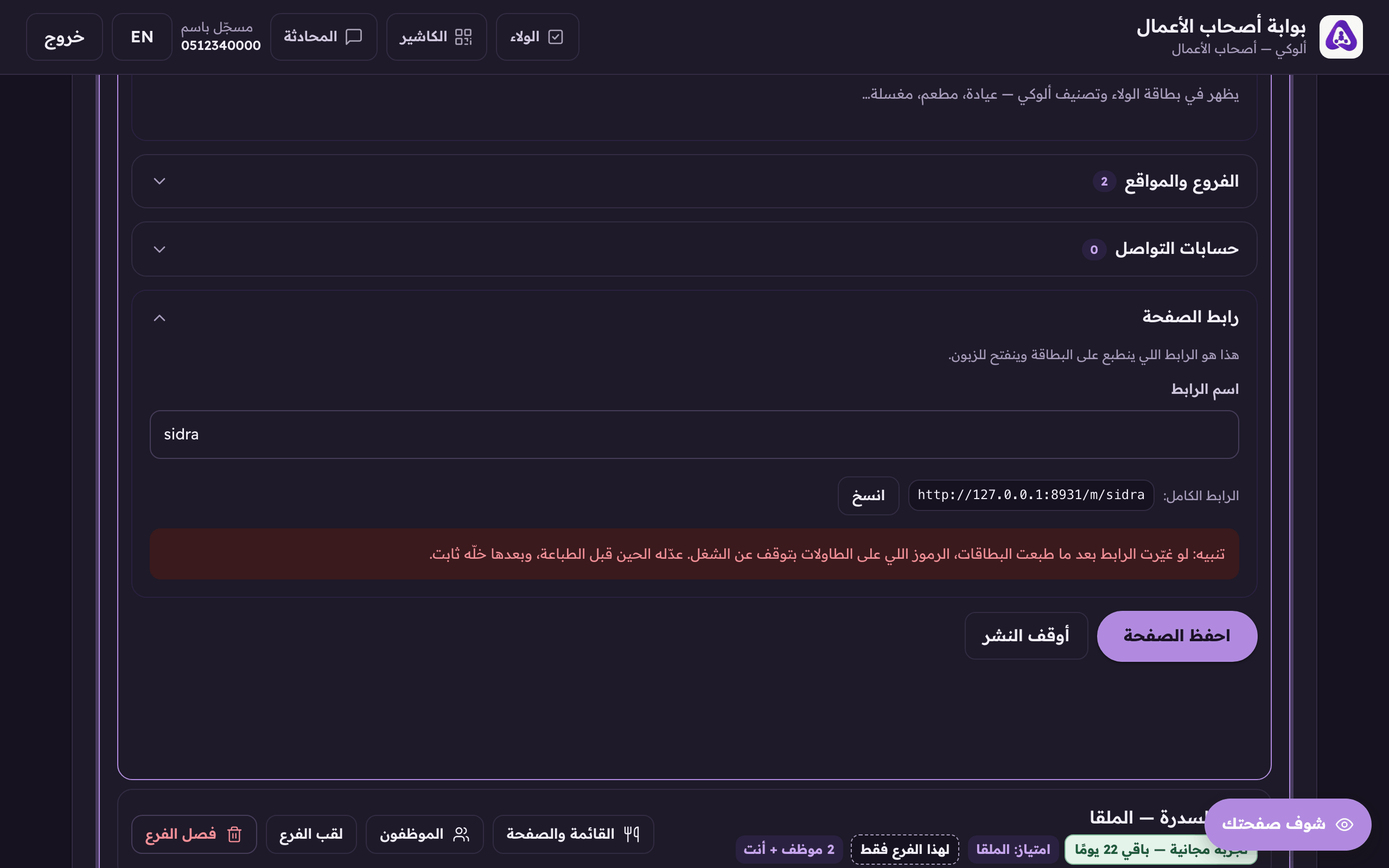
The last part of your page link. Keep it short and easy to type. - Press «Save page». Do not leave the tab before you do. (Web)
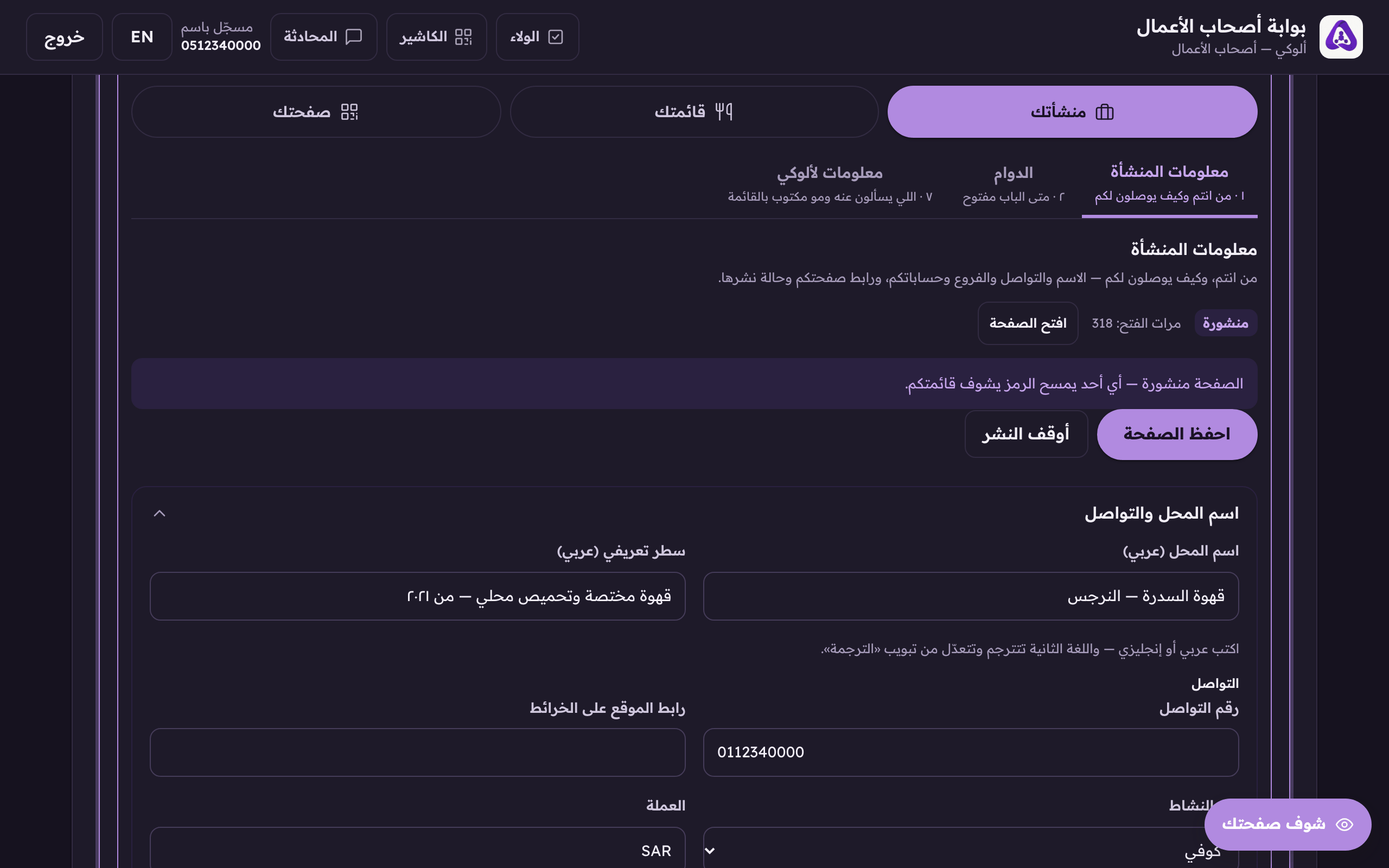
«Save page» stores everything above. Do not leave the tab before pressing it.