 Aloke
AlokeLogo and cover image
Uploading, cutting out, and which version appears.
- Aloke Owners
- Web, iPhone and iPad, Android
Your logo appears at the top of your page, inside the QR code, and on the loyalty card. The cover is a wide image above the menu. The first thing anyone opening your page sees.
- In the Aloke Owners app, open «Your page» from the home screen, then «Page design». (iPhone and iPad, Android)
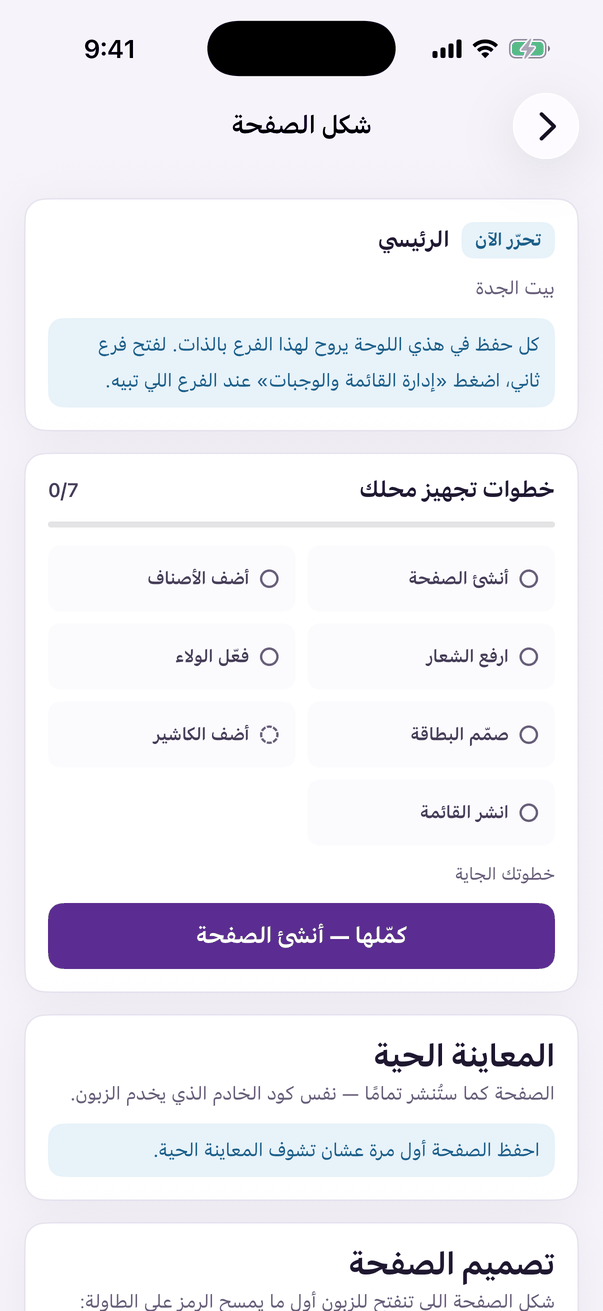
«Page design»: theme, colours and cover. - Press the image button under the logo: «Upload image» while the slot is empty, «Replace image» afterwards. Send it straight from your phone without shrinking it.
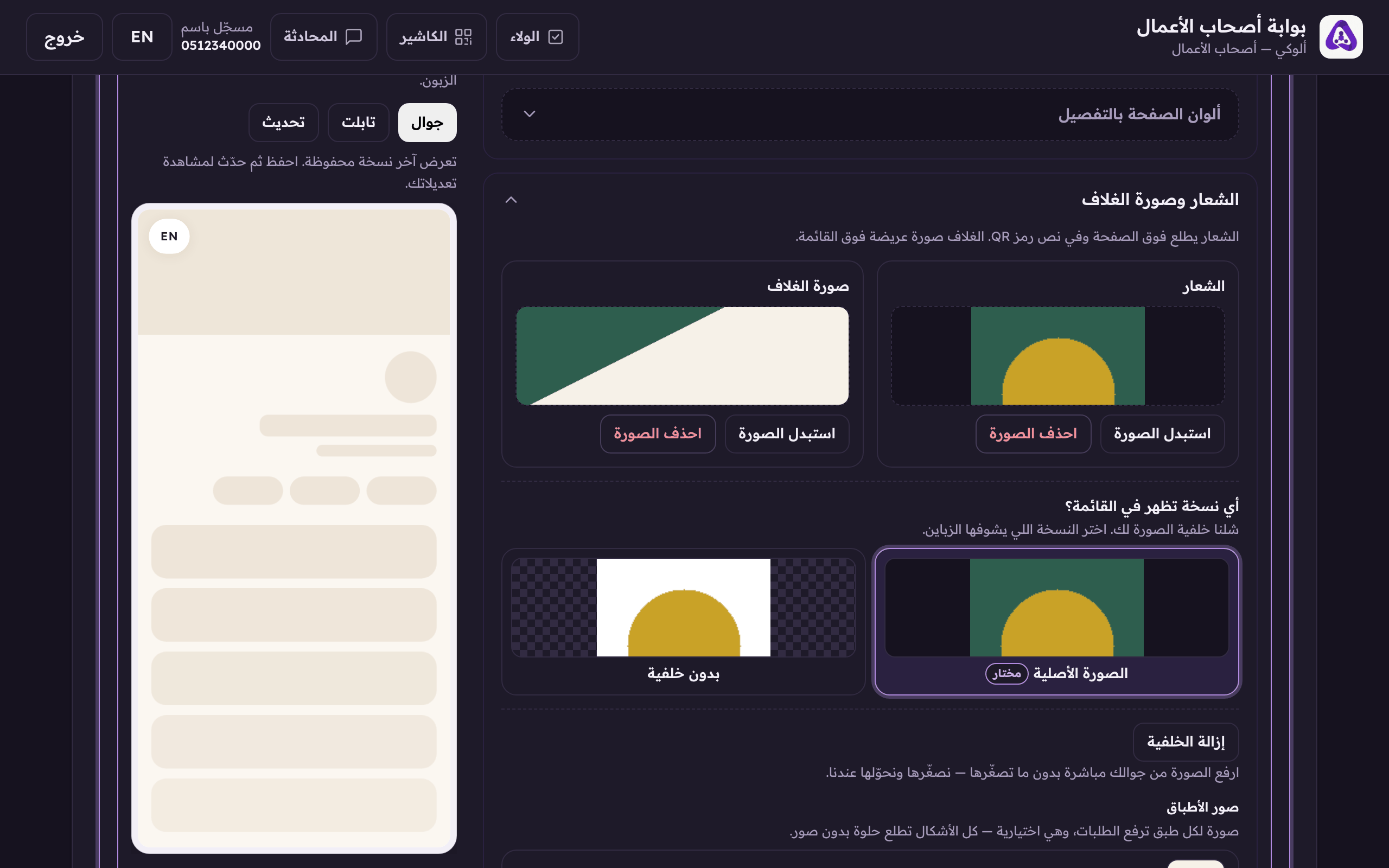
The logo's button: «Upload image» while the slot is empty, «Replace image» once there is one, and the logo shows on your page and on the loyalty card. - The same button sits under the cover image.
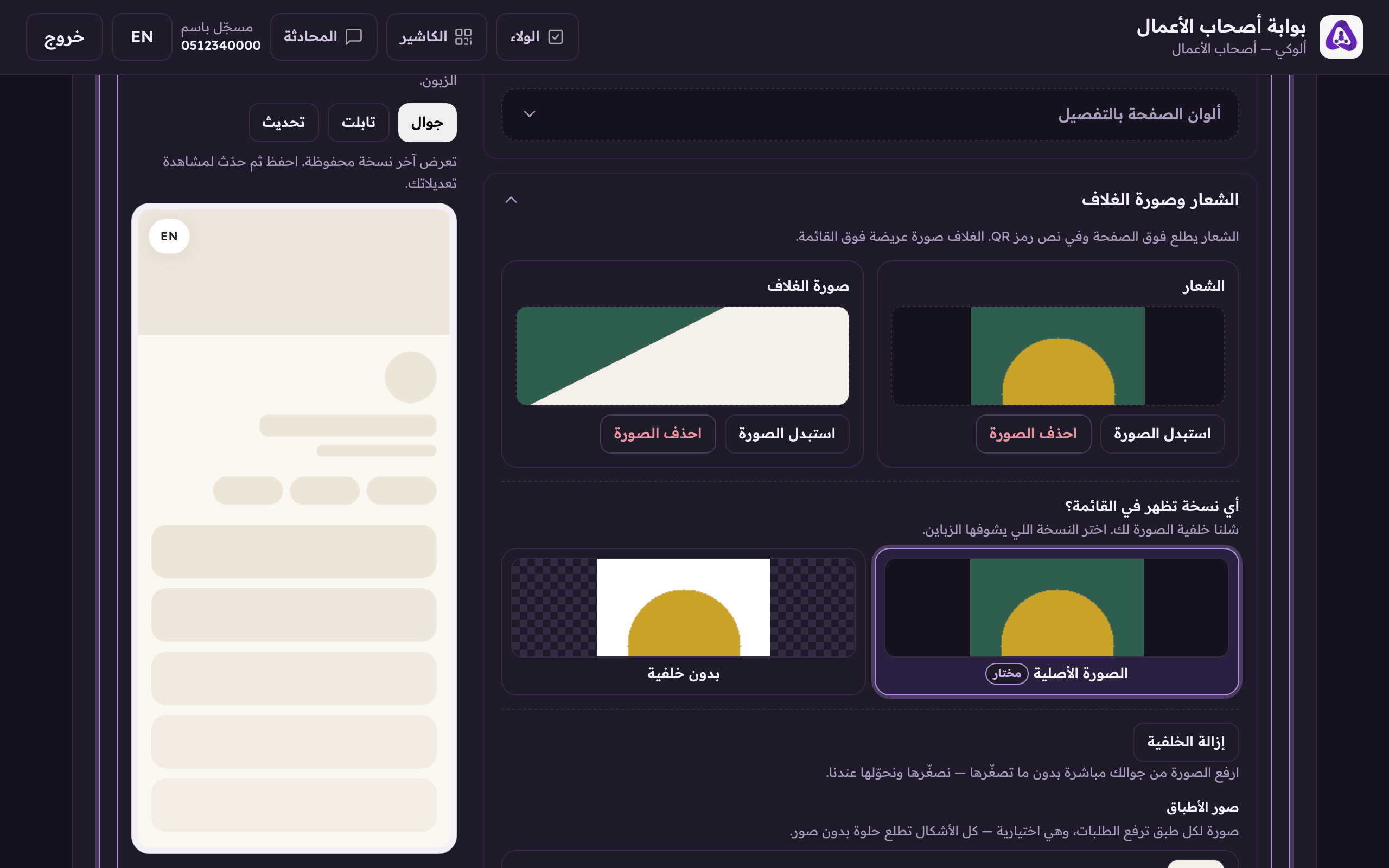
The same button under the cover: «Upload image» while it is empty, «Replace image» afterwards. The cover is the first thing anyone opening your page sees. - To cut the logo out of its background press «Remove background», and a «Restore background» button appears if it did not work.
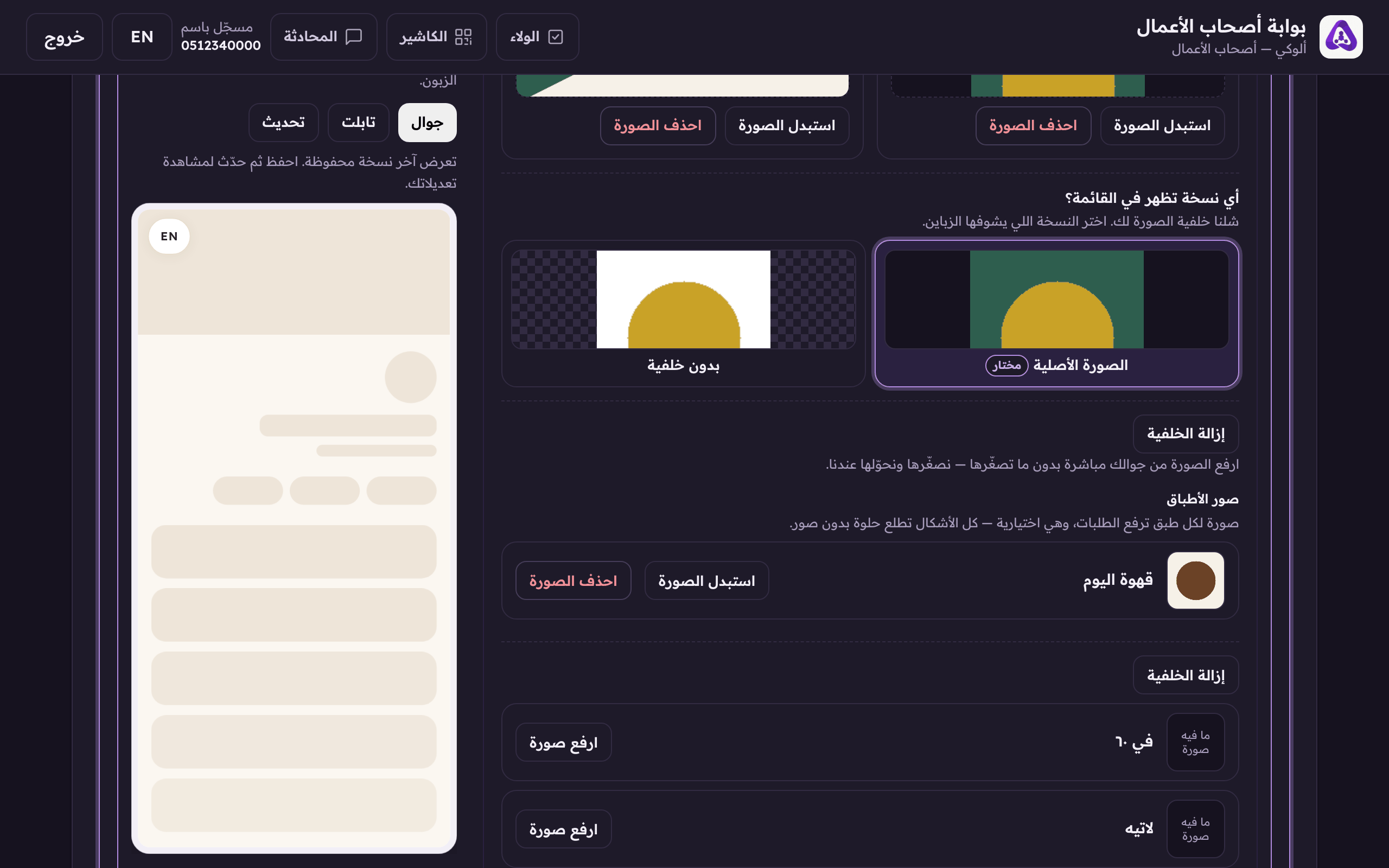
«Remove the background»: it appears under any picture that has no cut-out yet: the logo, the cover, or a dish's photo.