 Aloke
AlokePage colours in detail
Each surface on its own, gradients, and the contrast warning.
- Aloke Owners
- Web, iPhone and iPad, Android
A theme arrives with its own palette. Here you change any one colour in it on its own: backgrounds, text and prices, buttons and section headings, the logo's frame, the banner's backdrop. Two shops on the same theme can end up looking nothing alike.
- In the Aloke Owners app, open «Your page» from the home screen, then «Page design». (iPhone and iPad, Android)
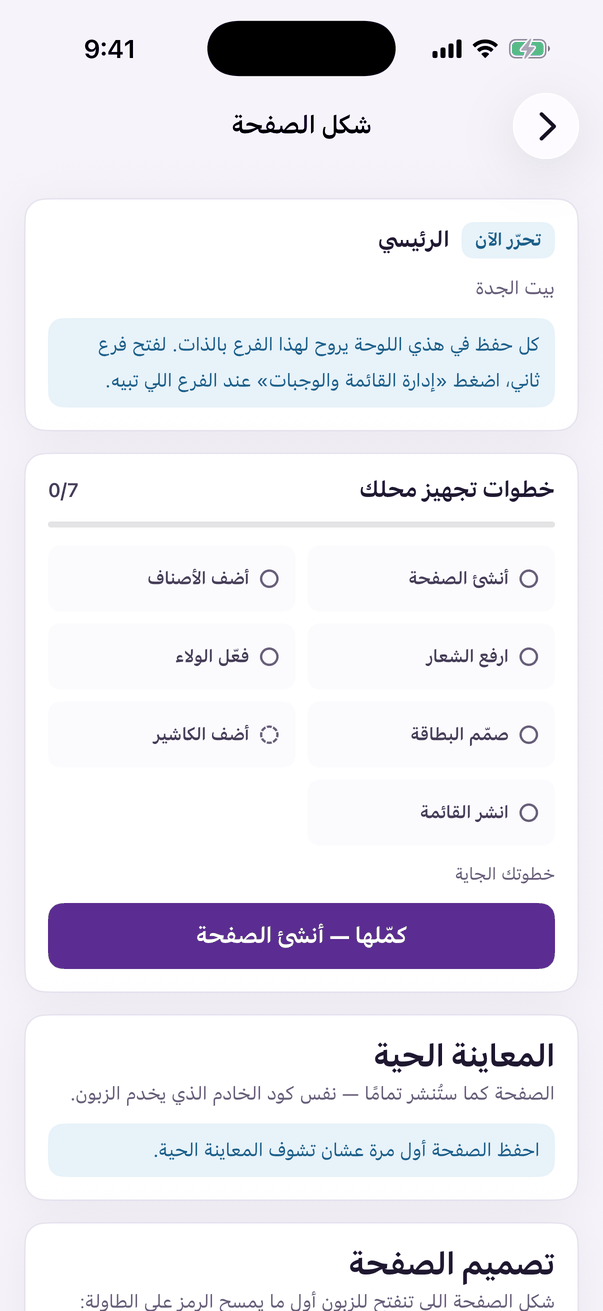
«Page design»: theme, colours and cover. - Set your primary brand colour if you have an official one. It overrides the theme's and carries onto both the page and the card.
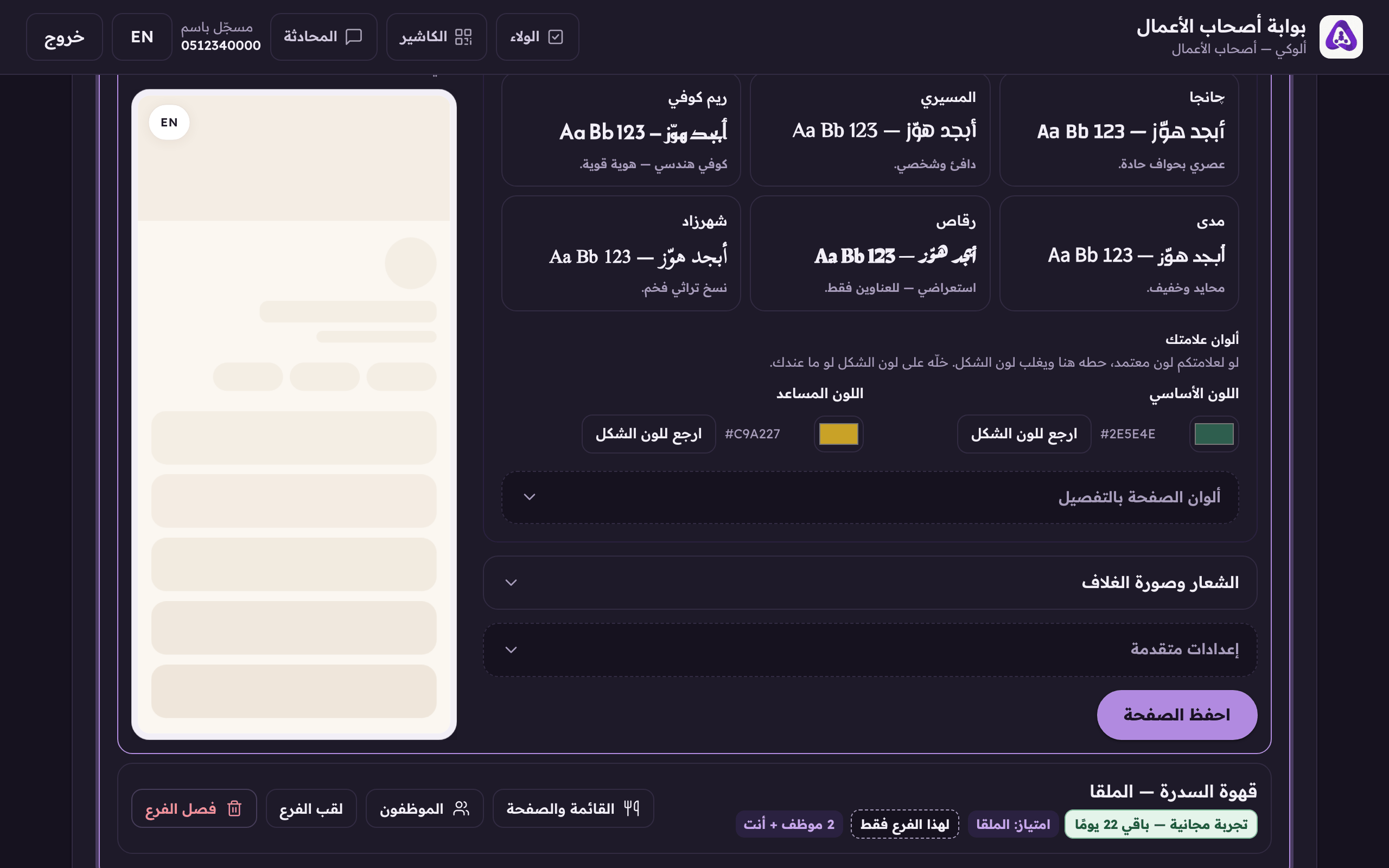
Your brand colour. It carries onto the page and the card. - For any colour you would rather not control, press «Back to the theme's colour» and it hands back.
- For a gradient instead of a flat colour, press «Add a gradient», and you may add a third colour.
- If you do not know what the thing you want changed is called, describe it in plain Arabic and press «Write the CSS for me». We write the styling and you see it in the preview before saving.
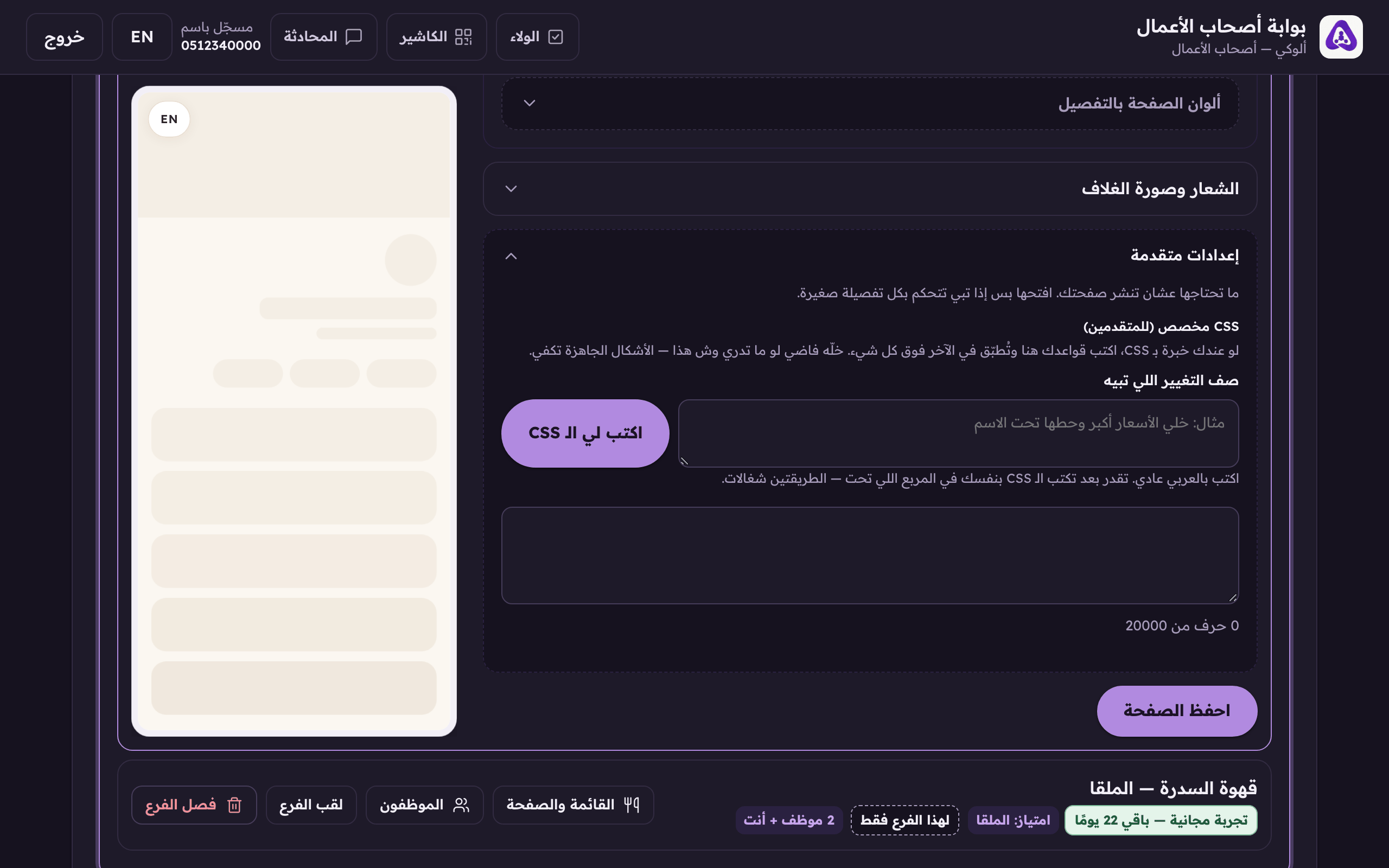
Describe the change in your own words and press this. We write the styling for you.