 Aloke
AlokeOpening hours
Each day's hours, shifts that cross midnight, and meal-serving windows.
- Aloke Owners
- Web, iPhone and iPad, Android
Your opening hours print on your page, and Aloke leans on them when somebody asks «are they open now?». They are opening times only. Nothing to do with which meals you serve.
- In the Aloke Owners app, open «Your business» from the home screen, then «Opening hours». (iPhone and iPad, Android)
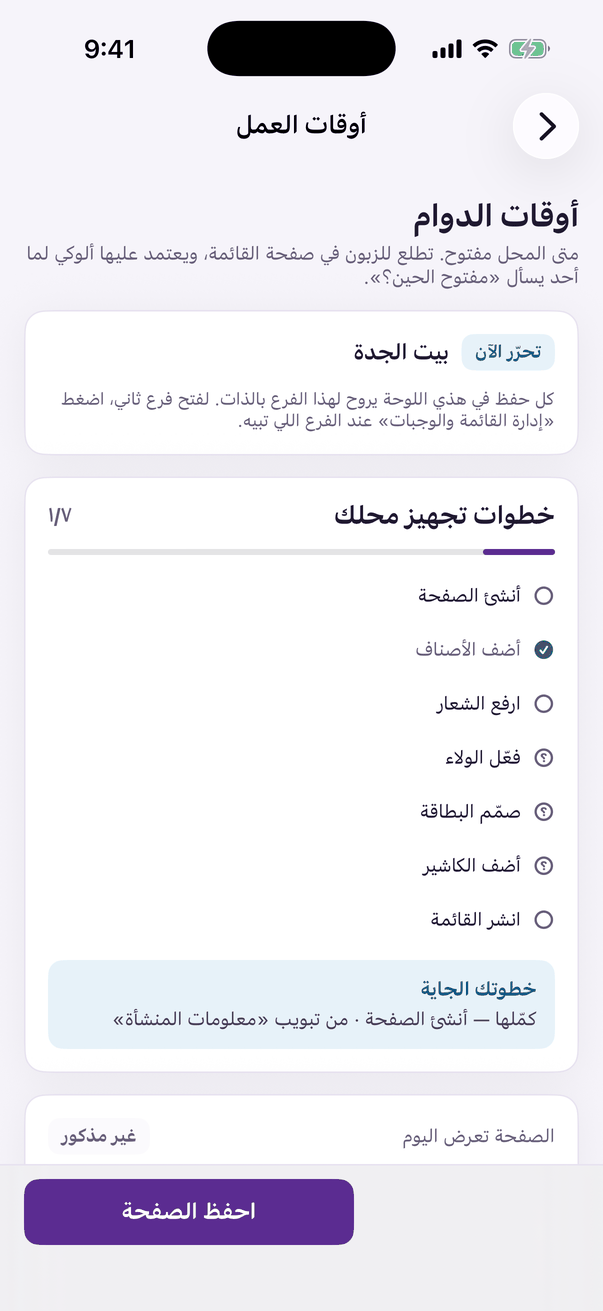
«Opening hours»: when your door is open, day by day. - For each day, choose its state: open, closed, or unset.
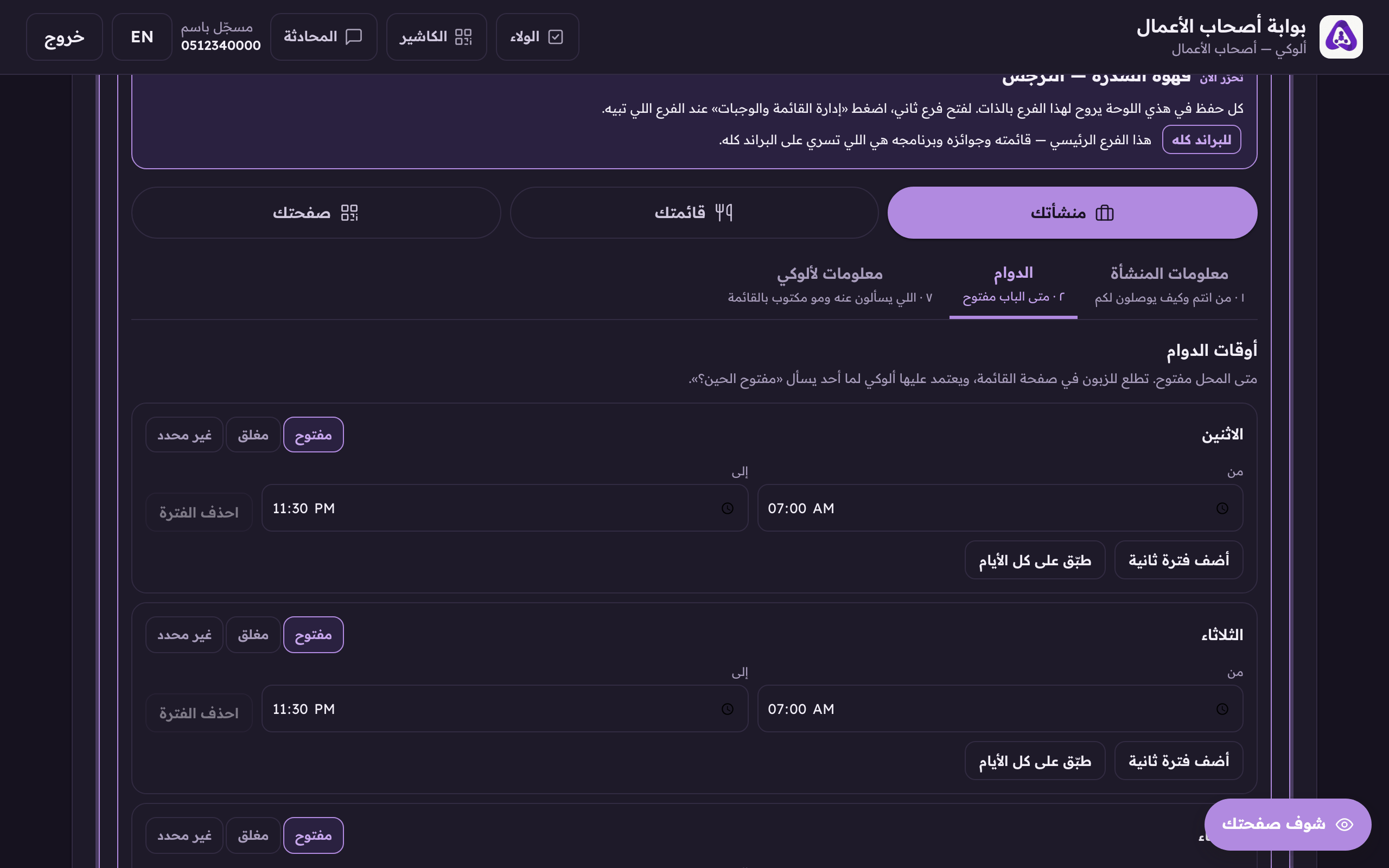
Every day has three states: open, closed, unset: «closed» means the day off. - For an open day, enter the opening and closing time.
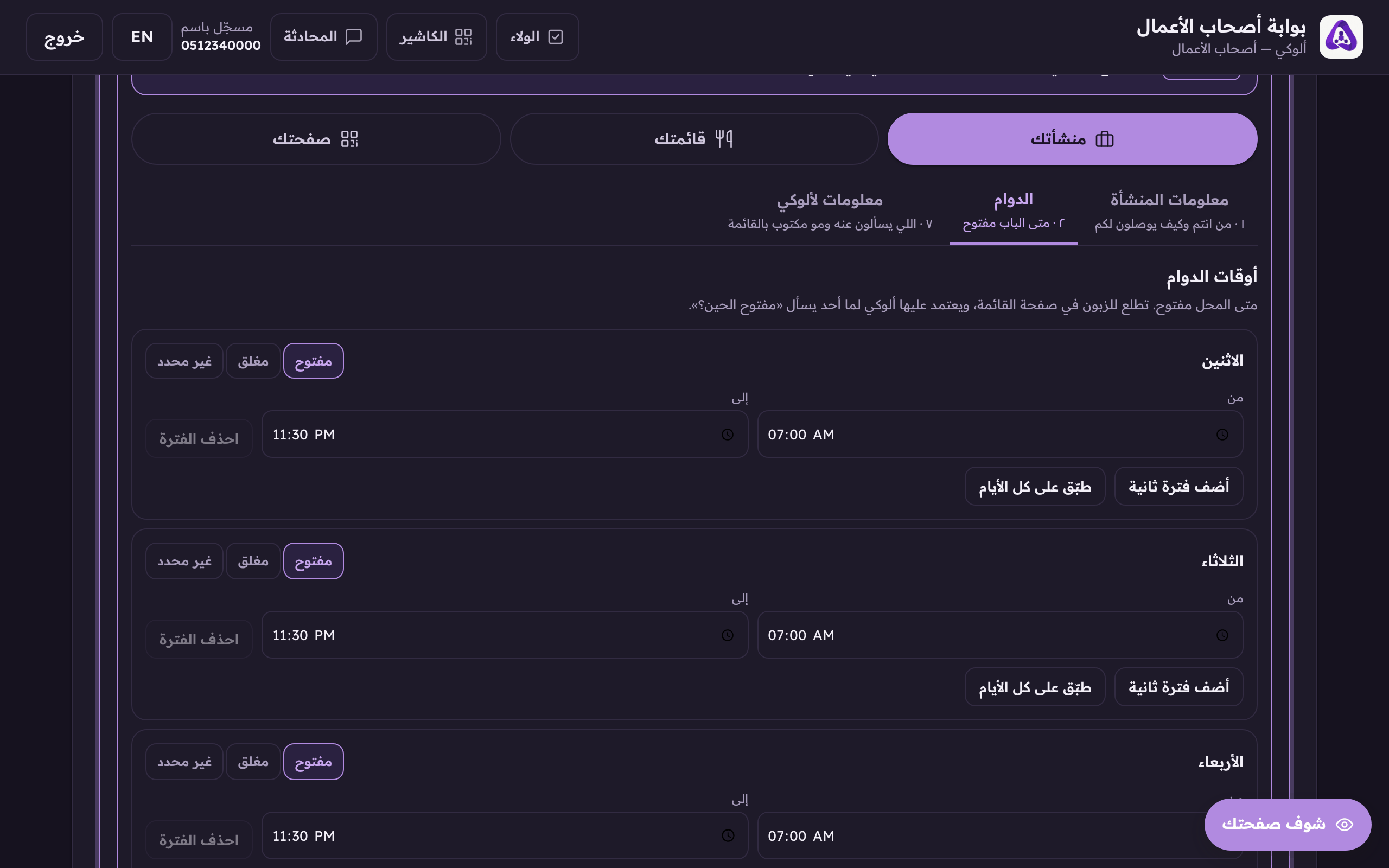
This day's opening time. - If you shut at midday and reopen later, press «Add a second period». You can have up to four periods in one day.
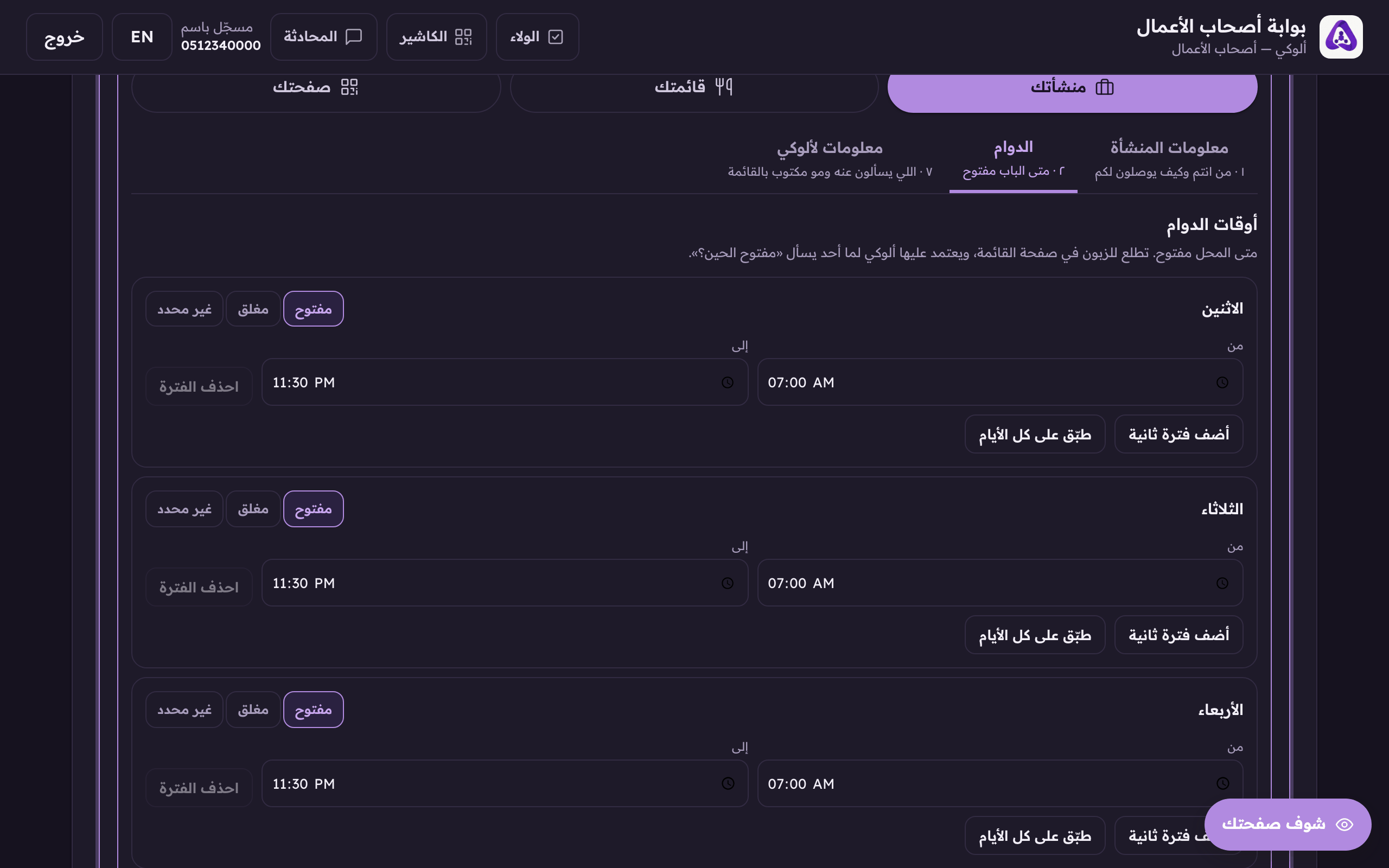
«Add a second period» for shops that shut at midday and reopen later. - If your week is the same every day, fill one day in and press «Apply to every day».
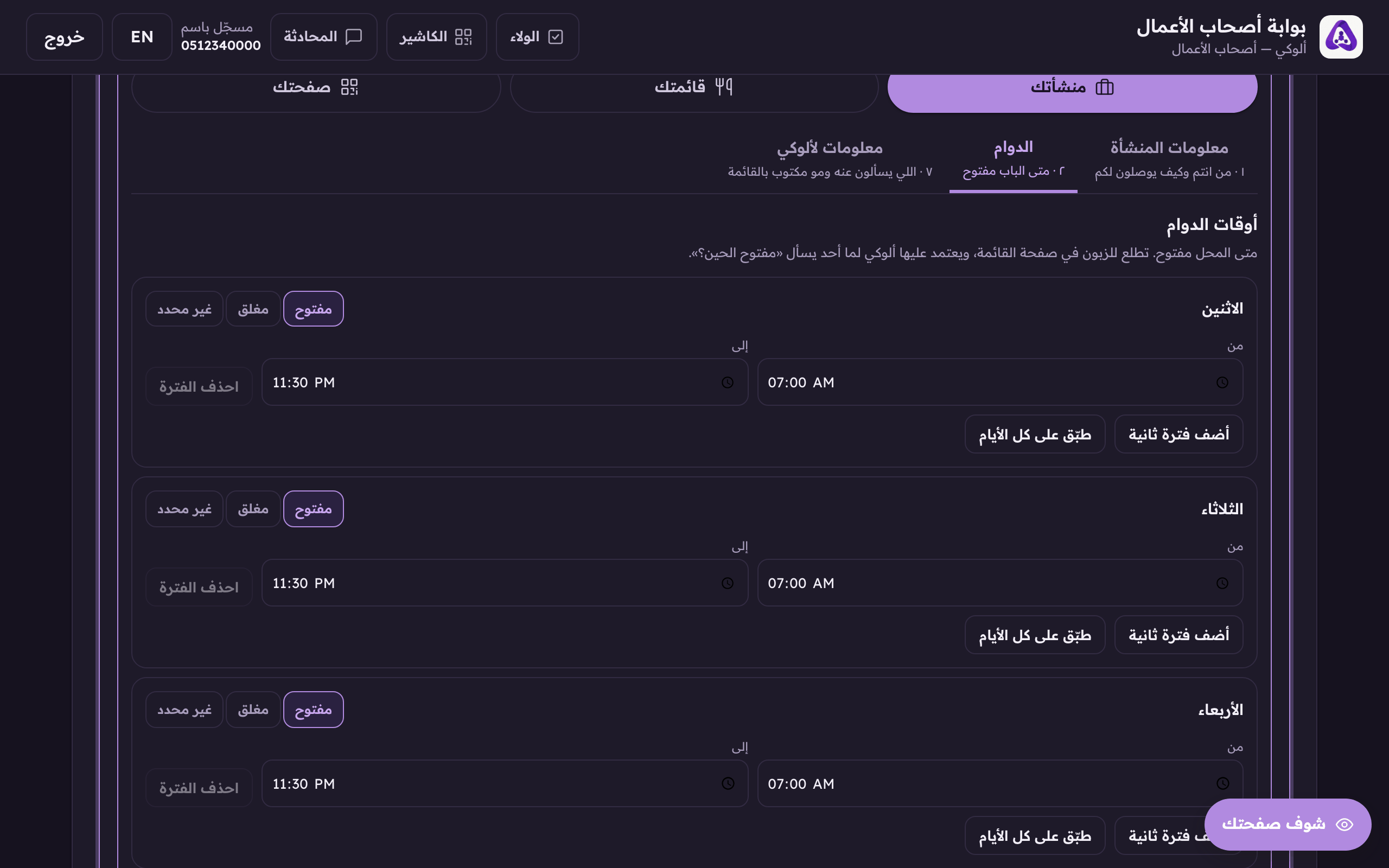
«Apply to every day» copies this day's hours to the rest of the week.
Meal-serving windows
Under the hours sit the meal-serving windows, and they are entirely optional. Give a meal a window, breakfast from 7 to 11, say, and its dishes only appear inside that window. Leave it empty and the meal is served for as long as you are open.
- To give a meal a window, fill in «from» and «to» on its row. The moment both are set, the word beside the row changes from «all day» to «timed». That word is the system reporting back, not a button you press.
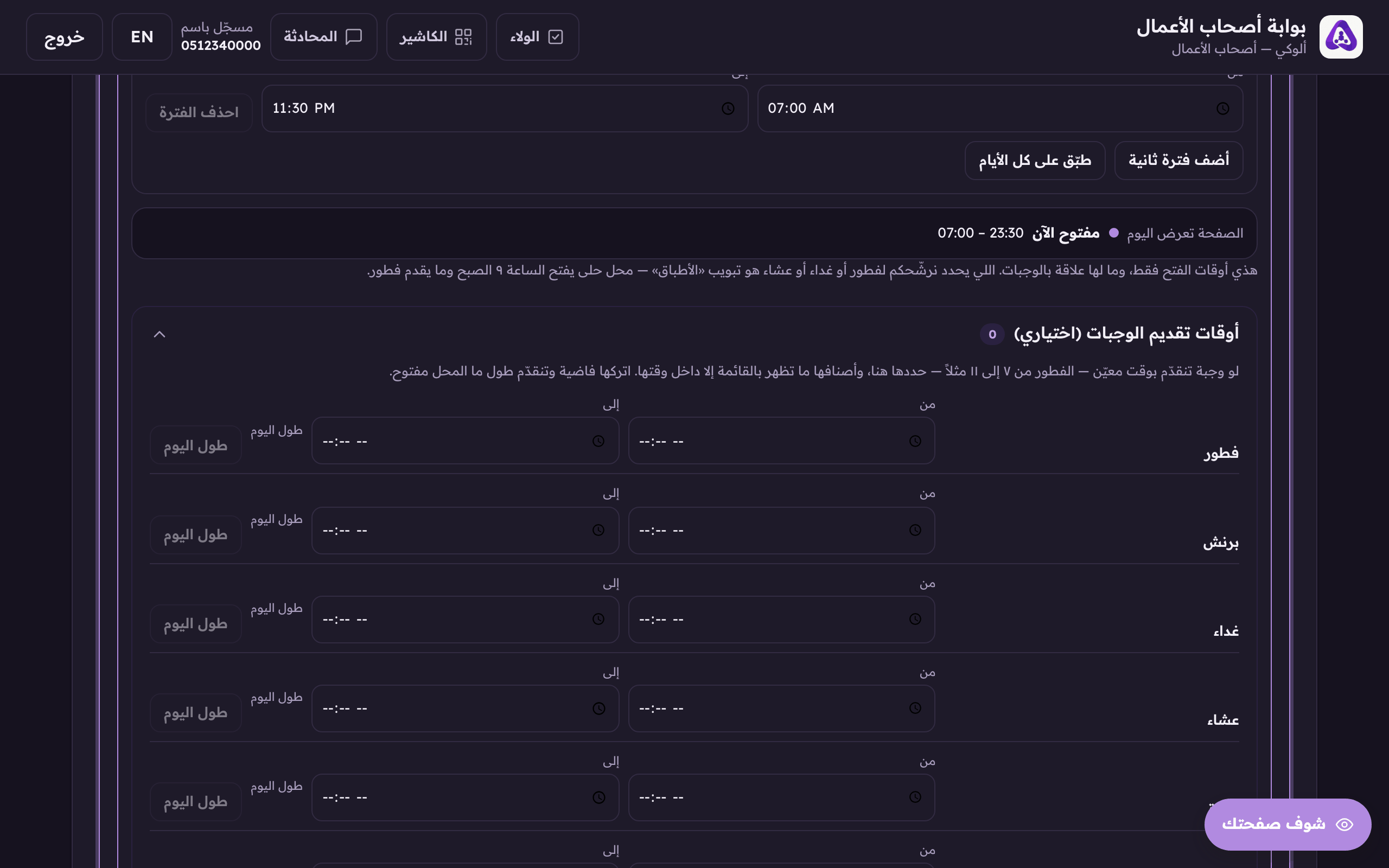
A meal's row: a «from» box, a «to» box, and the word beside them reading «all day» until both are filled, then «timed». That word is a report, not a button. - To clear the window and go back to all day, press «All day» on the same row.
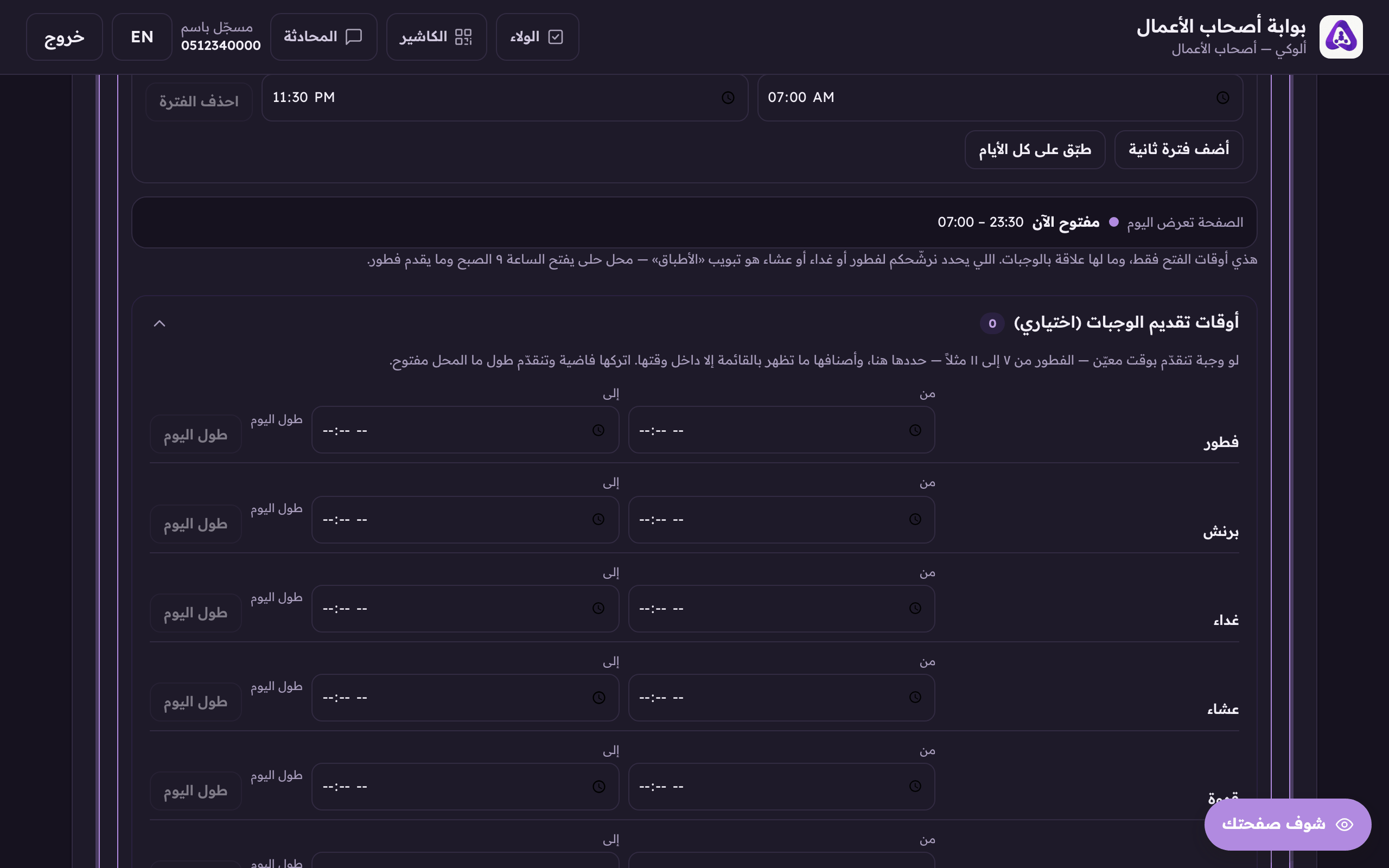
«All day» clears the window and puts the meal back on for your whole opening day.