 Aloke
AlokeThe QR card
Sizes, the card's look, printing, and why changing your link breaks what you printed.
- Aloke Owners
- Web, iPhone and iPad, Android
The card is the thing that sits on your table. A customer scans the code and your menu opens on their phone, with your logo in the middle of the code. (Web)
- In the Aloke Owners app, open «Your page» from the home screen, then «QR card». (iPhone and iPad, Android)
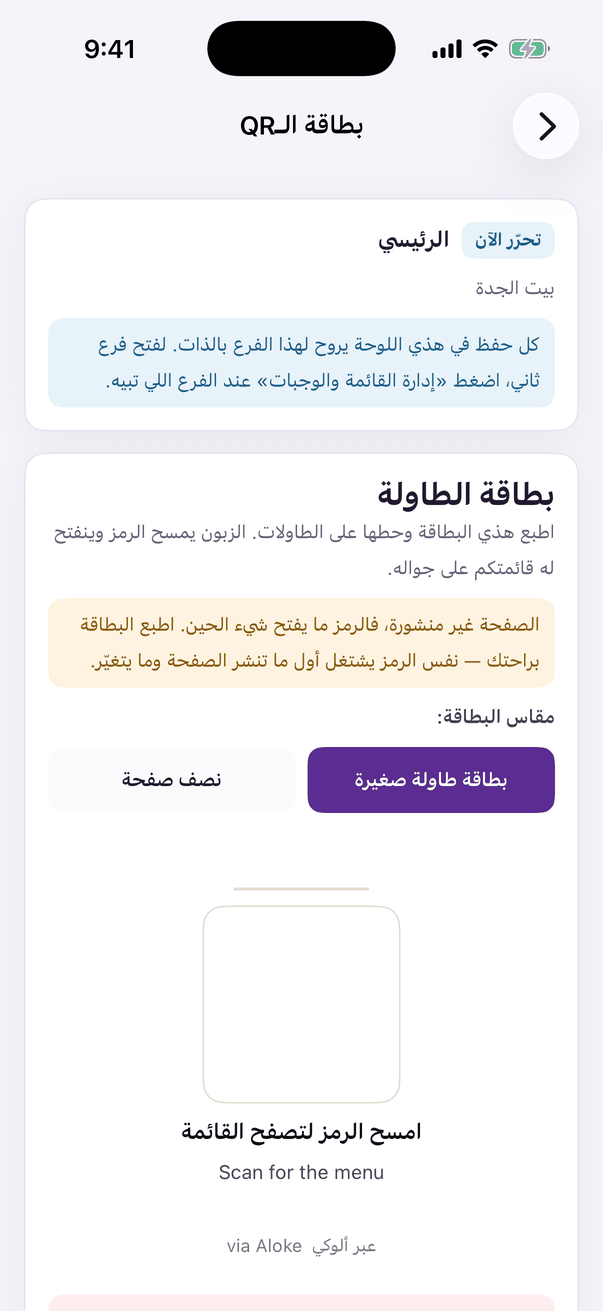
«QR card»: the code that brings a customer to your page. - Open the «QR card» tab and choose the size: a small table tent, or half a page. (Web)
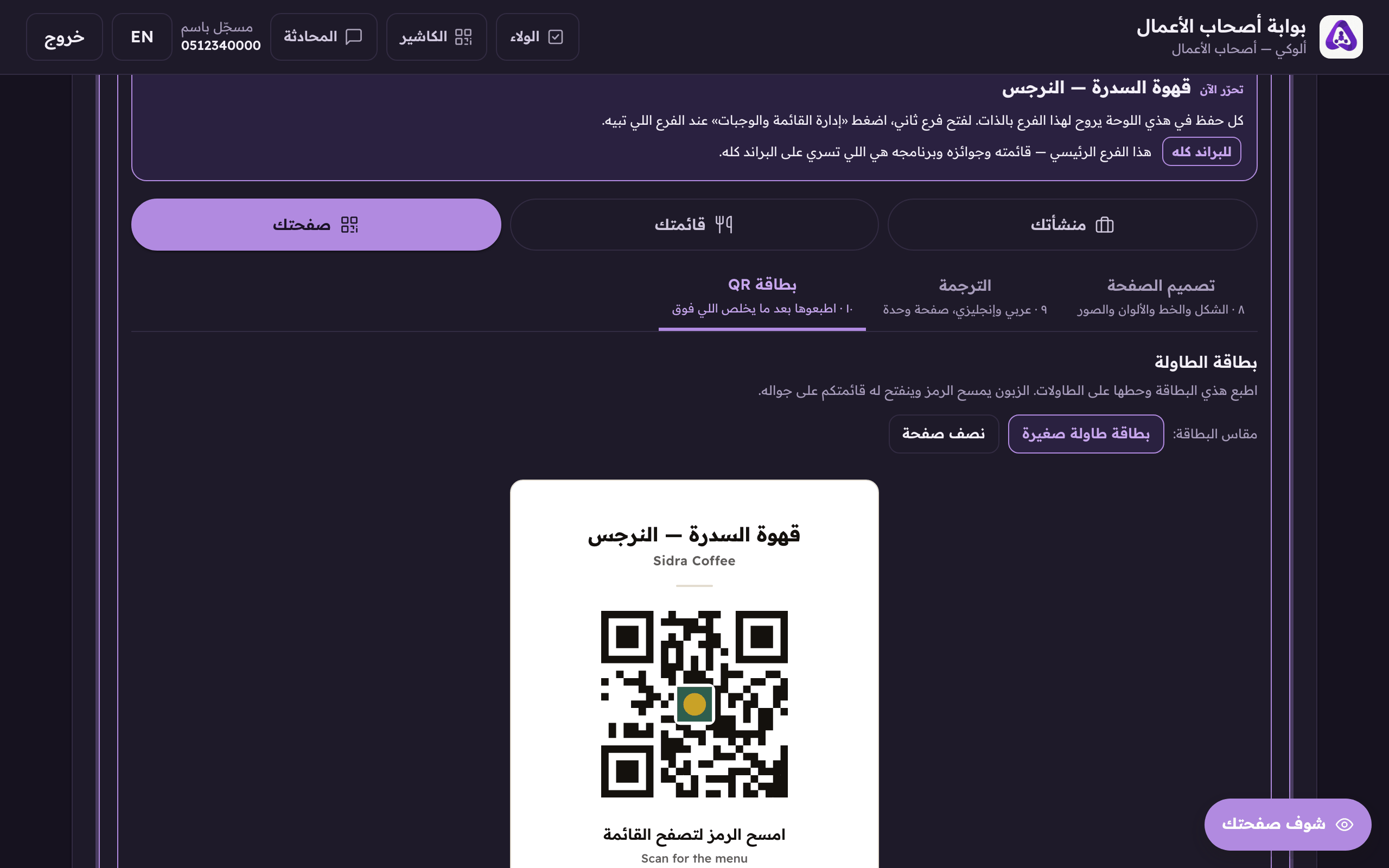
The size of the card you print and stand on the table. - Choose the card's colours, or let it follow your page theme's palette.
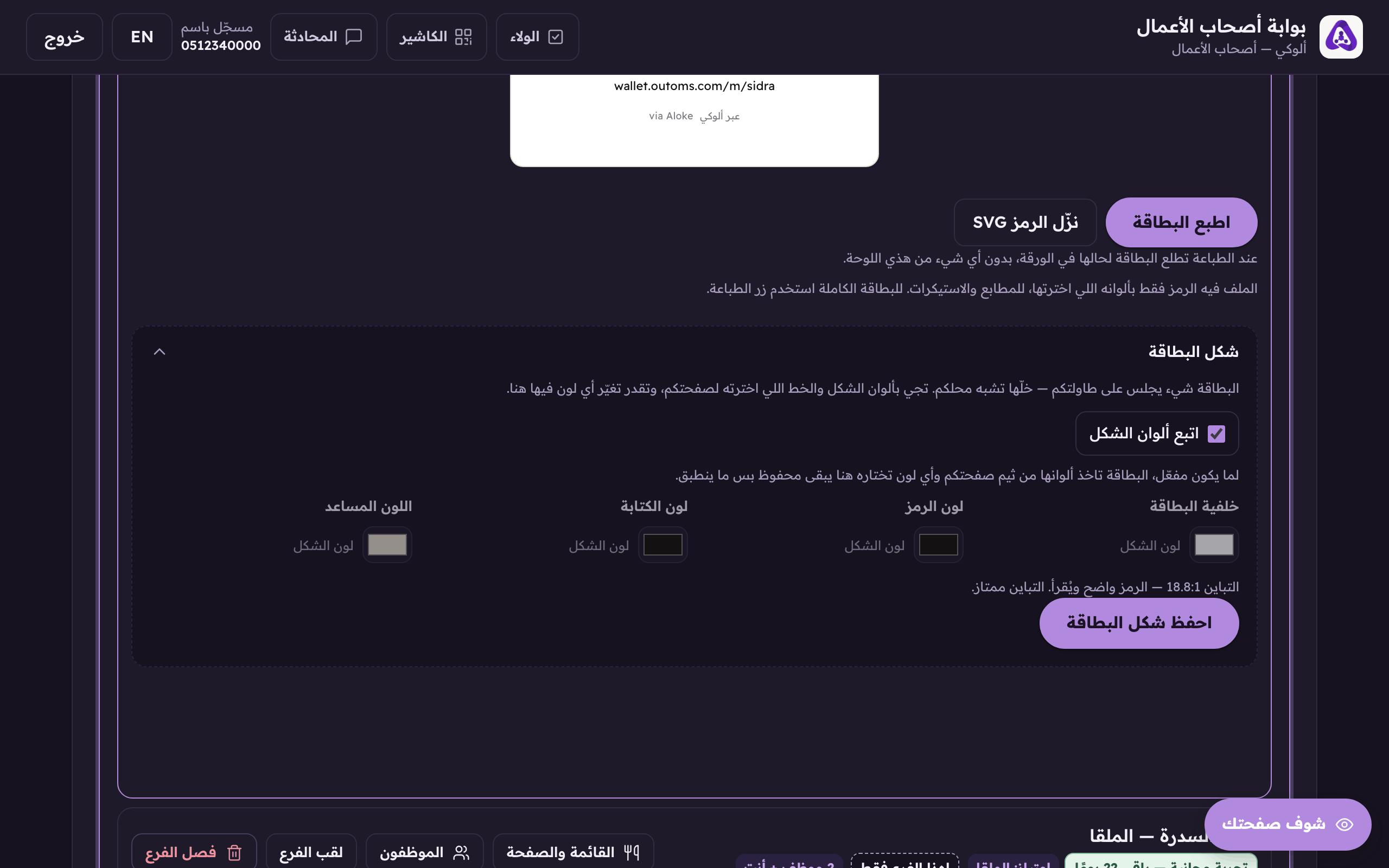
«Follow the theme's colours» lets the card take your page's palette by itself, untick it to choose every colour yourself. - Press «Save the card's look».
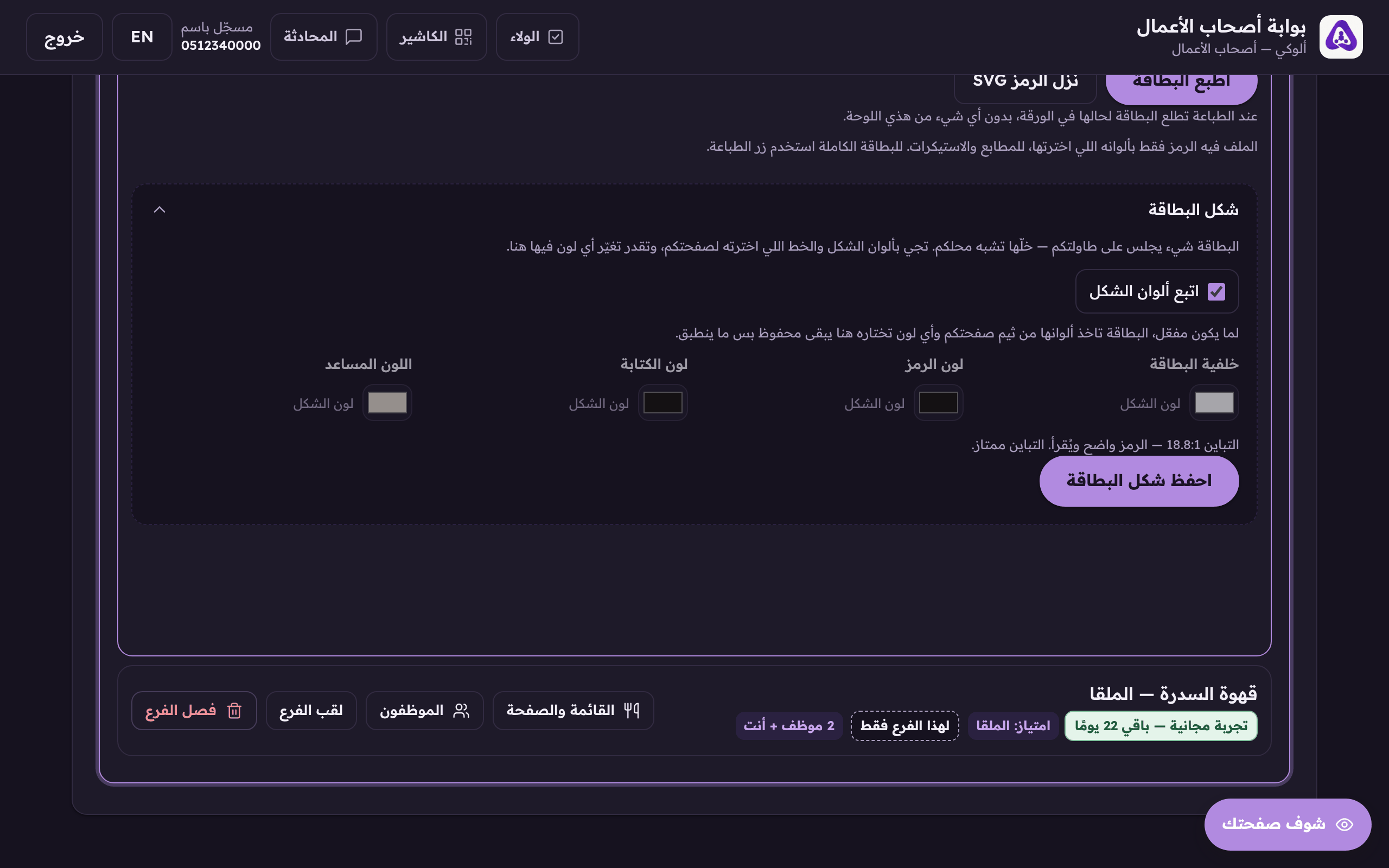
Save the card's look once its colours are chosen. - Press «Print the card». The card lands alone on the sheet with none of the console around it.
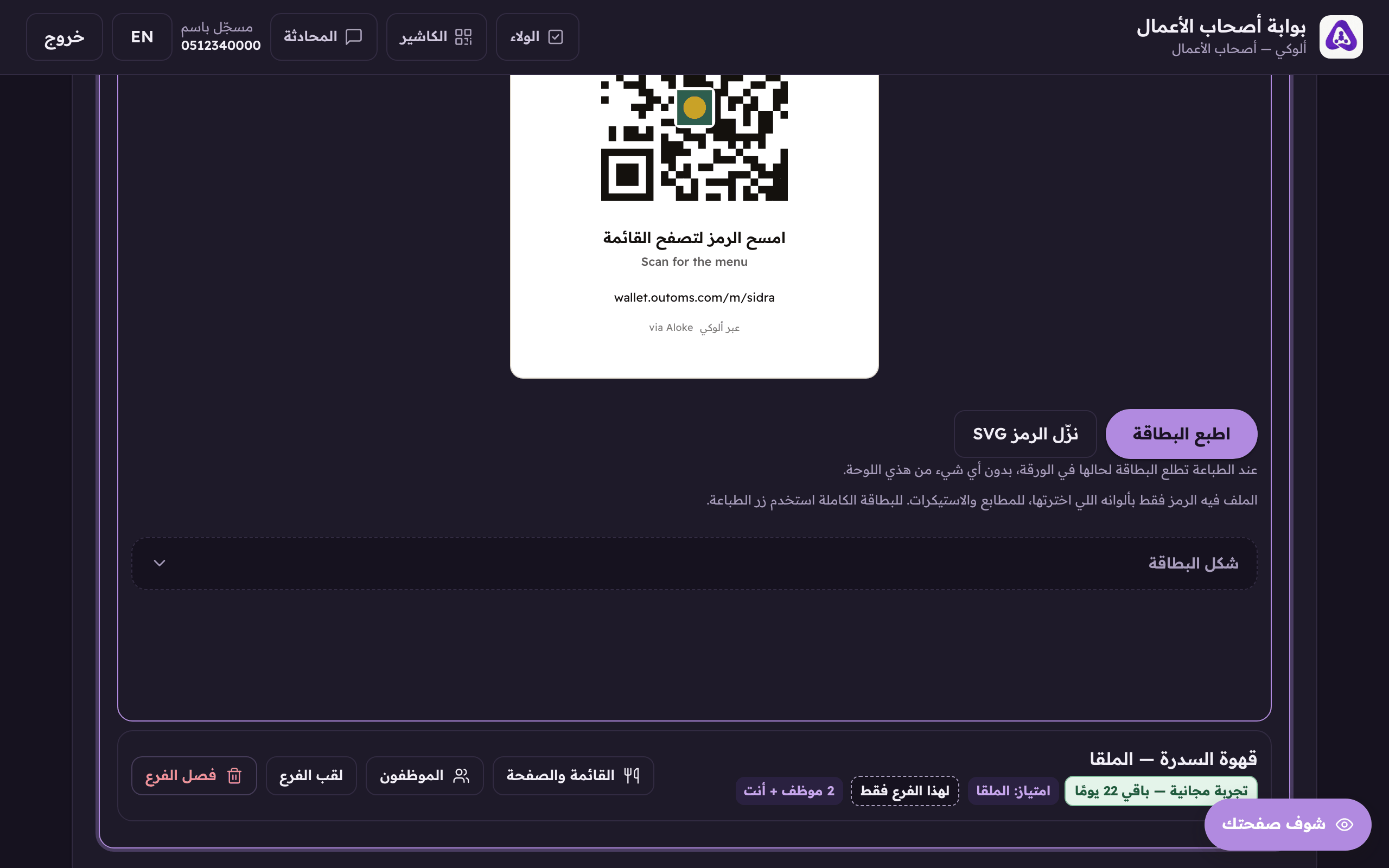
«Print the card» produces a print-ready sheet with the QR code. - If your designer is putting the code into something else, a sticker, a sign, press «Download the QR as SVG». The file holds only the code, in the colours you chose.
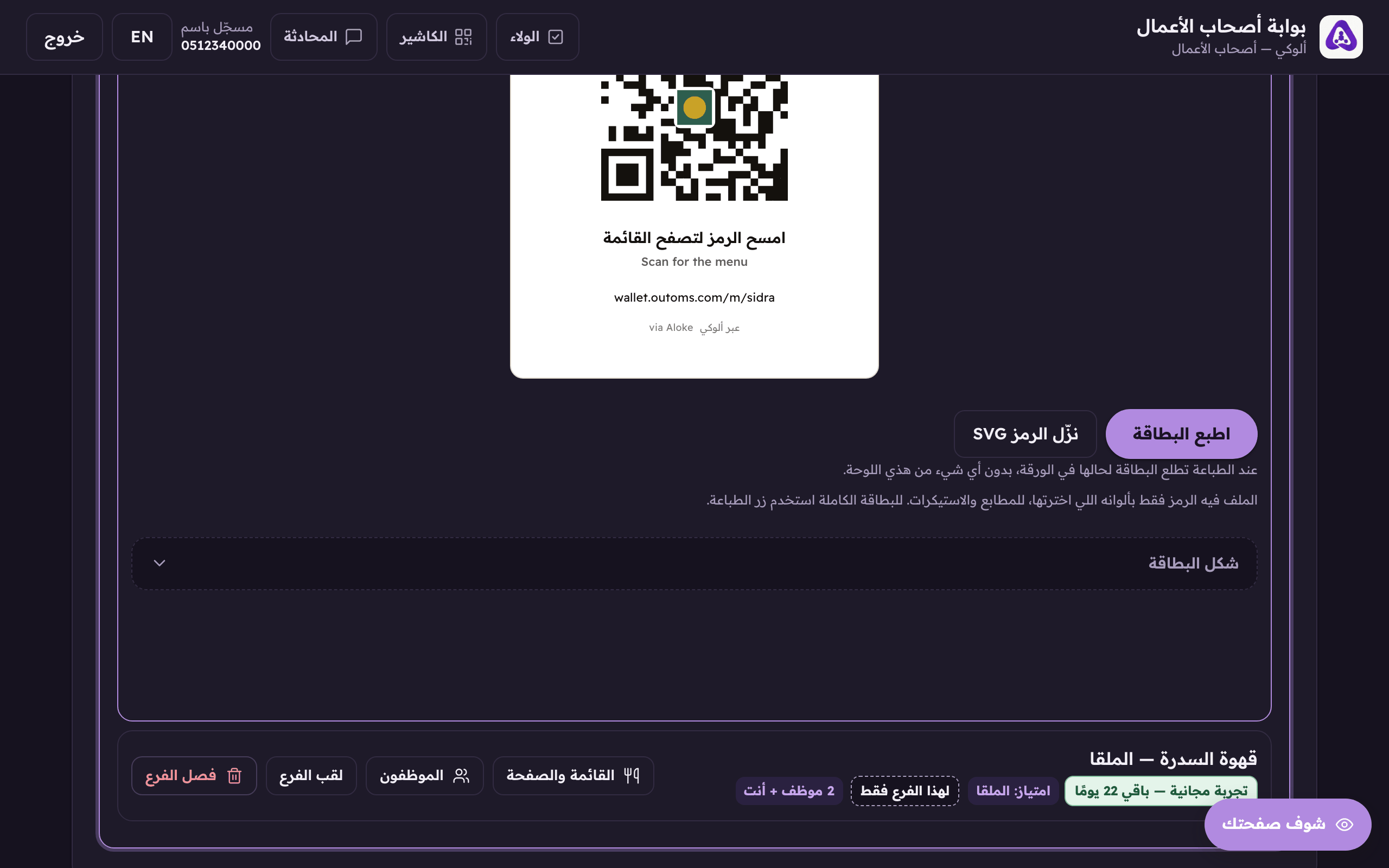
«Download the QR as SVG» when your designer needs it in something else.