 Aloke
AlokeDish photos
Uploading, cutting out the background, and which version your menu shows.
- Aloke Owners
- Web, iPhone and iPad, Android
A dish photo is optional. Every theme looks complete without one. But a clean photo lifts orders for the dish it sits on more than anything else in this console.
- In the Aloke Owners app, open «Your menu» from the home screen, then «Items». (iPhone and iPad, Android)
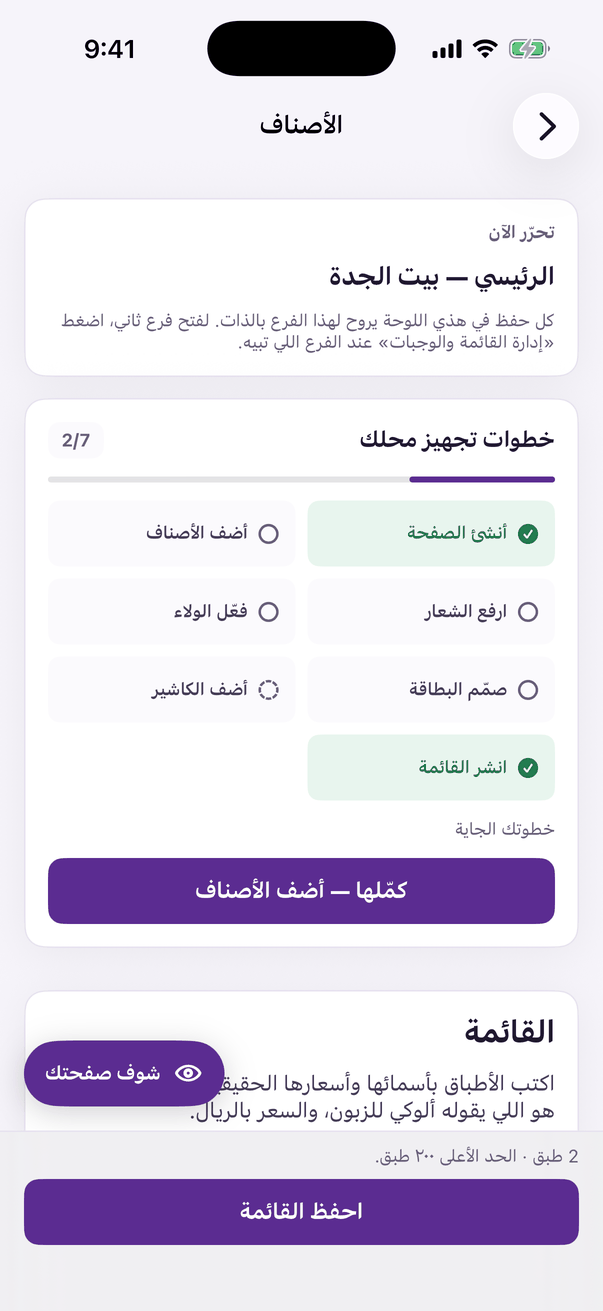
«Items»: the price and photo of every item. - Open the dish's details and press its photo button: it reads «Upload image» while the dish has none and «Replace image» once it does. Send the picture straight from your phone without shrinking it. We resize and convert it for you.
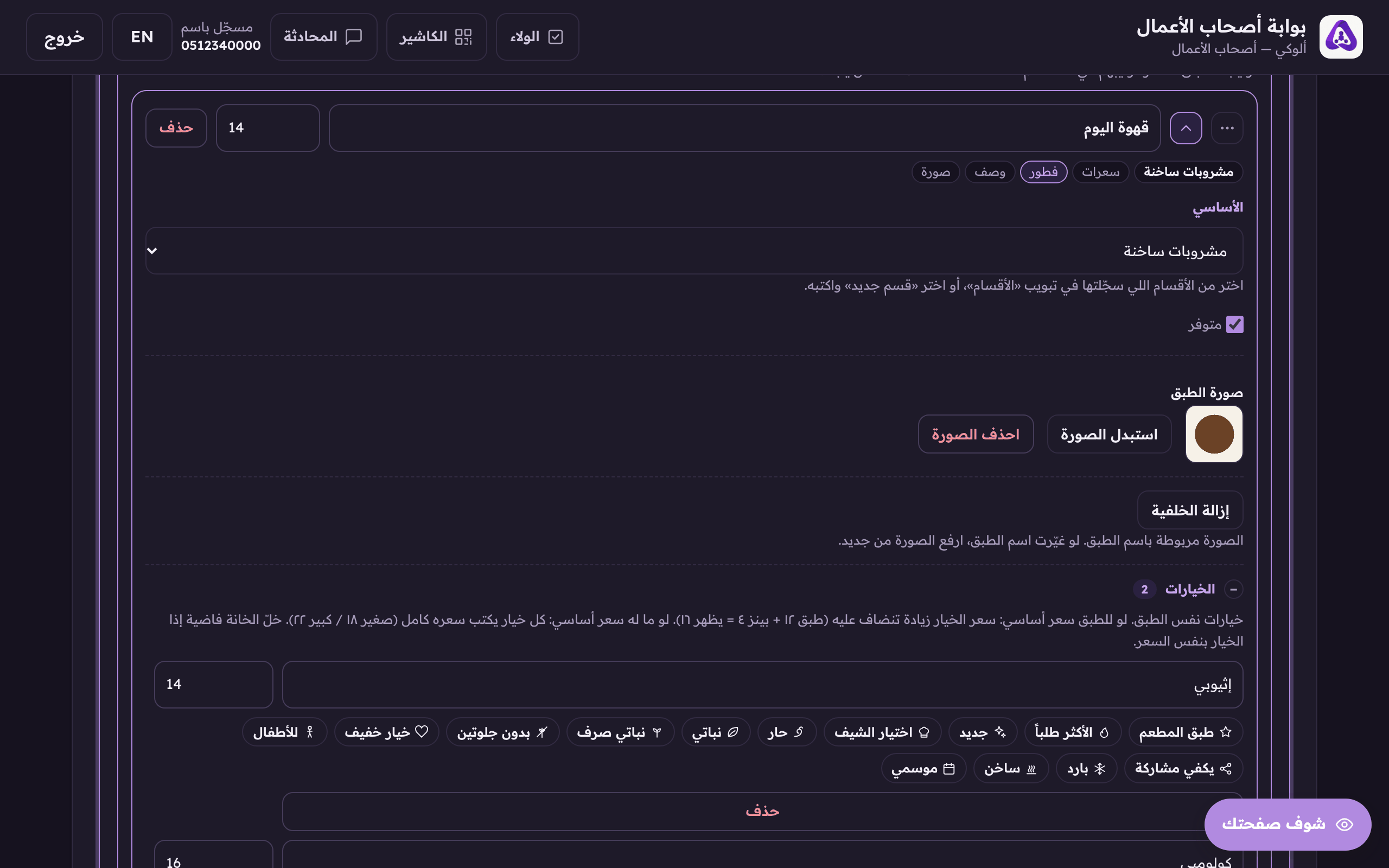
This one dish's photo button: «Upload image» while it has none, «Replace image» once it does. - If you want the dish with no background, press «remove the background» under its photo. We take it off, and the same button turns into «restore the background» if you do not like the result.
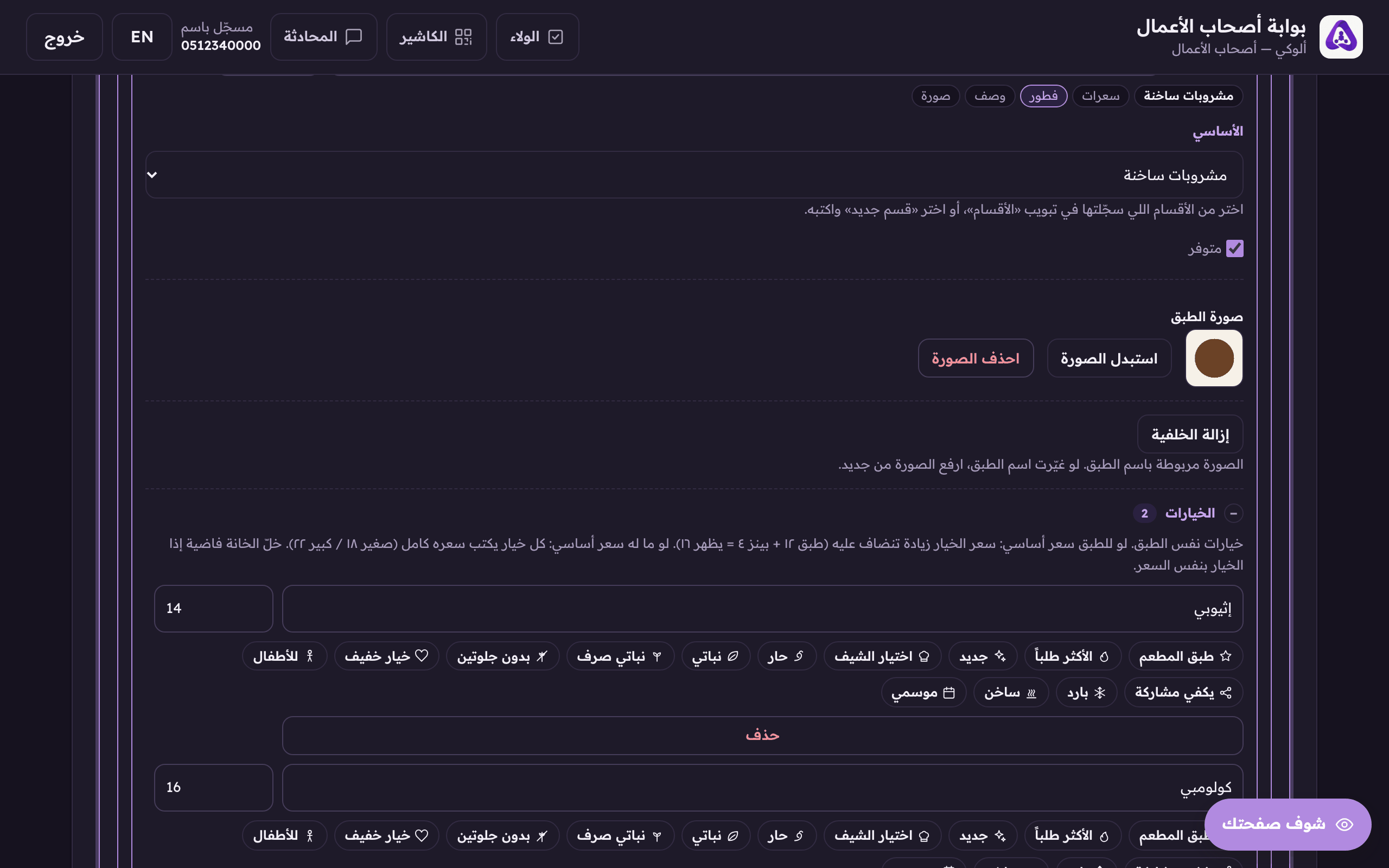
«Remove the background» on a dish photo. The same button turns into «restore the background» if you do not like the result. - The two versions side by side, «which version shows on the menu?», are on the logo and the cover, in the «page design» tab. A dish photo is one button that toggles back and forth. (Web)
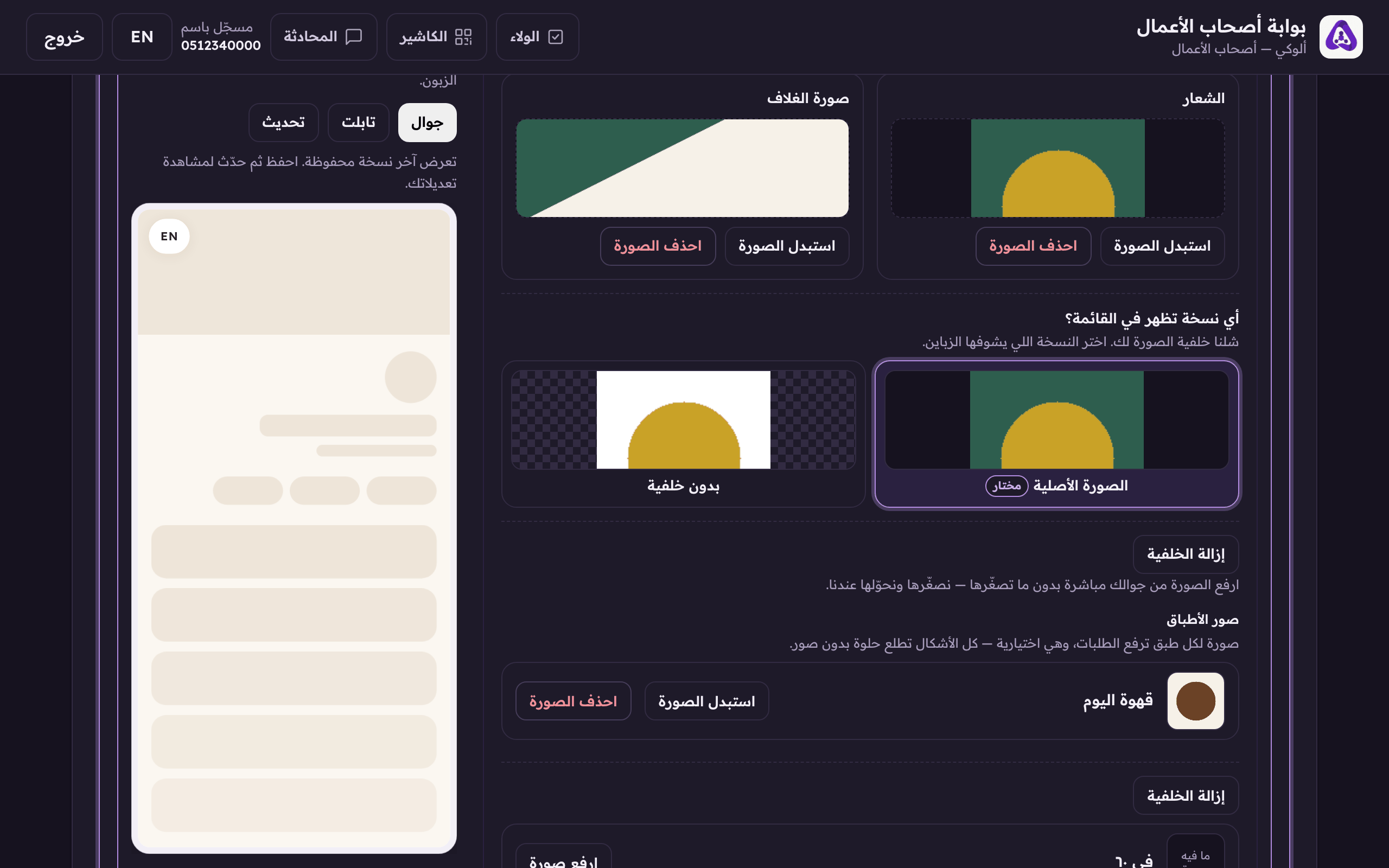
«Which version shows on the menu?», both side by side, and the one you pick is the one the customer sees.