 Aloke
AlokeMenu sections
How the dishes group for the customer, their order, and deleting a section that still has dishes. Plus the wholesale section: off the customer menu and onto your wholesale page.
- Aloke Owners
- Web, iPhone and iPad, Android
Sections are the headings your dishes group under: «Starters», «From the grill», «Desserts». The order here is exactly the order your customer reads them in.
- In the Aloke Owners app, open «Your menu» from the home screen, then «Menu sections». (iPhone and iPad, Android)
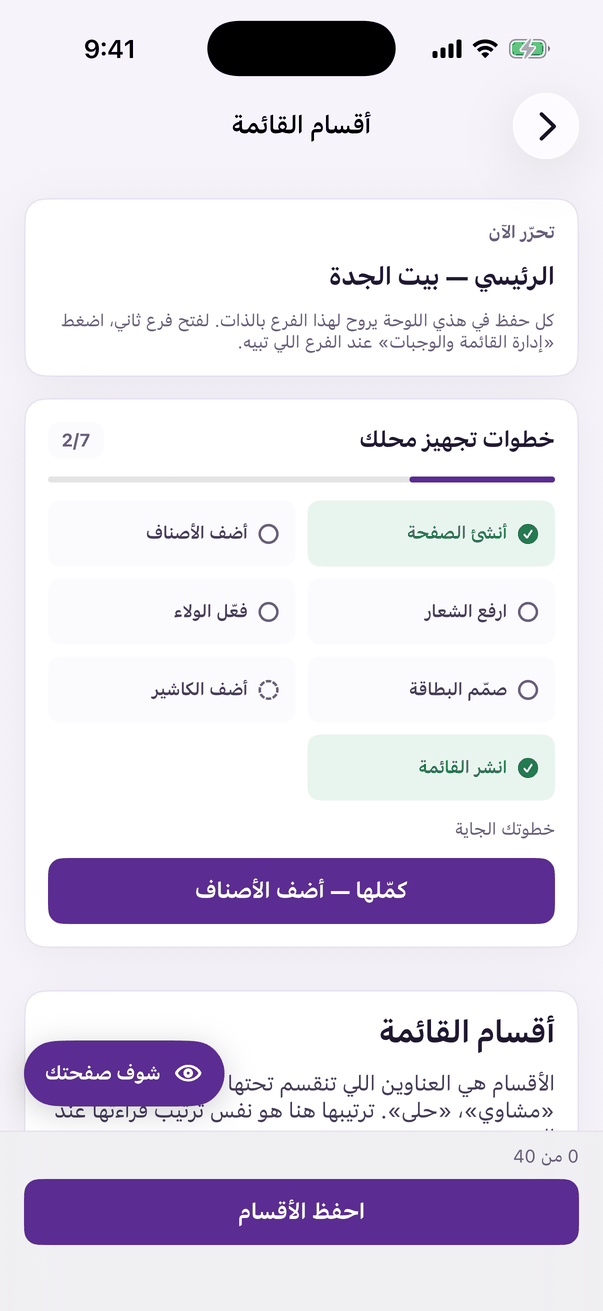
«Menu sections»: your menu's headings and their order. - Press «Add section».
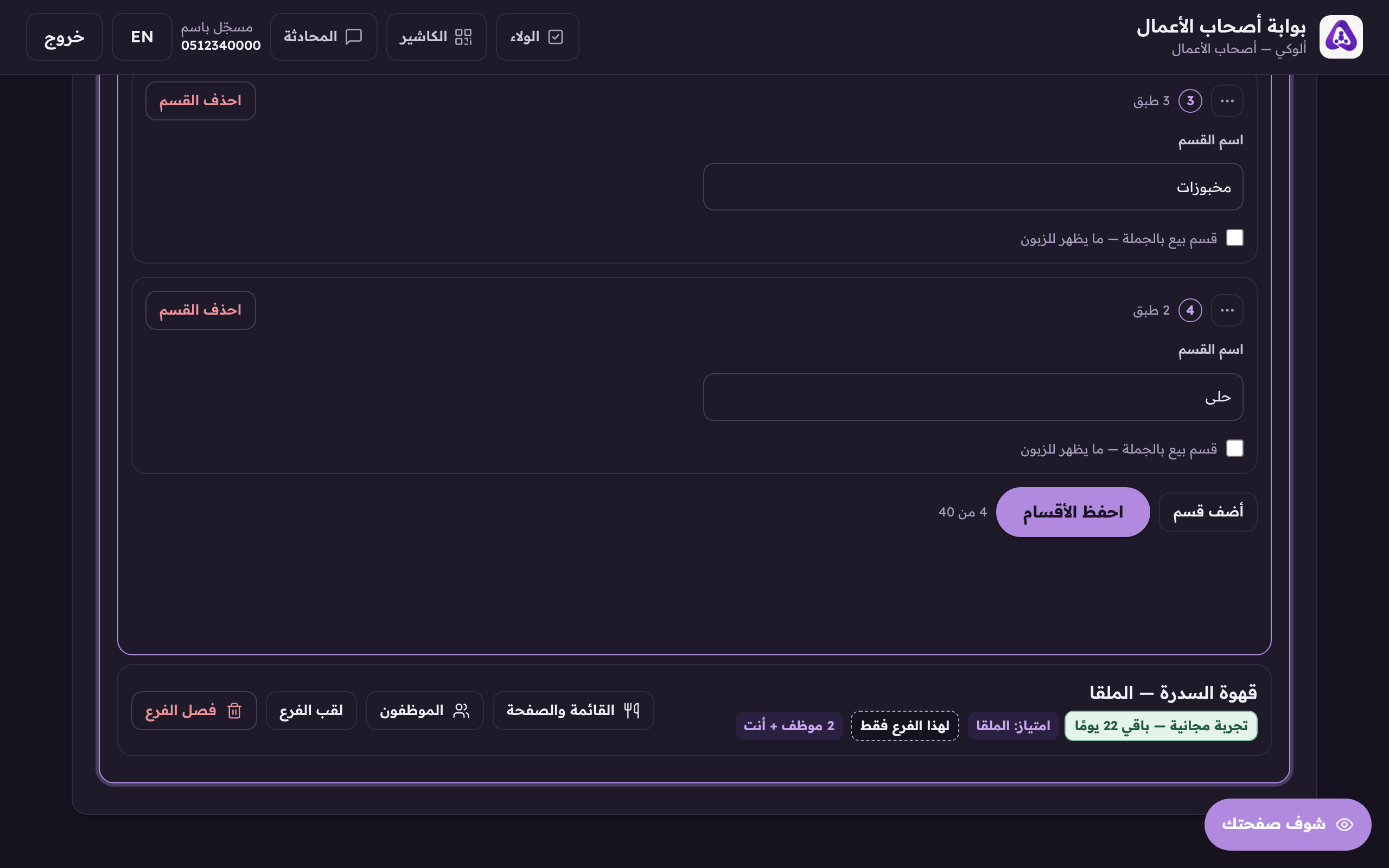
«Add section» adds another heading to your menu. - Type the section name in Arabic. English is optional and can be filled from the «Translations» tab. (Web)
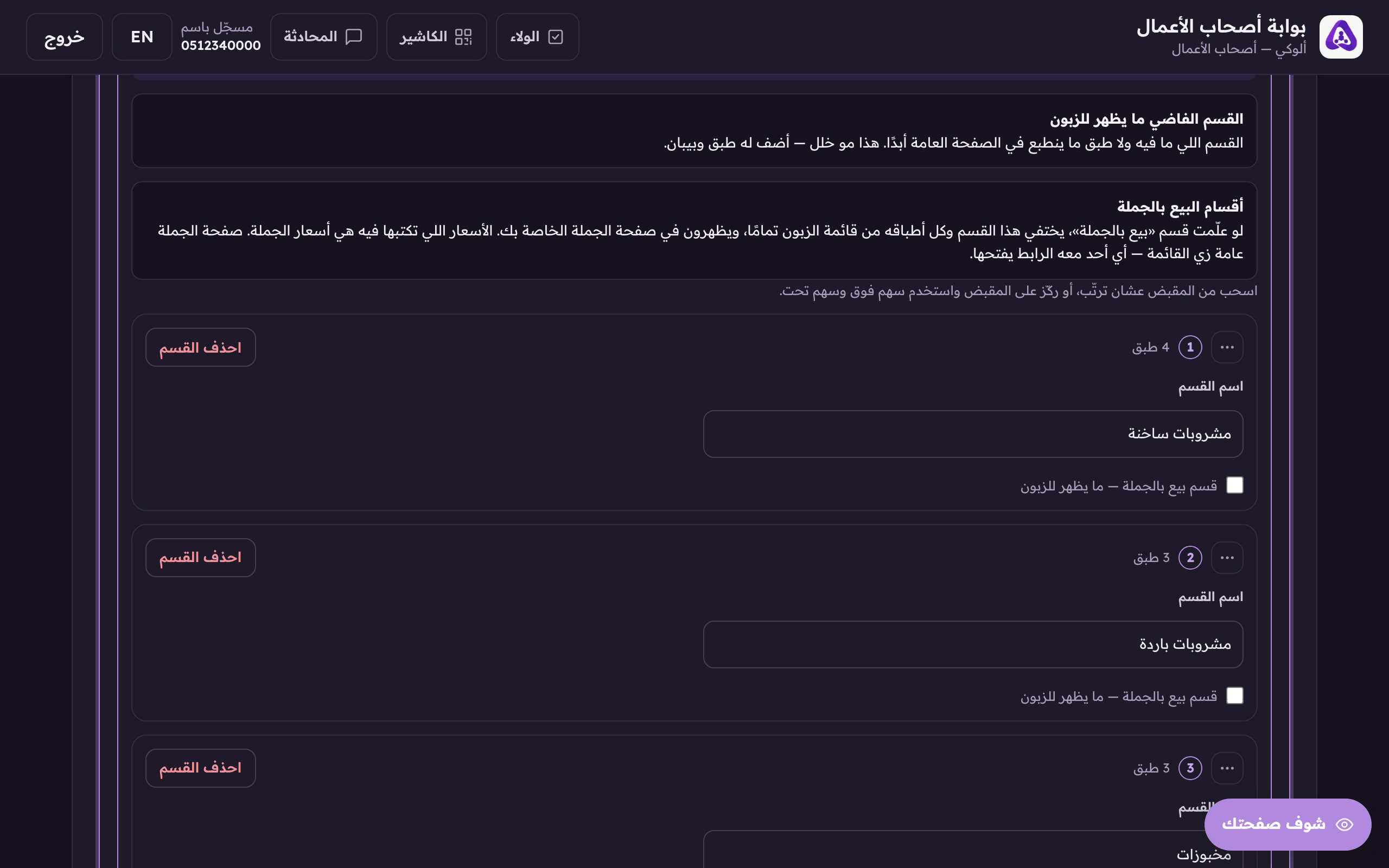
The section name: hot drinks, bakery, desserts… - Reorder the sections by dragging the handle. If dragging is awkward, focus the handle and use the up and down arrow keys.
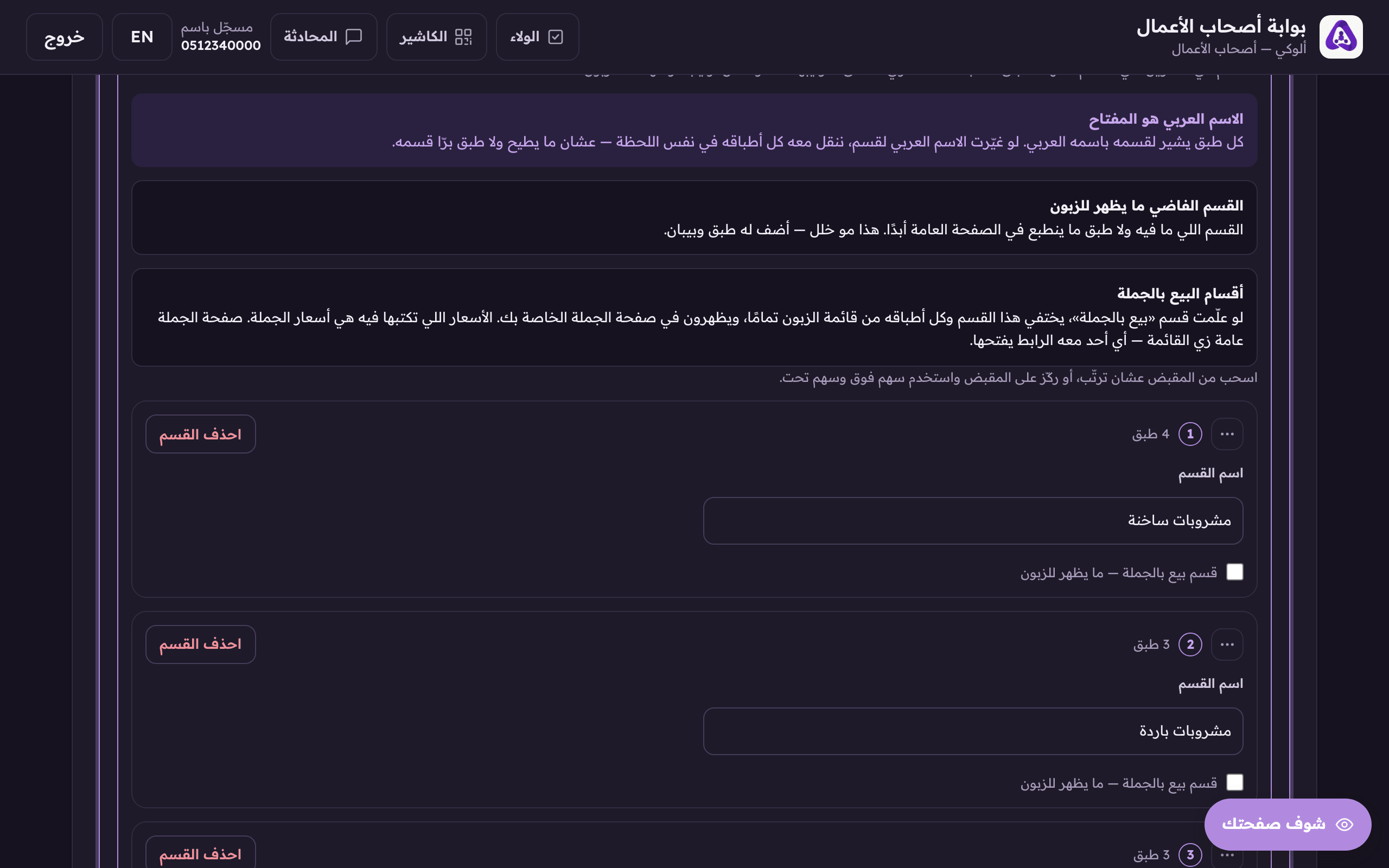
Drag from here to reorder the sections on your page. - Press «Save sections» before you move on to the dishes tab. (Web)
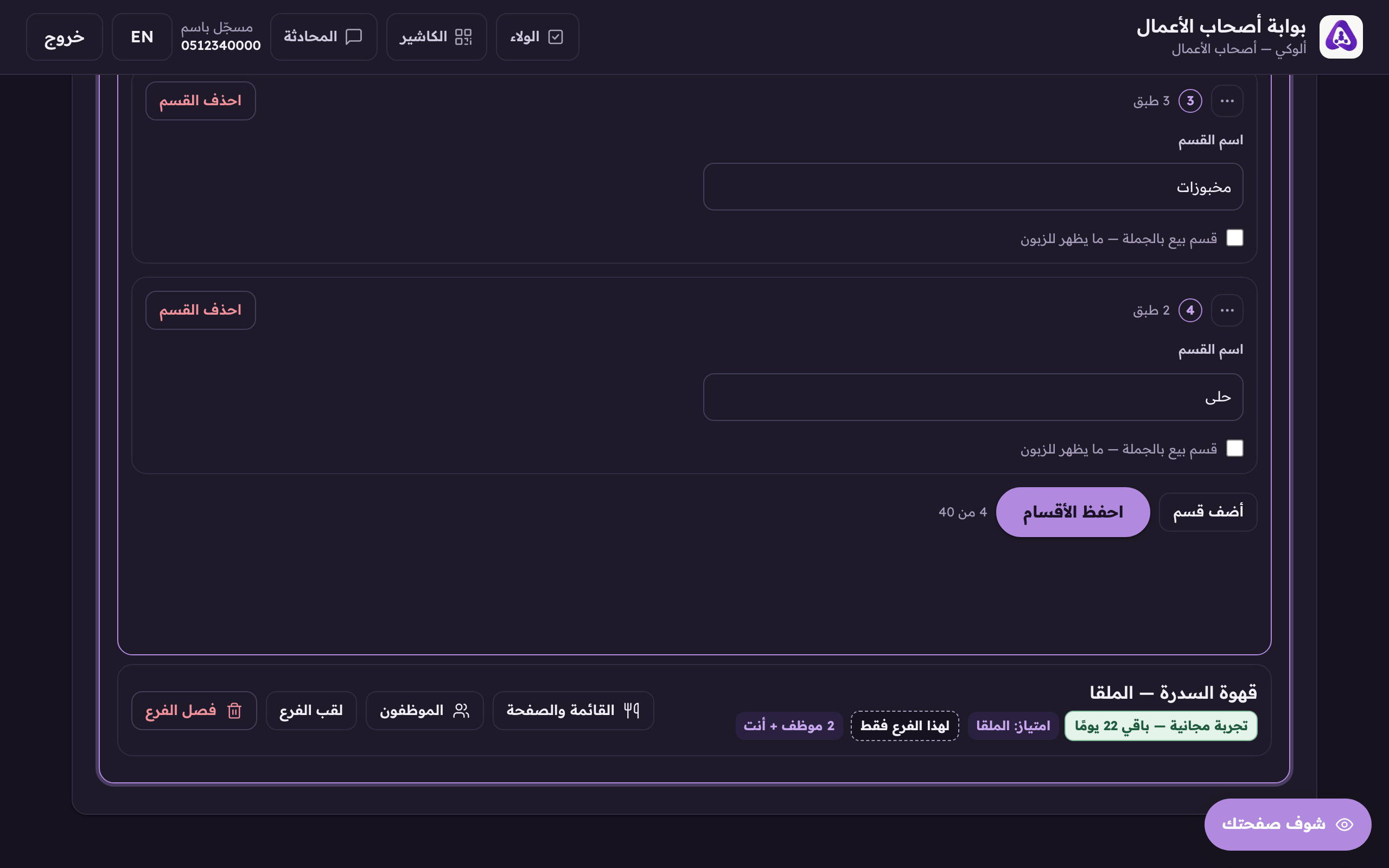
«Save sections» before moving on to the dishes tab.
The Arabic name is the key
A section's Arabic name is its key: every dish points at its section by that name. Change the Arabic name and we move all of its dishes with it in the same instant. No dish is left outside its section.
The wholesale section
Some shops sell the same thing two ways: a cup over the counter, and a whole sack to another café. So any section of yours can be marked wholesale on the «Sections» tab. A section you mark, and every dish in it, leaves your customer menu completely and appears instead on a second page of your own: your wholesale page. Same look, same type, same colours, its own link. And the prices you write in that section are your trade prices. (Web)
- On the «Sections» tab, on the row of the section you want, tick «Wholesale section — not shown to customers». A line appears under the box telling you this section and how many of its dishes have left the customer menu. Then press «Save sections». The tick is not stored until you do. (Web)
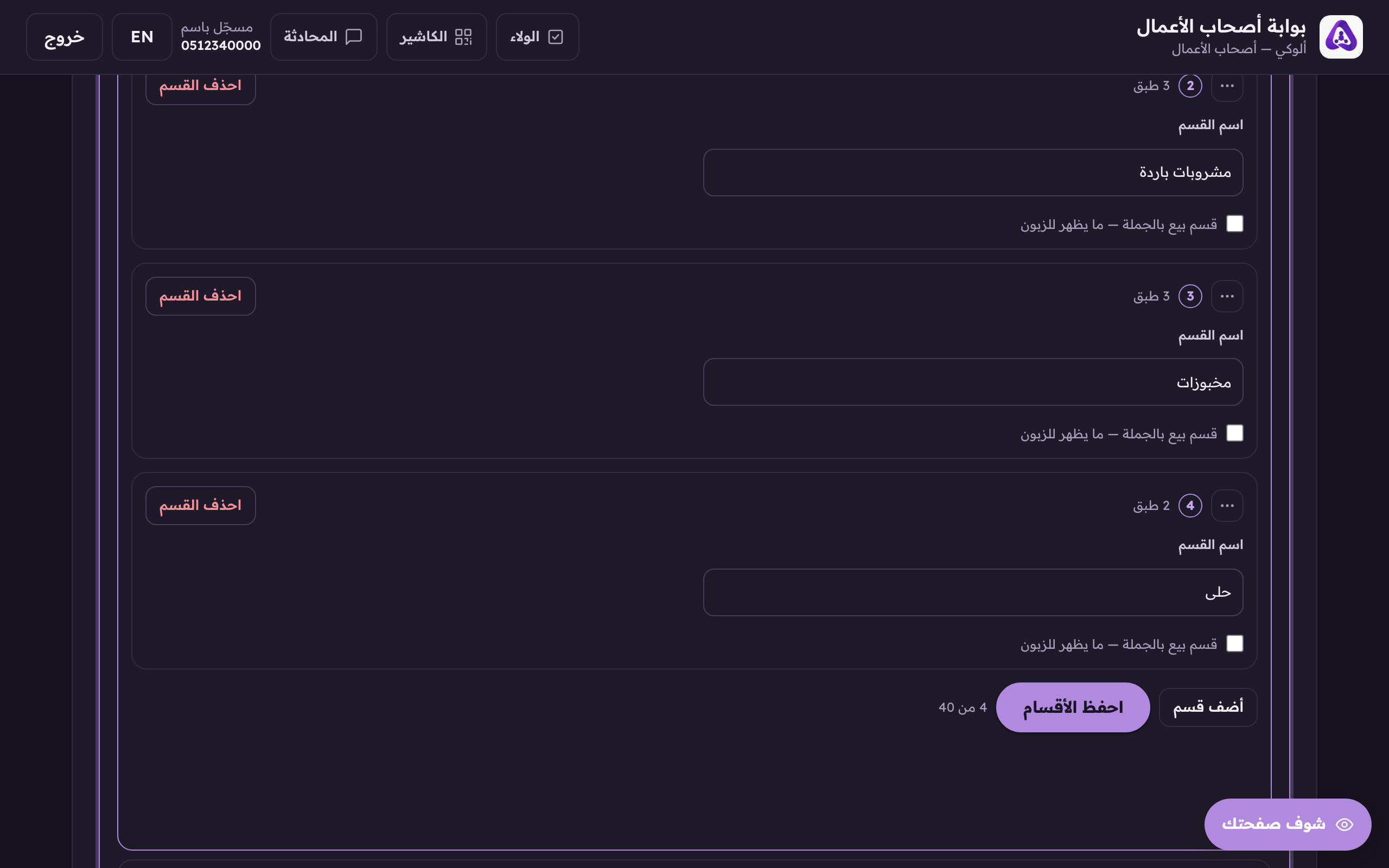
The «Wholesale section — not shown to customers» box on the section's row: tick it and save the sections, and this section and every dish in it leave the customer menu and appear on your wholesale page. - Wholesale dishes are added like any other dish: there is nothing new to learn: go to the «Dishes» tab, add the dish, and pick its section from the same section list. The wholesale sections are in it, marked «wholesale» beside the name. A dish that lands in one carries a «Wholesale» tag on its row, and a line inside the row telling you where it went, so you never hunt for a dish you think has gone missing. (Web)
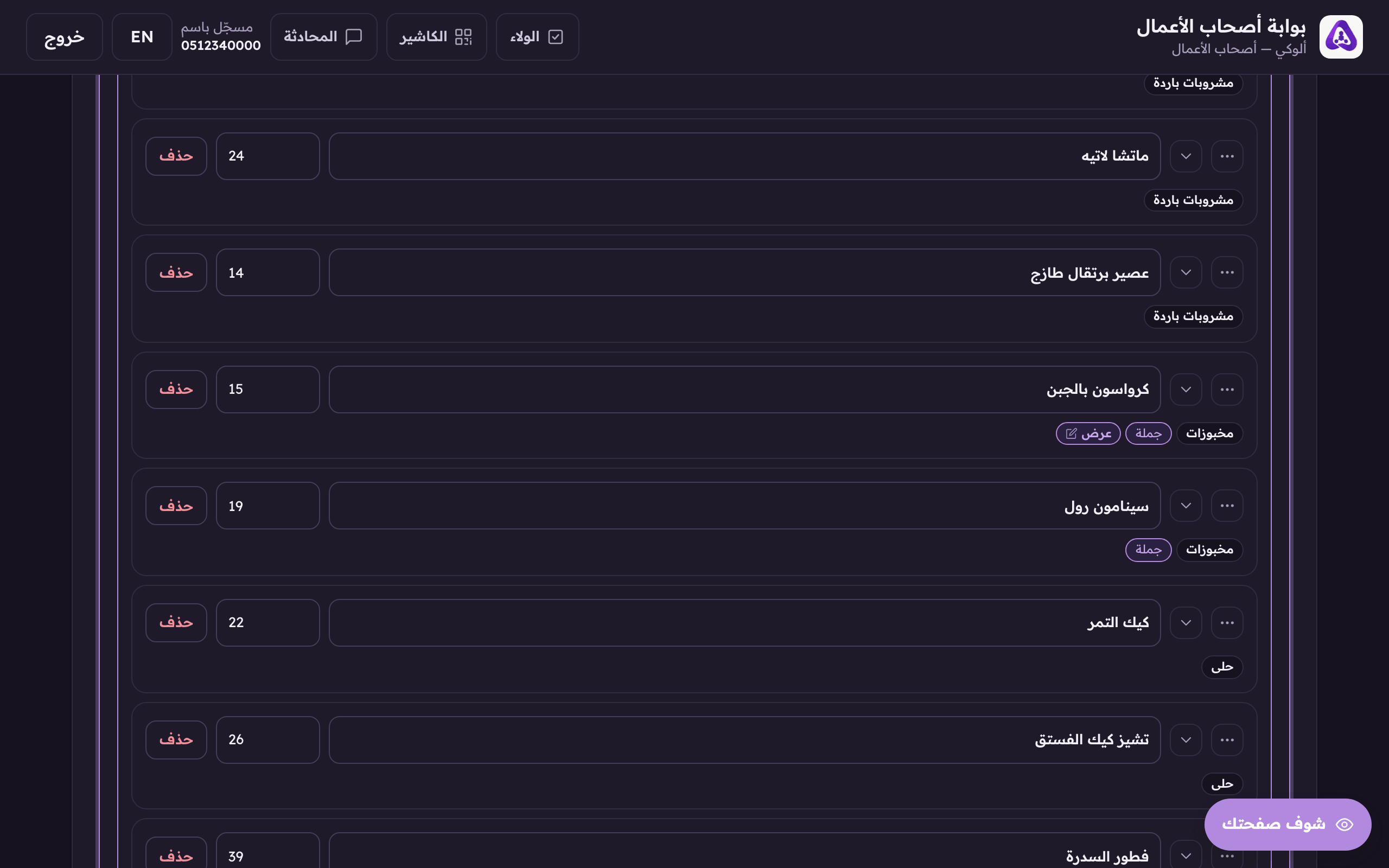
The «Wholesale» tag on a dish's row: its section is marked wholesale, so the dish is not on the customer menu. It is on the wholesale page.
- Once a section is marked and your page is published, the wholesale page's link appears in two places: on the «Sections» tab under the wholesale explanation, labelled «Wholesale page link» with the full address and «Open the wholesale page» beside it; and on the «Business info» tab beside «Open the page». The address is exactly your menu's address with «m» replaced by «b2b». Copy it and give it to the people you sell to by the sack. (Web)
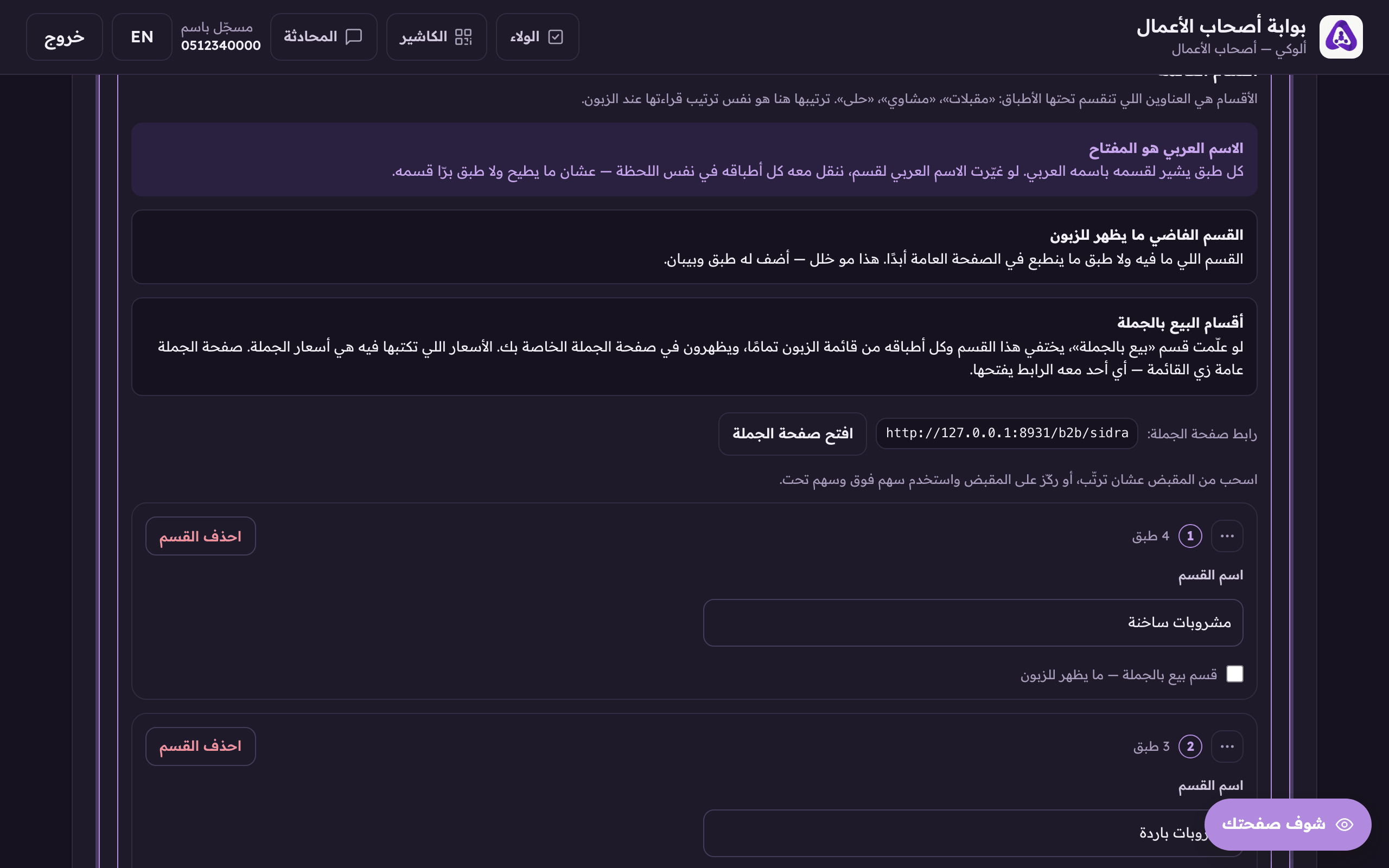
The moment you have a marked wholesale section and a published page, the full wholesale-page address appears here with «Open the wholesale page» beside it.
- To delete a section press «Delete the section» on its row. If it still has dishes the system asks what happens to them, move them to another section, or leave them without one.
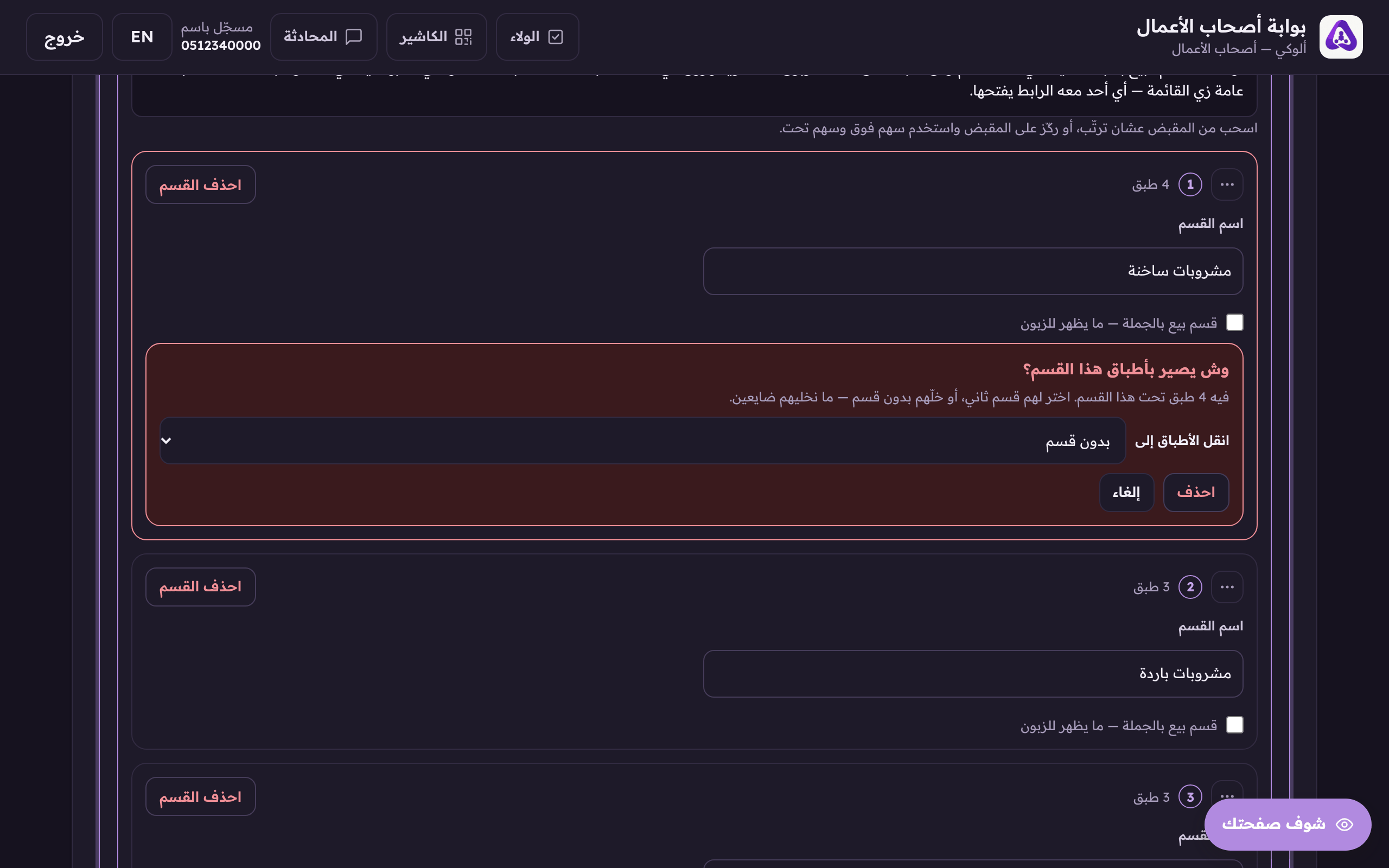
Before a section is deleted we ask where its dishes go, move them to another section or leave them unfiled; they are never lost.