What each permission opens, the three presets, and the branch-manager rule.
Aloke Owners
Web, iPhone and iPad, Android
Permissions are small switches, each opening exactly one door at this branch. The list itself is served by the system the moment the invite screen opens, so when we add a new permission, it appears on its own with no update on your side.
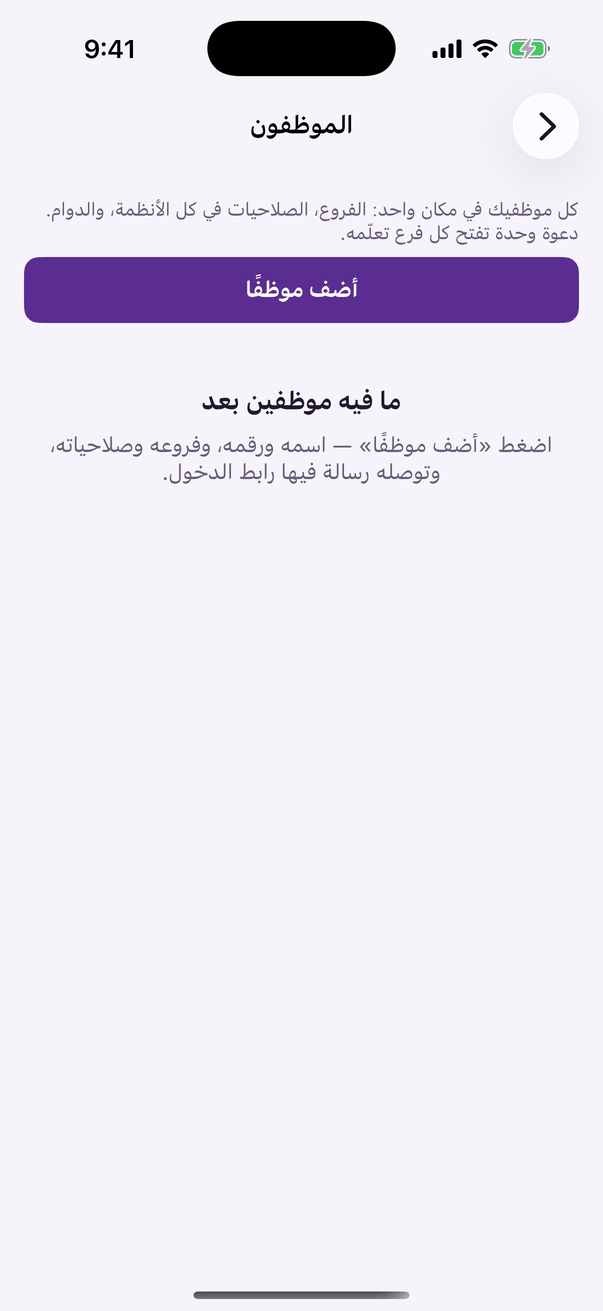
In the Aloke Owners app, open «Employees» from the home screen. (iPhone and iPad, Android)«Employees»: all your staff and their permissions in every system.
What each permission opens
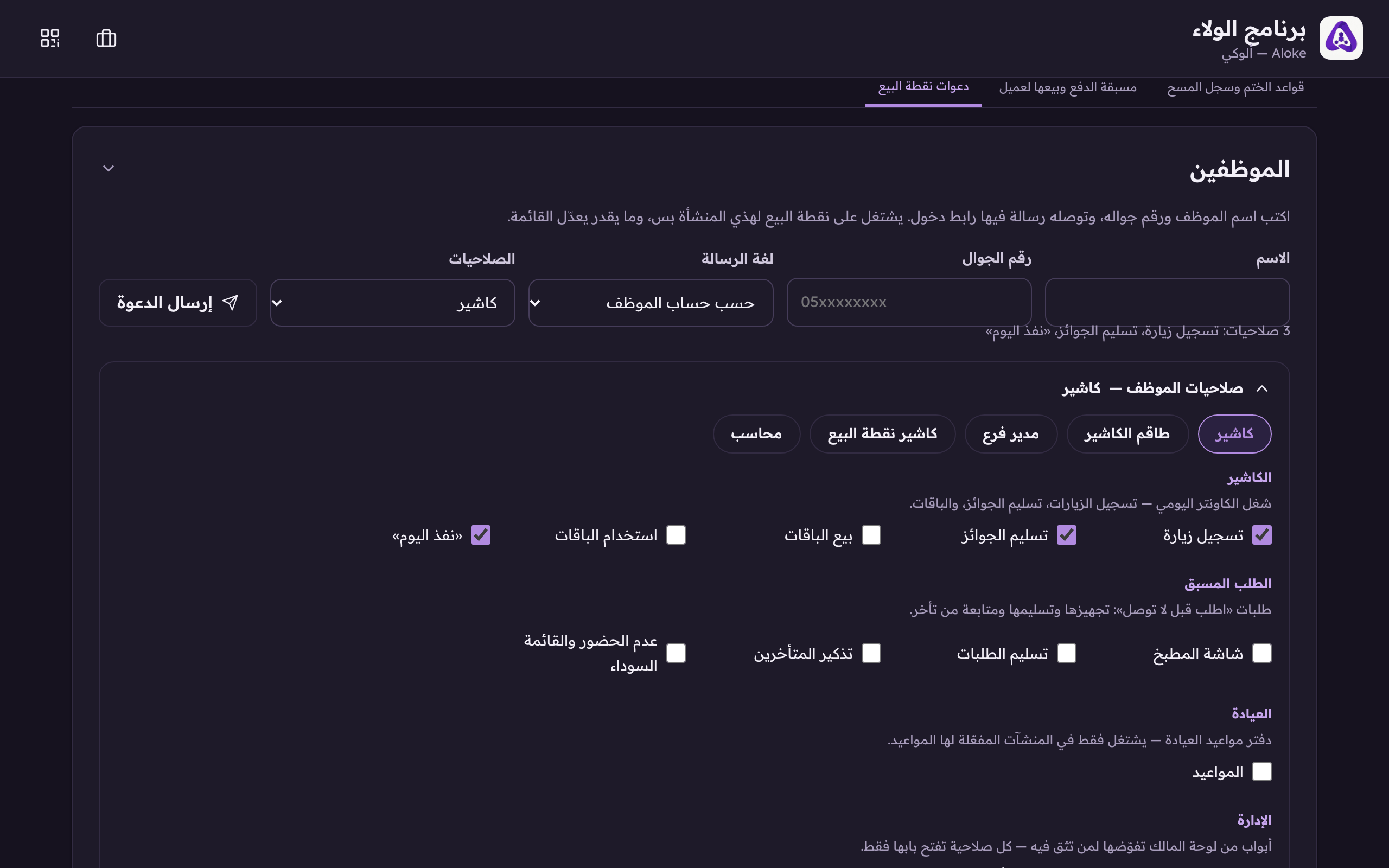
The screen shows them in groups, in this same order:
The till
The counter's daily work: record visits, redeem prizes, sell packages, use package units, and «sold out today».
Pre-arrival
The kitchen screen, order hand-over, late reminders, and no-shows with the blacklist.
The clinic
Appointments: booking, cancelling and today's list, shown and working only at places Aloke has activated appointments for.
Management
Doors of your consoles you delegate to somebody you trust, each one opening its own door only: gifting from the menu, the operations log, insights, managing the menu (items, descriptions, photos), «Menu prices & VAT», managing the programme (its rules and rewards), «Card design», «Packages catalogue», «Offers & cashback», «Appointments setup», «Pre-Order settings», editing business info, customer broadcasts, and managing staff.
Point of sale
Twenty-one permissions for the «Aloke POS» app, and none of them opens on its own: selling, refunds, voiding orders, discounts, the drawer and closing the shift; then inventory (levels and receiving) with «Stock counts», «Waste & adjustments», «Stock transfers», «Recipes & materials» and «Stock cost»; purchasing with «Supplier payments»; «Reorder alerts»: a push when an item is due to be ordered from its supplier, and the «When to order» list; the till reports; the till settings with «Products & quick keys», «Devices & printers» and «Tax & ZATCA»; and the dining hall. A worker on «Full till», or with no group written at all, inherits none of them. You tick them yourself or with the «POS cashier» preset.
Accounting
Four permissions for the books: «Accounting» writes in them, «Financial reports» reads them, «Payroll» runs the payroll, and «Payroll (view)» only reads it. One person's pay, national id and bank account show only to someone holding one of the two payroll permissions.
The four presets
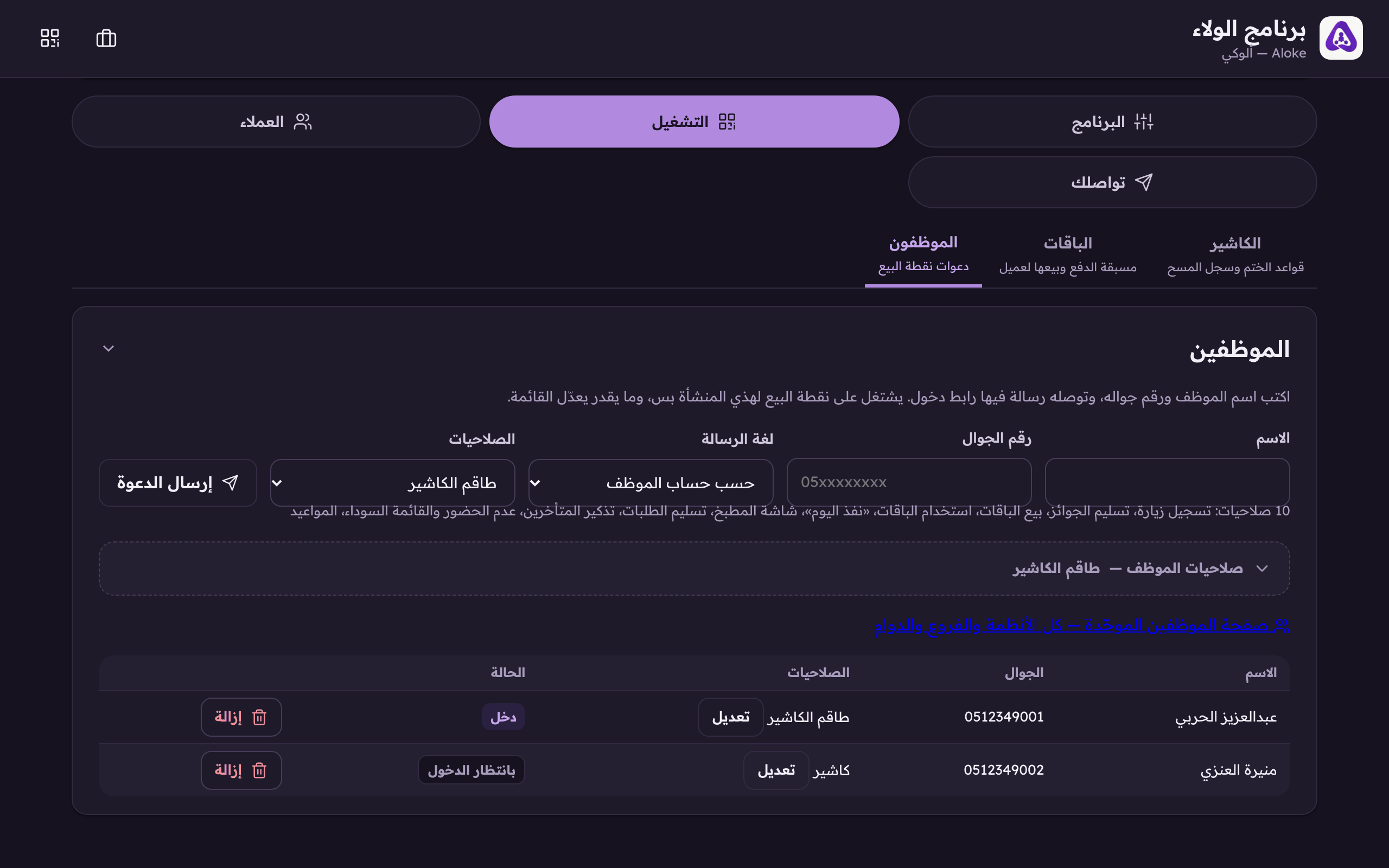
Above the boxes sit four presets. A preset fills the boxes in one tap, and what is actually stored is the boxes, so you can press a preset then add or remove.
Cashier
The person standing at the counter: record visits, redeem prizes, and «sold out today». Three switches only. No selling packages and no console screens.
Full till
The whole counter, all ten switches: the five till ones, the four pre-arrival ones, and appointments. It is what every new invitation starts on, and exactly what your staff had before this feature.
Branch manager
The full till, plus: gifting from the menu, the operations log, insights, and staff management. Deliberately NOT in it: the menu, the programme, the business info and broadcasts. Your promises to your customers are the owner's calls, tickable by your own hand for whoever you choose.
POS cashier
The first-day worker on «Aloke POS»: record visits, redeem prizes, spend package units, mark today's item gone: and above those, «Sell at the till», «Void orders» before the invoice, and «Drawer». Seven permissions. Deliberately absent: refunds, discounts, closing the shift, inventory, tick those for someone you have watched work.
The quickest road to a preset is the «Permissions» list above the fold: the same four presets, one press, no boxes opened. The list is served by the system, so a preset we add later appears on its own. (Web)«Permissions», pick a preset instead of ticking boxes: «Cashier», «Full till» or «Branch manager». The line under it spells out exactly what your pick opens.
Press one of the presets, «Cashier», «Full till», «Branch manager», «POS cashier», and watch the boxes tick underneath. The preset that matches your current pick lights up on its own.The three presets: «Cashier», «Full till», «Branch manager». A preset fills the boxes in one tap, what is stored is the boxes.
Adjust whatever you like after the preset, then «Save permissions», or «Send invite» if this is a new employee's screen.
The branch-manager rule
An employee granted «manage staff» can invite, edit and remove: bounded by their own set: they can never grant a switch they do not hold themselves, and they can never touch their own row, neither to widen nor to delete it. Anything above their set is granted by you and nobody else.
What an employee sees
Every employee sees their own permissions only: in the owner console, in «Aloke Owners», in «Aloke POS» and on the till. A screen or button they hold no permission for never appears, not greyed out, not refused after the press.
 Aloke
Aloke