 Aloke
AlokeStaff per branch
Invitations and permissions, branch by branch.
- Aloke Owners
- Web, iPhone and iPad, Android
Each branch has its own staff, and each is invited on their own mobile number. The home branch is no exception. It has staff like any other.
- In the Aloke Owners app, open «Employees» from the home screen. (iPhone and iPad, Android)
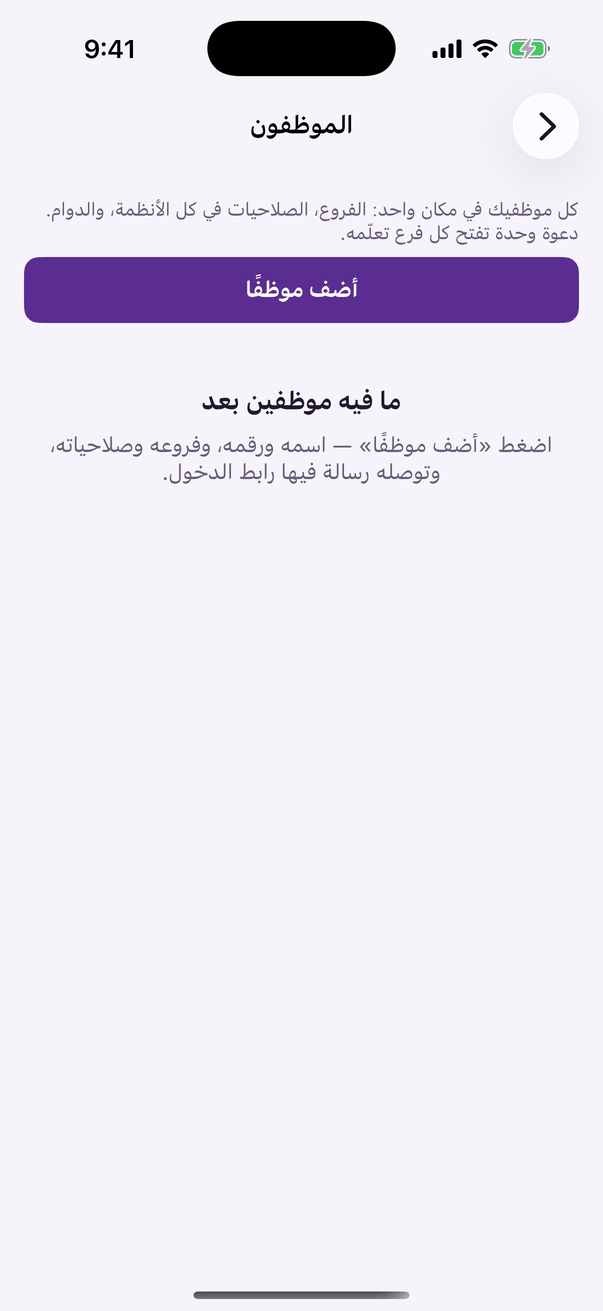
«Employees»: all your staff and their permissions in every system. - Open your brand, the «Branches and staff» tab, and press «Staff» on the branch's row. (Web)
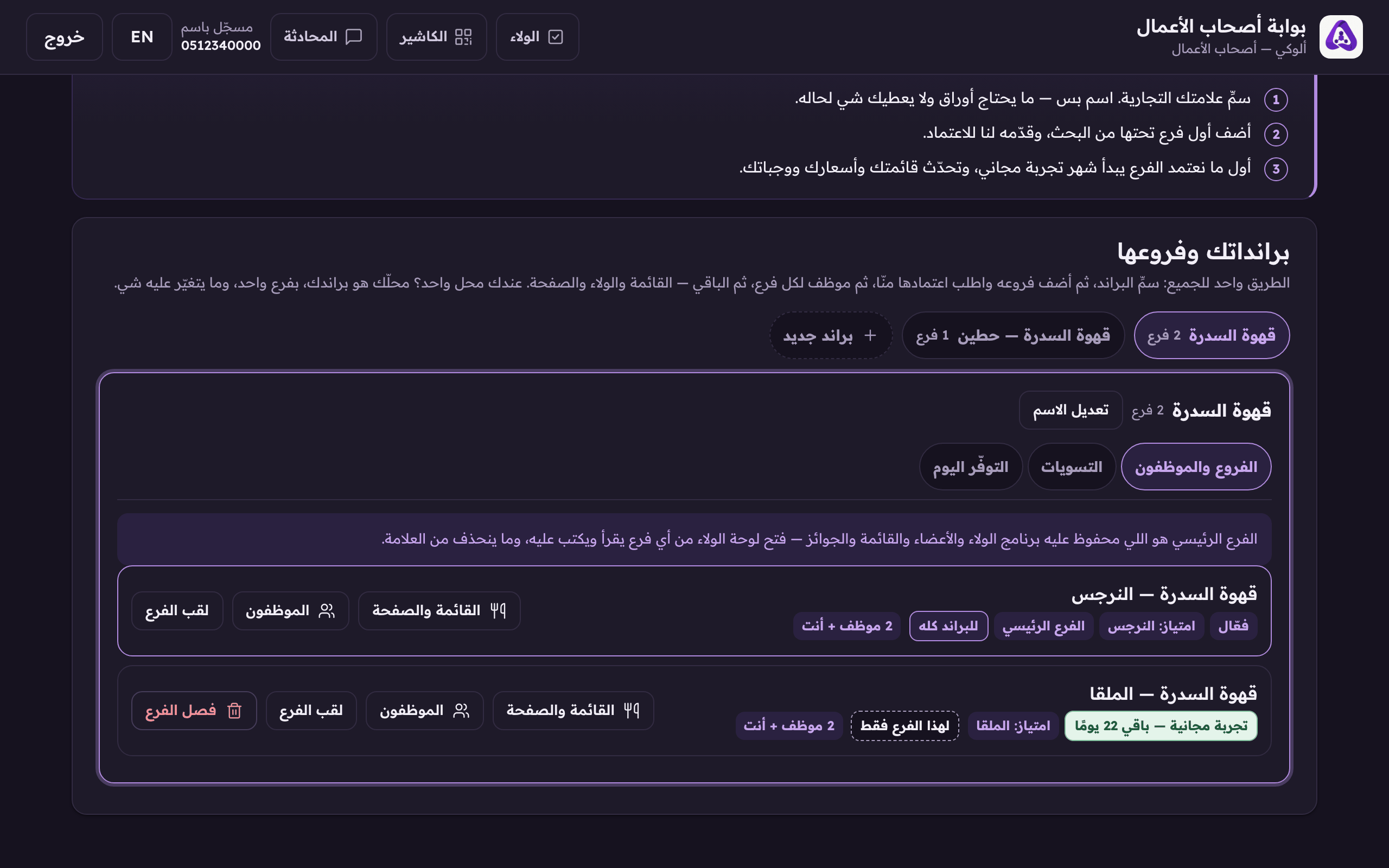
«Staff» opens this branch's employees. Each branch has its own. - Type the employee's name and mobile.
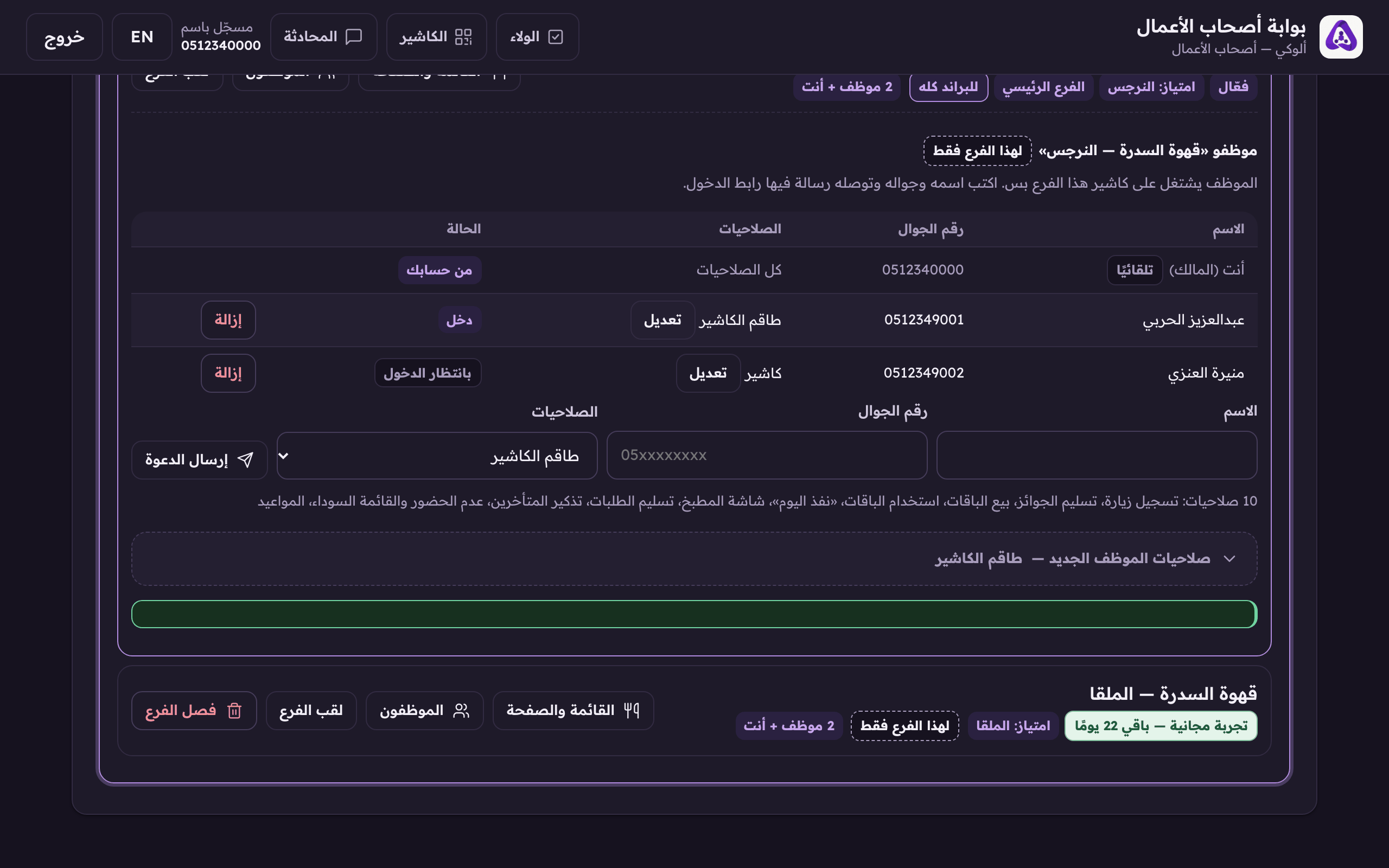
Type the employee's mobile. They get a message with their till sign-in link. - Open the «new employee's permissions» fold if you want anything other than «Full till». The same presets and boxes as the loyalty console. (Web)
- Press «Send invite», they get a link that opens this branch's till.
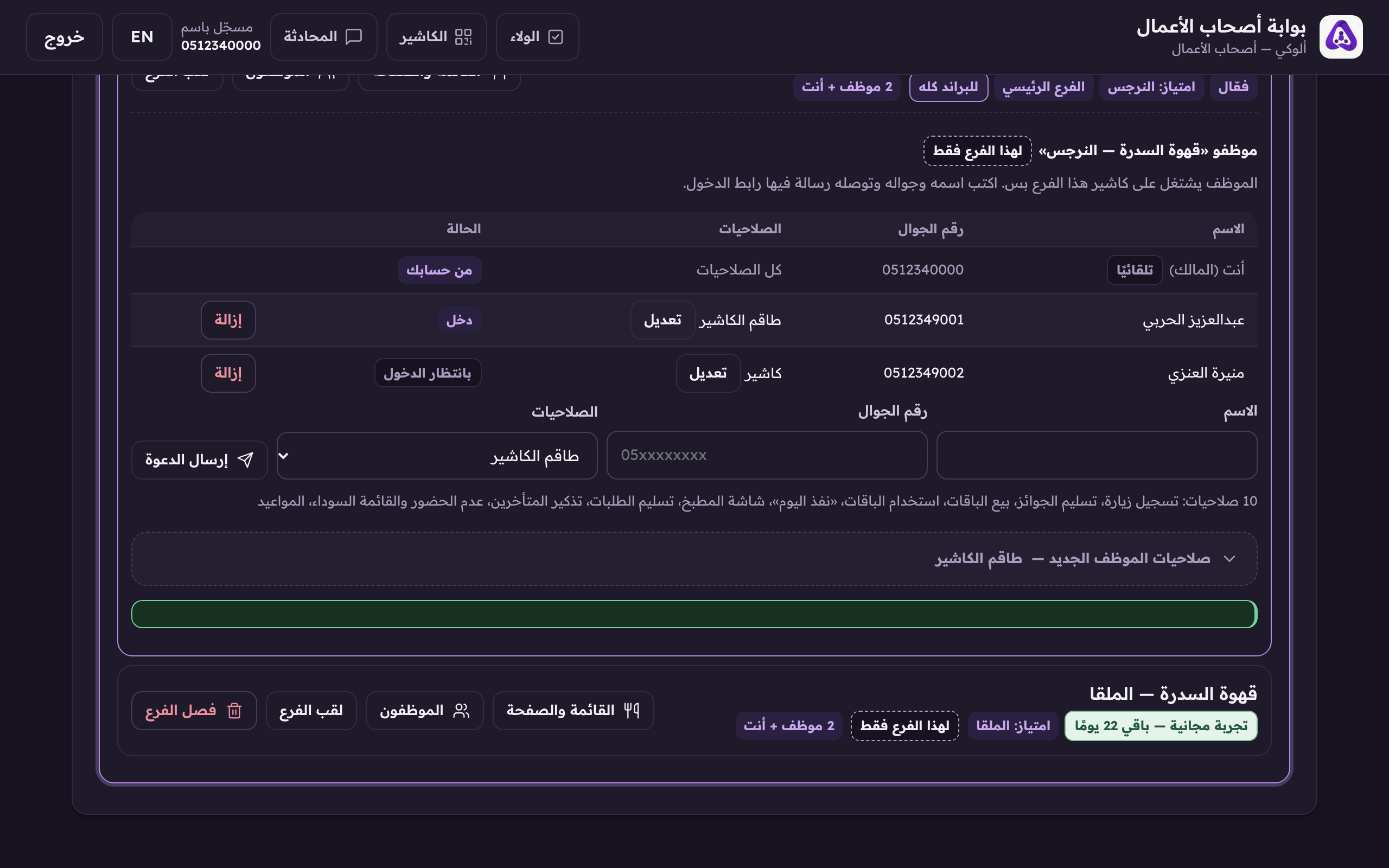
«Send invite» sends the link. The employee can work this branch's till only, and cannot edit the menu.