 Aloke
AlokeThe shared device: one device, every employee by name
Turn it on for the branch, and every employee signs in by name with a 6 digit work PIN, so every sale and every move is recorded under its own person.
- Aloke Owners
- Web, iPhone and iPad, Android
One iPad at the counter and everyone sells from it? With «الجهاز المشترك» (Shared device) each employee picks their name and types their PIN, so sales, the drawer and stamps are recorded under them, not under whoever opened the device.
- Open «الفريق» (Team), then «الموظفون» (Employees). The «الجهاز المشترك» card sits above the list of employees, for the branch you picked. (Web)
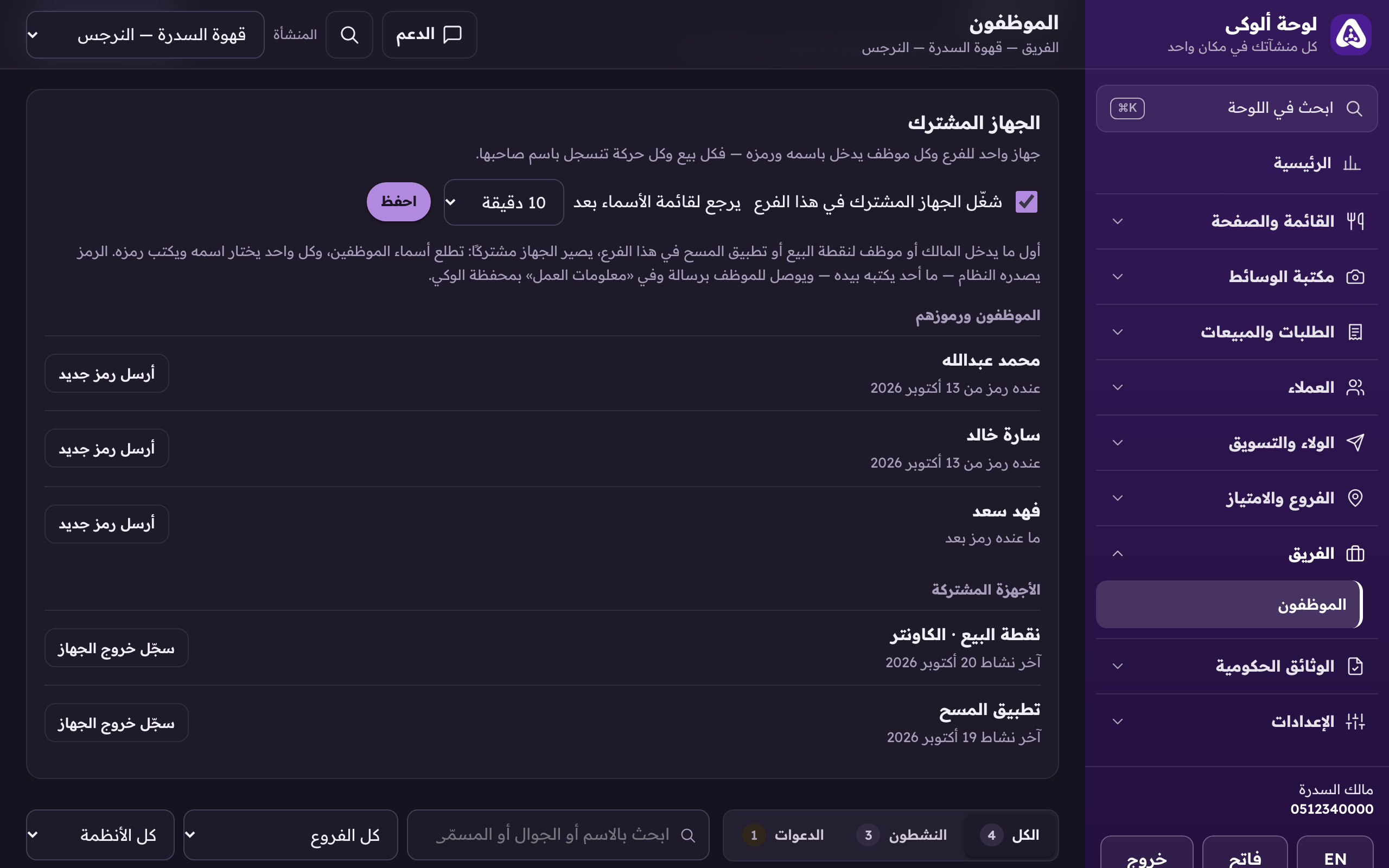
«Shared device»: turn it on for the branch, choose after how many minutes it goes back to the names, with the employees, their PINs and the devices below. - In Aloke Owners: «الفريق» (Team) from «كل الأقسام», then «الموظفون» (Employees). The «الجهاز المشترك» card sits above the list of employees, for the branch you picked. (iPhone and iPad, Android)
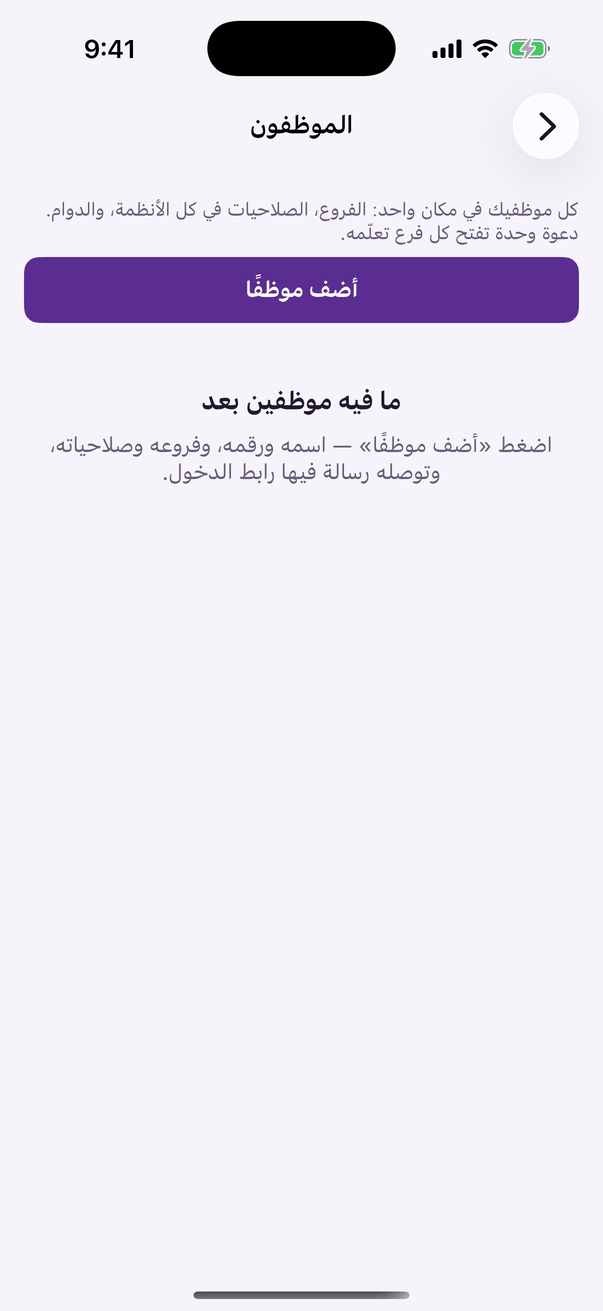
«Employees»: every employee and invitation, with search and filters. - Switch on «شغّل الجهاز المشترك في هذا الفرع» (Turn on the shared device at this branch), choose after how many idle minutes it goes «يرجع لقائمة الأسماء بعد» (Back to the names after), then «احفظ» (Save).
The moment you turn it on, the system makes a 6 digit work PIN for every employee at the branch, and for you too. Nobody types a PIN by hand; it reaches the employee by text and in «معلومات العمل» (Work info) in Aloke Wallet.
From then on, the first time the owner or an employee signs in to Aloke POS or Aloke Scan at this branch, the device becomes shared and shows the employees' names.
- An employee forgot their PIN, or you want it changed? Press «أرسل رمز جديد» (Send a new PIN). A new PIN is made and the old one stops at once.