 Aloke
AlokeLinking a package to a dish
«Link to the menu» is what lets a package cup pay for an order-ahead, and what puts that cup into «what sells».
- Aloke Owners
- Web, iPhone and iPad, Android
A package you sell has two places for a dish, and they are two very different things. «The item (one cup =)» is your own wording, what goes on the receipt and what the customer reads. «Link to the menu» ties the package to a real dish on your menu, with its reference, its price and its options.
- In the Aloke Owners app, open «Operations» from the home screen, then «Prepaid bundles». (iPhone and iPad, Android)
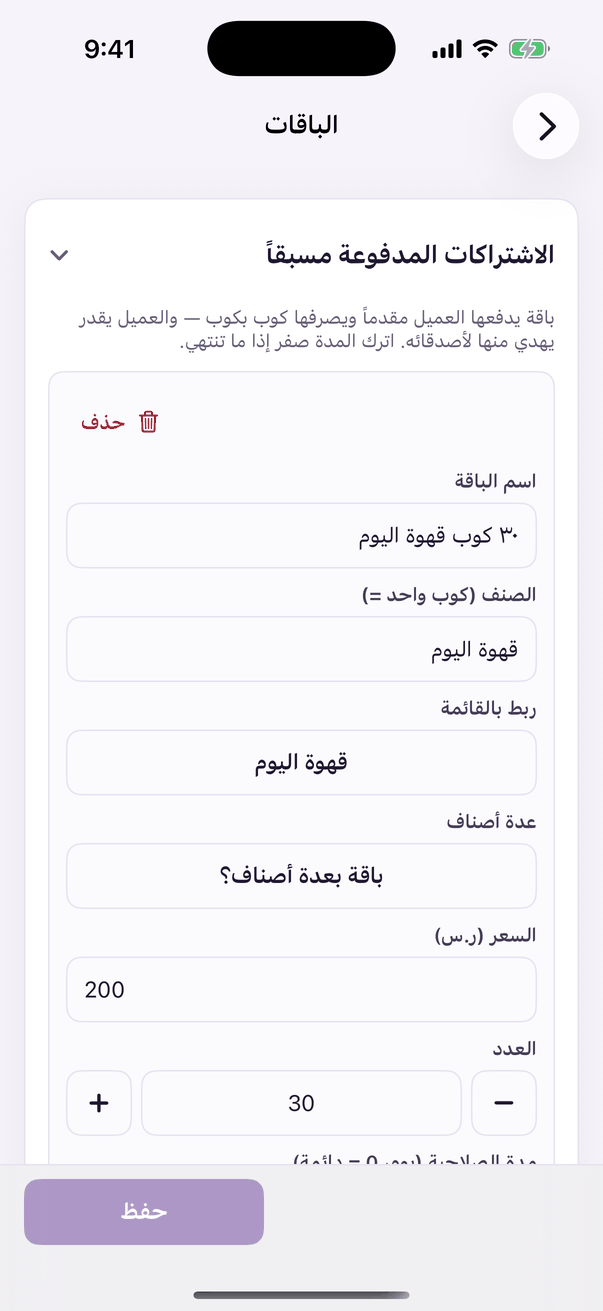
«Prepaid bundles»: the bundles and selling them.
Why it matters
Linking unlocks two things that do not work without it. First, the customer can pay for a line of an order-ahead with a cup from their package. They order from the road and arrive with the coffee already paid for. Second, that spent cup shows up in «what sells» beside the dishes people paid cash for, instead of being an anonymous unit.
- Open the «packages» tab in the loyalty console and press the «link to the menu» button on the package's row. An unlinked package's button says «link it to a dish»; a linked one carries the dish's own name. (Web)
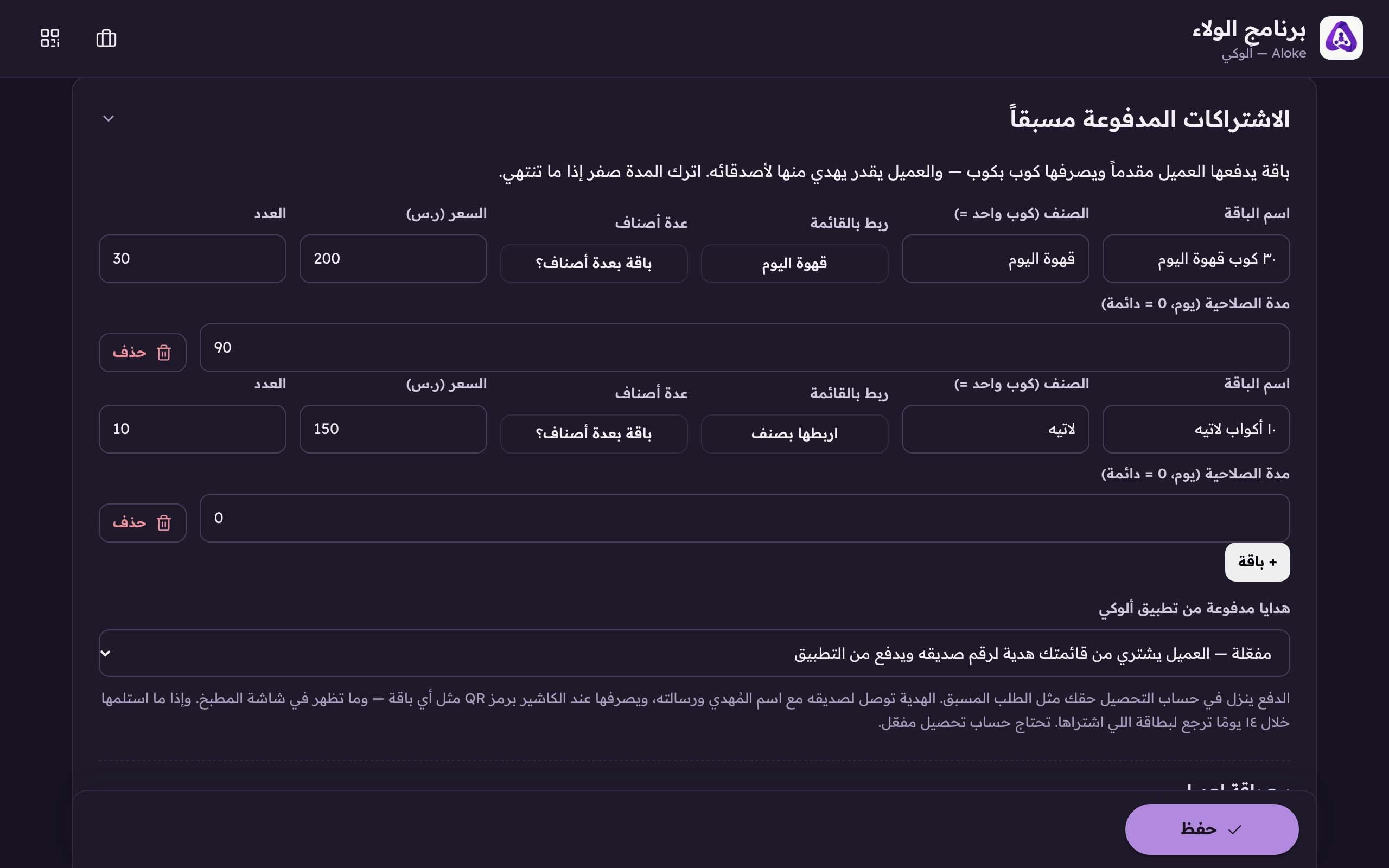
«Link to the menu», a package linked to a dish is one a customer can pay an order-ahead with. A linked one shows the dish; an unlinked one says «link it to a dish». - Pick ONE dish from your menu. If the dish has options, Ethiopian, Colombian, medium, large, pick the option too, because the package covers that exact dish and that exact option.
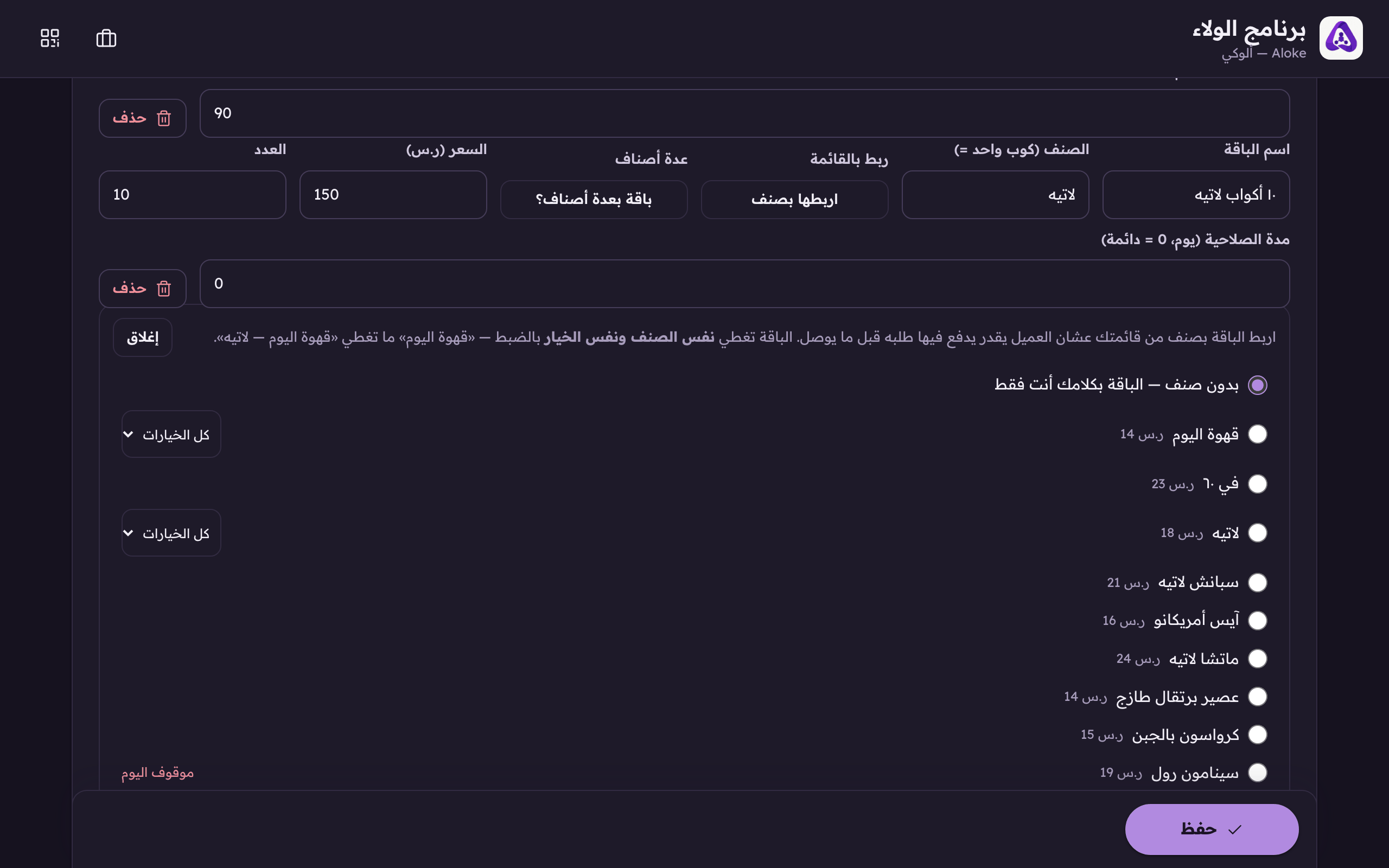
Pick ONE dish from your menu, and its option too, when it has them. The package covers that exact dish and that exact option. - If you do not want a link, leave «no dish» selected. It already is. It is also the way back: choose it on a linked package and the link comes off.
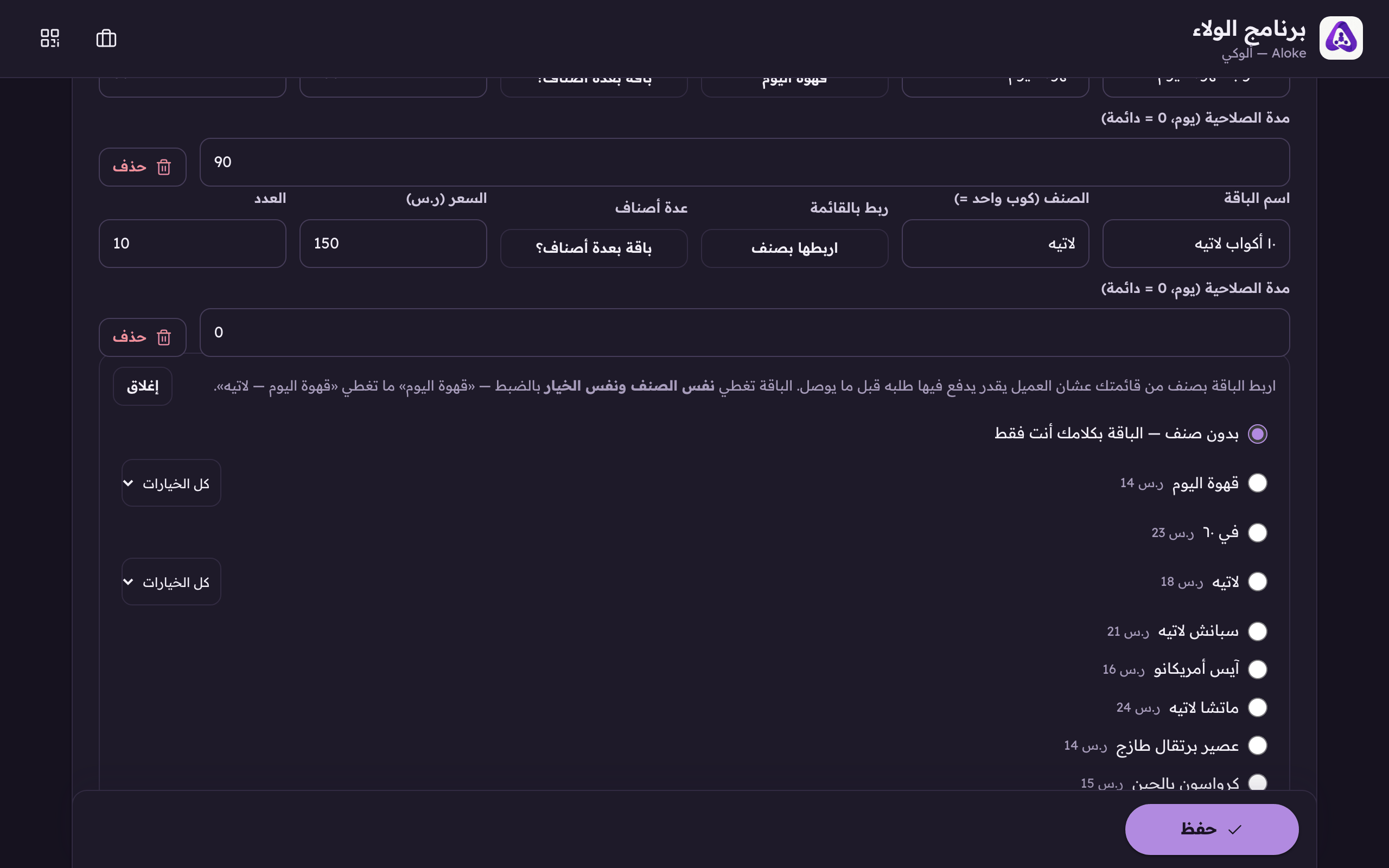
«No dish» is the default and the way back out. The package stays your own words and is spent at the counter only. - Press «close» on the panel, then «save» at the bottom. The link is not stored on its own. It is stored with the rest of the packages.