Setting up appointments: services, team and policies
appoint.hwe.sa: switch appointments on, add your services and your team on the time sheet, and set the deposit and the booking windows.
Aloke Owners
Web, iPhone and iPad, Android
Appointments are for every business that books its time: a salon, a nail spa, a barber, a spa, a clinic. Its panel is appoint.hwe.sa: open it with your mobile number, pick your branch from «Business», and the rail carries five sections: «Today», «Bookings», «Services», «Team» and «Settings». This article sets it up; the next one runs it. (Web)
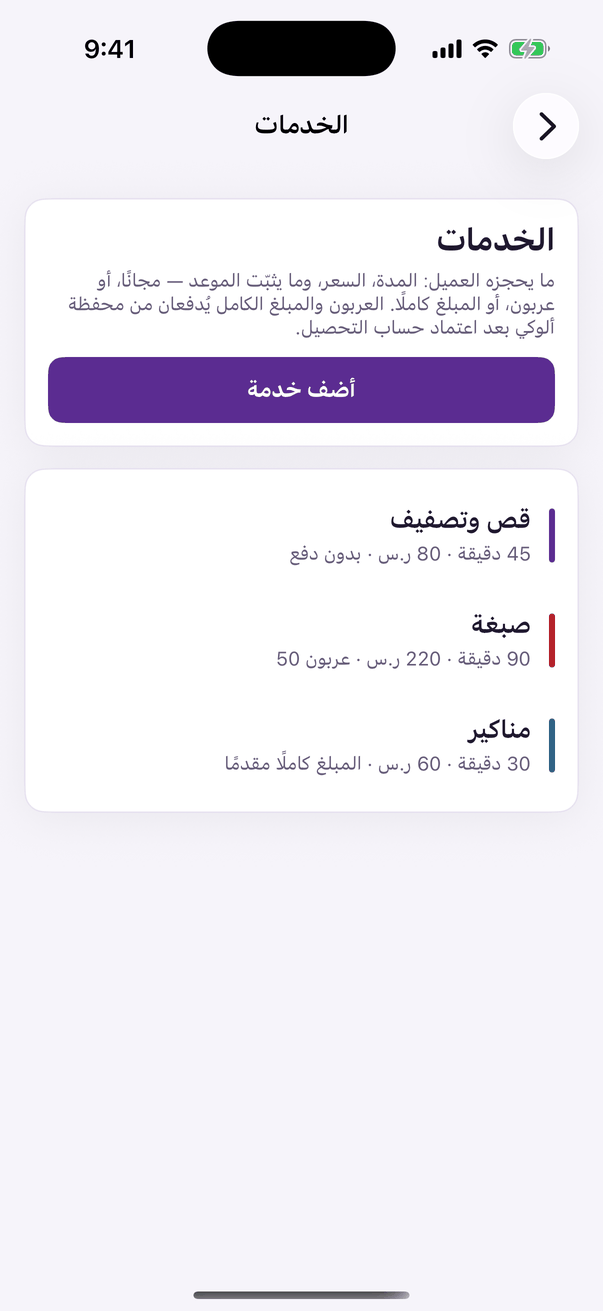
In the Aloke Owners app, open «Appointments» from the home screen, then «Services». (iPhone and iPad, Android)«Services»: duration, price and deposit.
Once activated, pausing and resuming is yours: in «Settings» untick «Appointments are on for this business», then «Save», and new bookings stop while booked visits stay. Open the panel while it is paused and «Resume appointments» brings them back in one press. And appointments need no loyalty programme. A customer joins your business from their wallet and books even when you run no stamps and no points.
Open «Services» and press «Add a service». Type its name, «Duration (min)», «Buffer after (min)» if you need turnaround before the next slot, and «Price (SAR)», then choose «What holds the slot» and press «Save».
Free: no payment
The booking holds from the moment it is made, with nothing paid. The right choice for a quick cut or a follow-up.
A deposit
The customer pays «Deposit (SAR)» from the Aloke Wallet to hold the slot; the rest is paid with you. The booking keeps its time for «Payment hold (min)» until the money arrives. Otherwise the time is freed for somebody else and the customer is told.
The full price
The whole price is paid in the app at booking. Right for the long sessions where a no-show costs you more than a deposit.
Open «Team» and press «Add a team member». Type the name, «Title» and «Team member's mobile», tick «Services offered», or tick nothing and they offer every one, and fill the «Weekly time sheet»: up to two spans a day, an empty day is a day off. Leave the whole sheet empty and they work the business hours. Then «Save».
Under the team is «Time off and closures»: pick «Who», a person, or «The whole place» for Eid or renovation, and the time from and to, then «Add». No slot inside it is ever offered.
The policies
«Settings» carries five numbers and a few switches that decide how the calendar works. Change them whenever you like; existing bookings are untouched.
Time grid (min)
How often a slot starts: 15 gives 9:00, 9:15, 9:30…
Minimum notice (min)
A customer cannot book closer than this to now. Zero means the very next slot.
Furthest day (days)
How many days ahead the customer can see. Thirty suits most businesses.
Free cancellation before (hours)
Inside this window the deposit is kept when the customer cancels. When your business cancels, the money always goes back in full, whatever the time.
Confirm automatically on booking
On: a booking is «Confirmed» the moment it is made. Off: it starts «Booked» and you confirm it from the book once you have answered the customer.
The customer may leave the choice of person to you
On: «Anyone» is offered and the least-loaded free person takes it. Off: they must pick a person before booking.
«Business hours» at the bottom of the settings are the hours of every team member without their own sheet, fill them once and keep the personal sheets for the exceptions.
 Aloke
Aloke