 Aloke
AlokeThe seller's invoice and quick purchases
A photo or PDF of the invoice on every delivery, and purchases paid in cash from the drawer, with their receipt required or optional, as you decide.
- Aloke Owners
- Web, iPhone and iPad, Android
The seller's invoice
Every delivery can carry «فاتورة البائع» (the seller's invoice): a photo or a PDF, uploaded from the web or photographed in «ألوكي نقطة البيع» (Aloke POS) or «ألوكي للملاك» (Aloke Owners). The file is kept encrypted in Aloke's cloud storage، never on the device، and opens for whoever holds the stock permission.
- In the Aloke Owners app, open «Aloke POS» from the home screen, then «Inventory». (iPhone and iPad, Android)
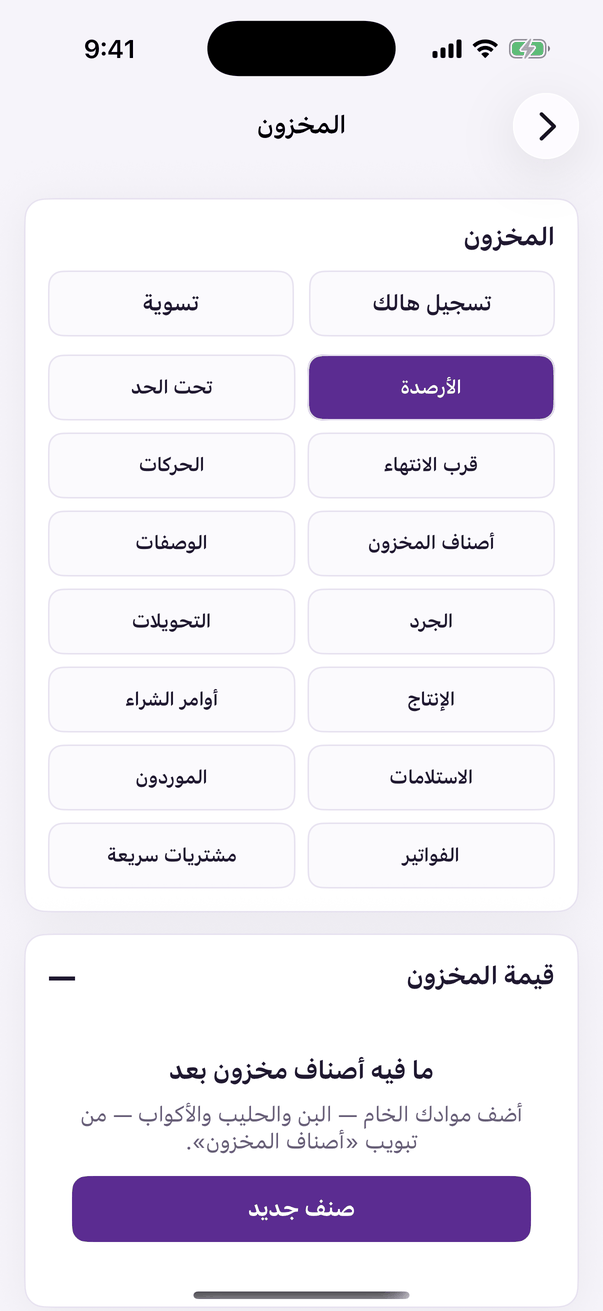
«Inventory»: quantities, receiving and waste. - Open «المخزون» (Stock) then «استلام بضاعة» (Receive stock), type the items and quantities, press «صوّر أو ارفع صورة أو PDF» under «فاتورة البائع», then «استلام» (Receive). The invoice is optional.
Quick purchases
When an employee takes cash from the drawer to buy something the shop needs now، a bottle of milk، they record it from «الوردية» (Shift) with «مشتريات سريعة» (Quick purchase): the amount, what was bought, where from, and a photo of the seller's receipt. The amount comes off the drawer's expected cash and shows on the shift's report; in the books it is a till expense.
- In «الوردية» press «مشتريات سريعة», type «المبلغ المصروف» (Amount spent) and «وش اشتريت» (What was bought), attach the receipt, and press «تسجيل» (Record).
- In «الإعدادات» (Settings), under «المشتريات السريعة من الدرج», choose «فاتورة البائع»: «اختيارية» (Optional) or «إلزامية — ما تنسجل بدونها» (Required), type «الحد لكل مرة (فاضي = بلا حد)» (Limit per purchase), then «حفظ» (Save). Above the limit a shift manager records it.