 Aloke
AlokeBundles at the till
Selling a bundle and spending one, line by line on a multi-item package, plus a custom pack assembled off your menu.
- Aloke Scan
- Web
Two very different acts happen at the counter, and your cashier has to tell them apart: SELLING a bundle takes the customer's money; SPENDING a unit hands them a cup.
- Scan the customer's code or type their number.
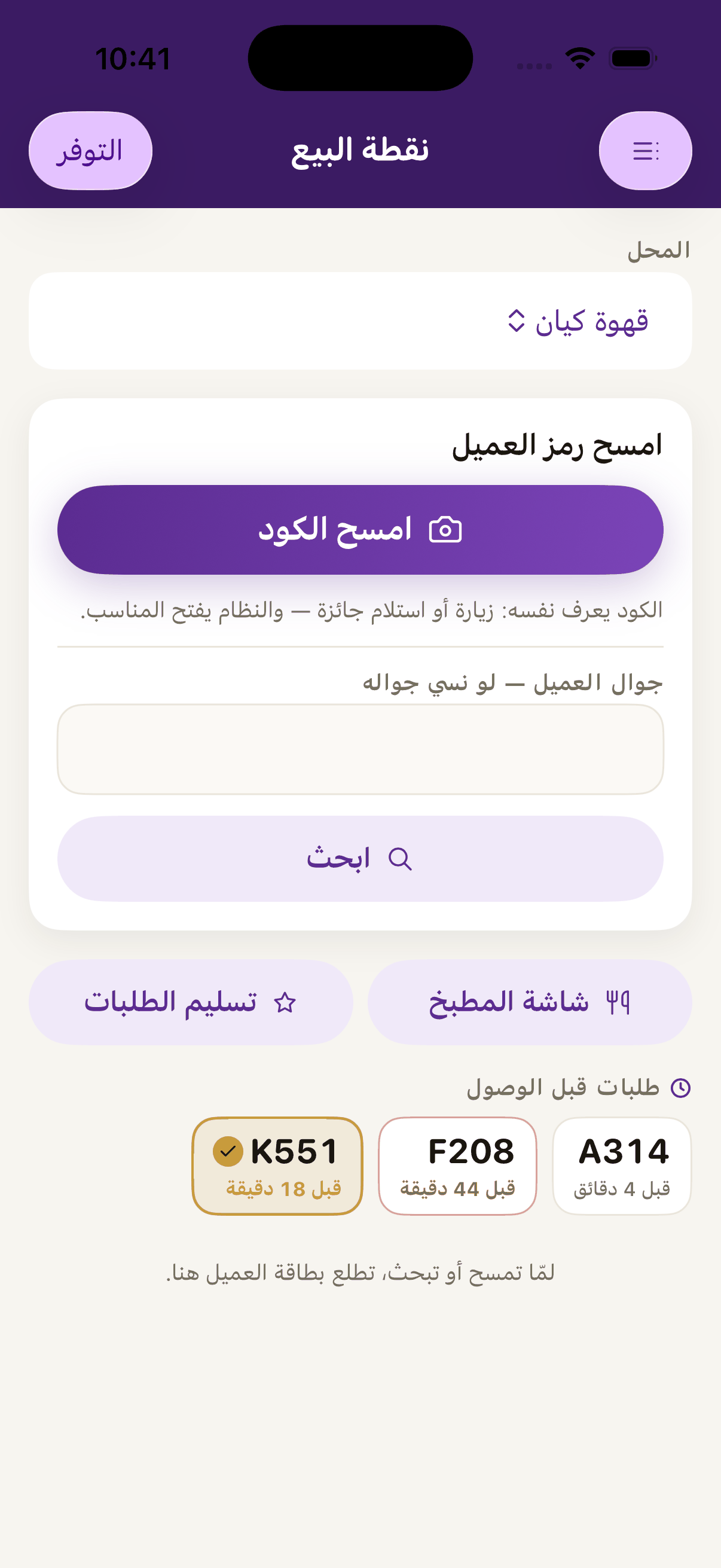
«Scan the code», scan the customer's code and the system works out by itself whether this is a visit or a redemption. - If they hold prepaid units, their window carries a «spend from their package» button with how many they have left written on it.
- The tap does not take anything. It opens a confirmation saying what is being taken, off which package, and what will be left: «one coffee of the day from a 30-cup package: 4 of 30 left». Read it out loud to the customer.
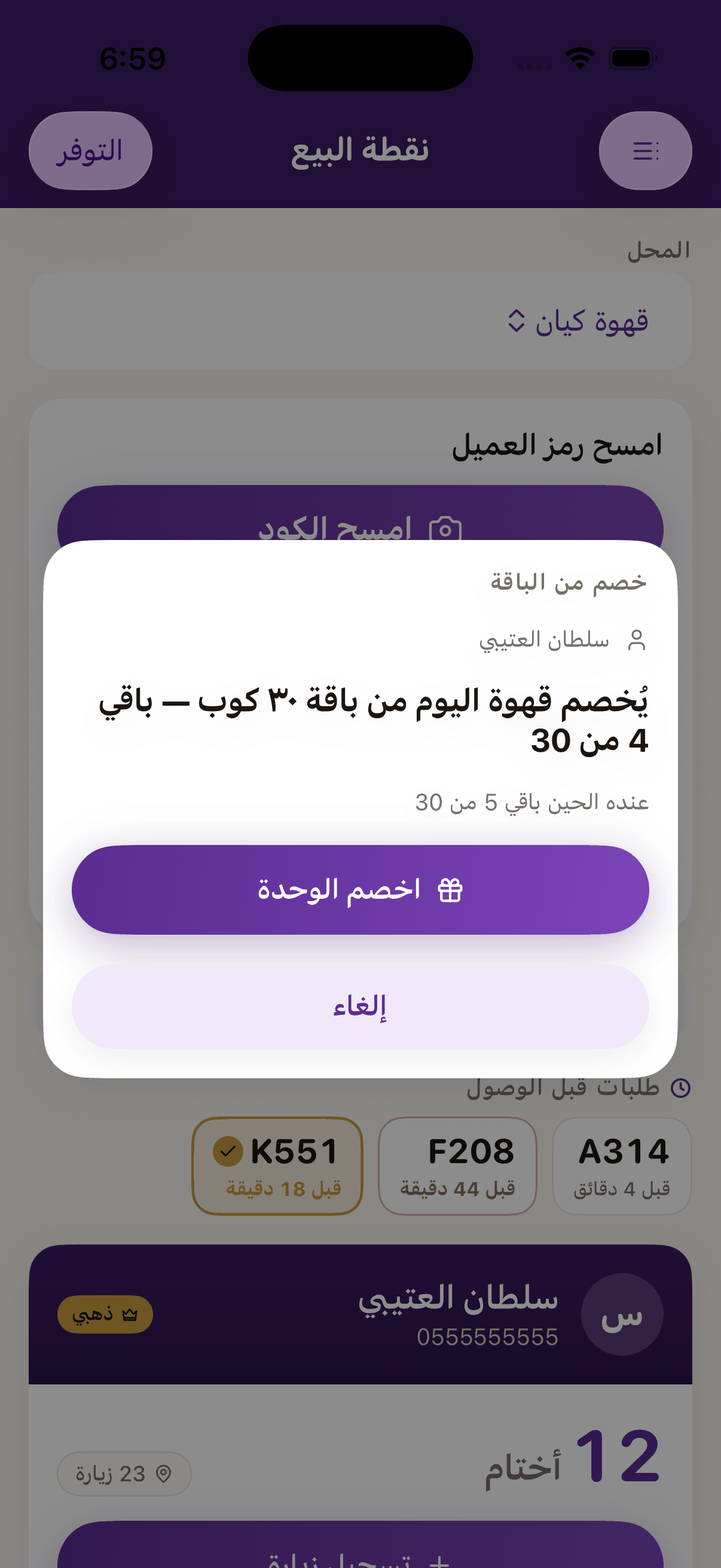
«Spend from their package» now opens a confirmation naming the dish, the package and what is left after it, and the unit is only taken by «take the unit». - Press «Take the unit» AFTER you have handed the cup over, not before. «Cancel» returns you to their card with nothing taken.
- A multi-item package is spent LINE BY LINE. In the browser till every remaining item has a button of its own carrying its name and how many are left. Press the item the customer asked for. Any spend that does not name the item is refused: «this package holds more than one item — name the one being taken».
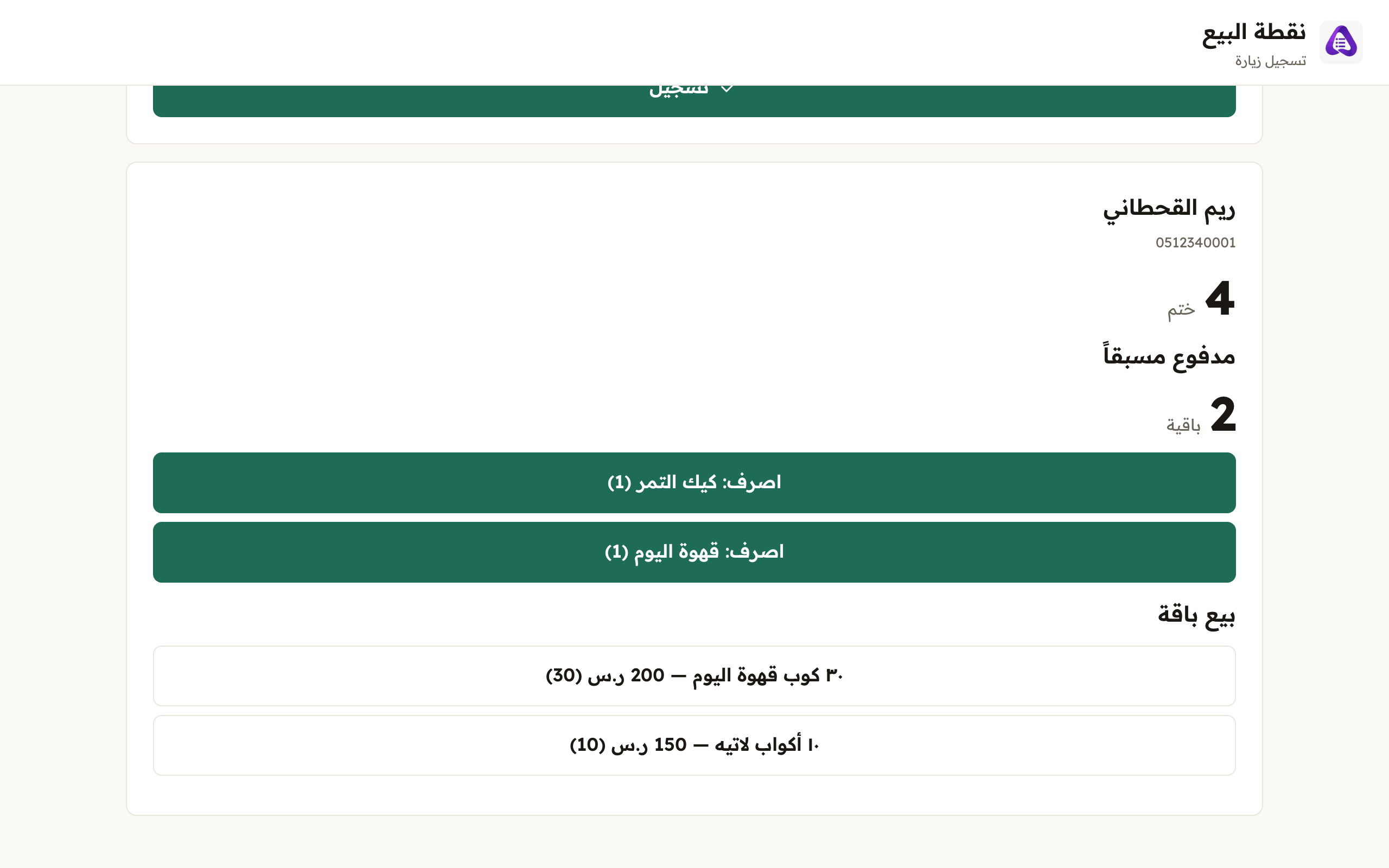
A multi-item package: every remaining item has its own «spend» button carrying its name and count. Press the one the customer asked for.
- To sell a bundle, press its button under «Sell a bundle». The button carries the name, the price and the count.
A custom pack, assembled on the spot
A customer at the counter says: «my friend's birthday is tomorrow — I want cake and coffee from your place for him». That is a «custom pack»: items off your own menu, paid for today and spent later, or sent as a gift. It lives in the loyalty console's «Bundles» tab, under «Sell a bundle to a customer», not a button on the till window.
- Press «+ item», pick the dish, its variant and its count, and repeat for everything the customer wants.
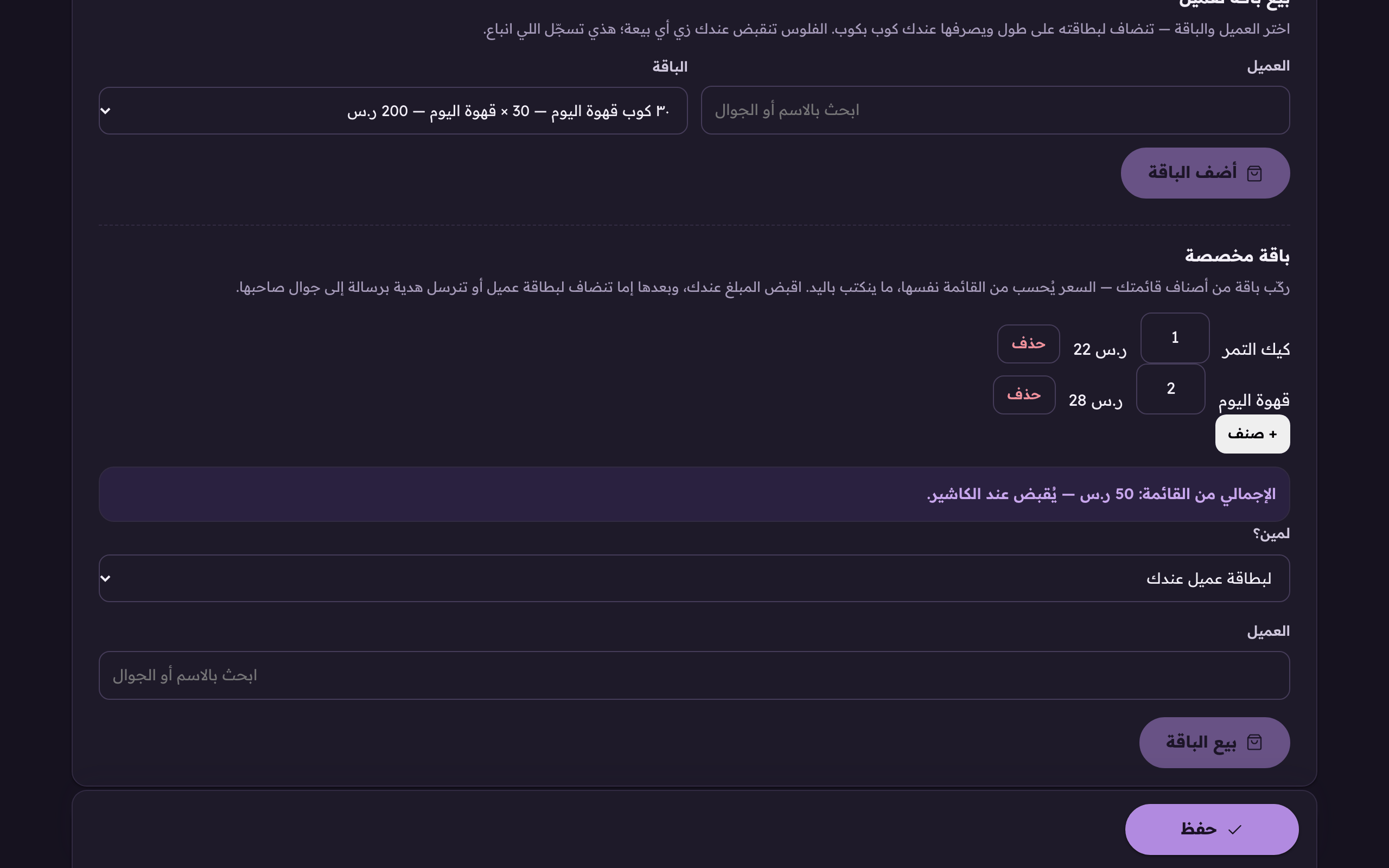
«+ Item» in the custom pack box: assemble a pack off your own menu on the spot: dish, variant and count, one line at a time. - The price is never typed. There is no price box at all. The «total off the menu» line sums your own menu's prices, and the server recomputes it against the same menu. That is what you take at the counter. Want to give a discount? A discount is what your saved, owner-priced packages above are for, not a number a cashier invents.
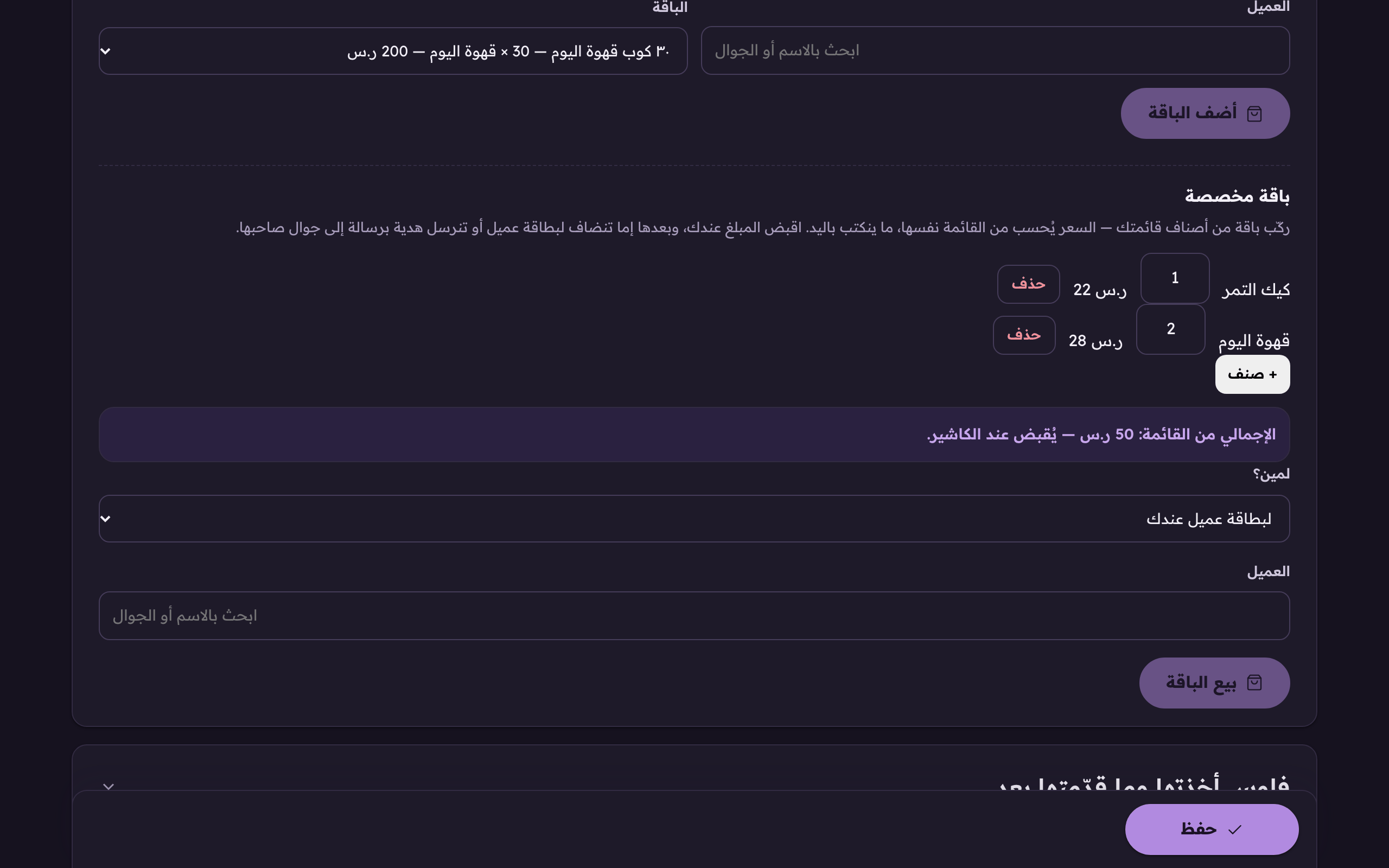
«The total off the menu», the price is your own menu's sum; there is no hand-typed price box, and you take it at the counter. - Choose «who is it for?»: «a member's card here», find them by name or mobile and it lands on their card at once, or «a gift to a mobile, with a message».
- For a gift: type «the recipient's mobile», «the giver's name», the paying customer's name, never your shop's; left empty it arrives from «a friend», and «a message with the gift» when they want a word attached.
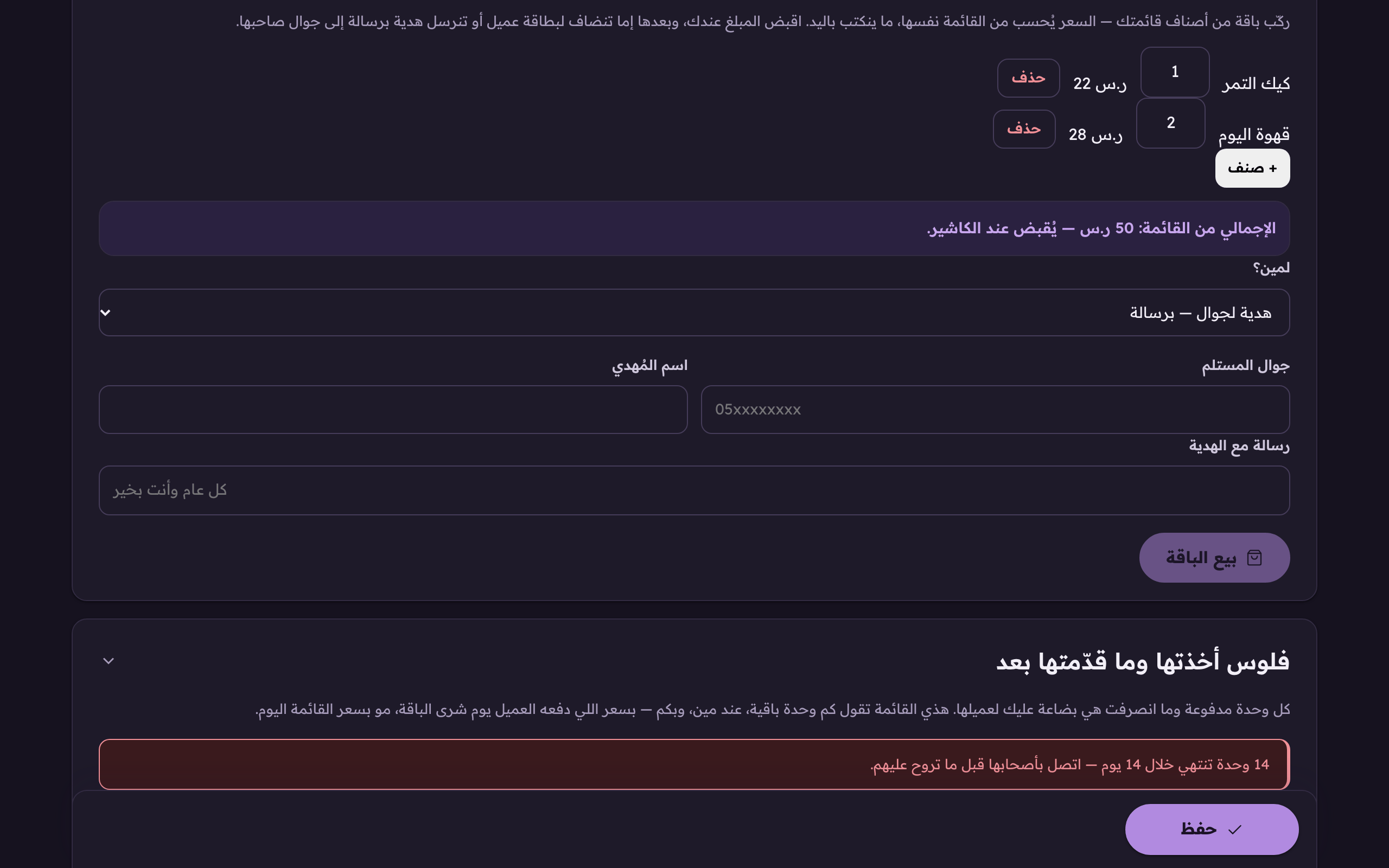
The gift half: the recipient's mobile and the giver's name, the paying customer's, never your shop's, plus a message to ride along. - Take the money, read the confirmation line naming the items, the total and who it is for, then press «sell the pack».