Saved questions about your customers, answered afresh every time you open them, and downloadable as a call list.
Aloke Owners
Web, iPhone and iPad, Android
A segment is a saved QUESTION, not a saved list; every time you open it, its answer is computed afresh. Save «who has not come in two months?» today with seven people in it, open it in a week and find five, because two came back and left the question on their own. No list goes stale on you and no name is stored inside the segment: the question is what is kept, and the names answer anew each time.
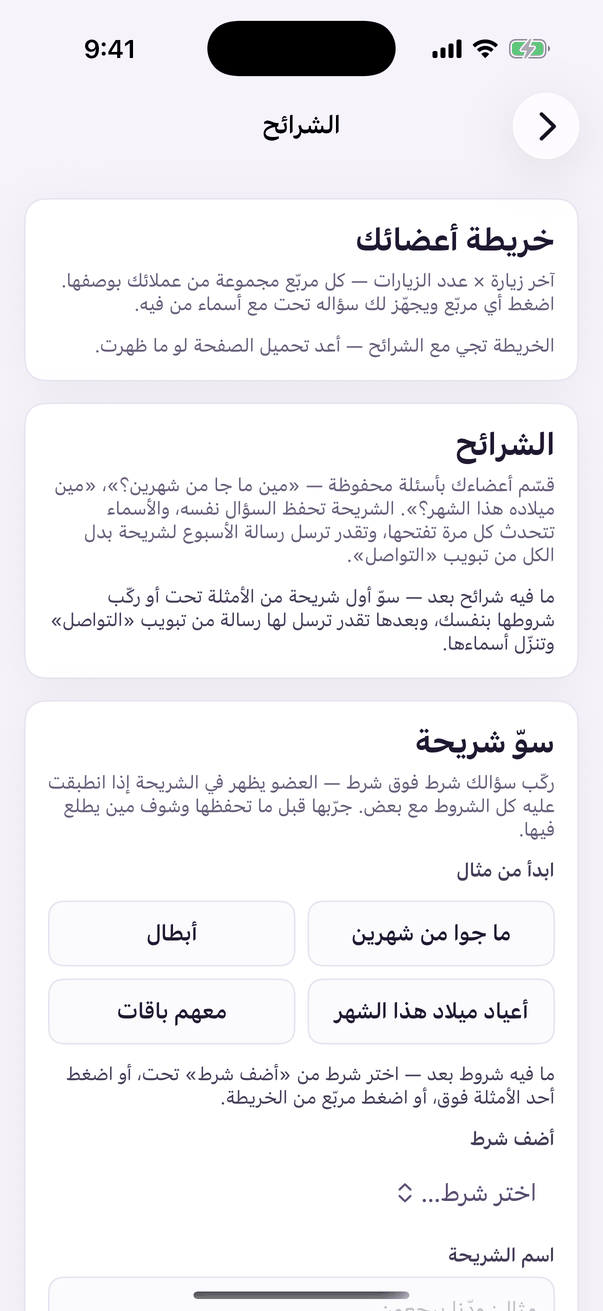
In the Aloke Owners app, open «Your customers» from the home screen, then «Segments». (iPhone and iPad, Android)«Segments»: saved groups of customers.
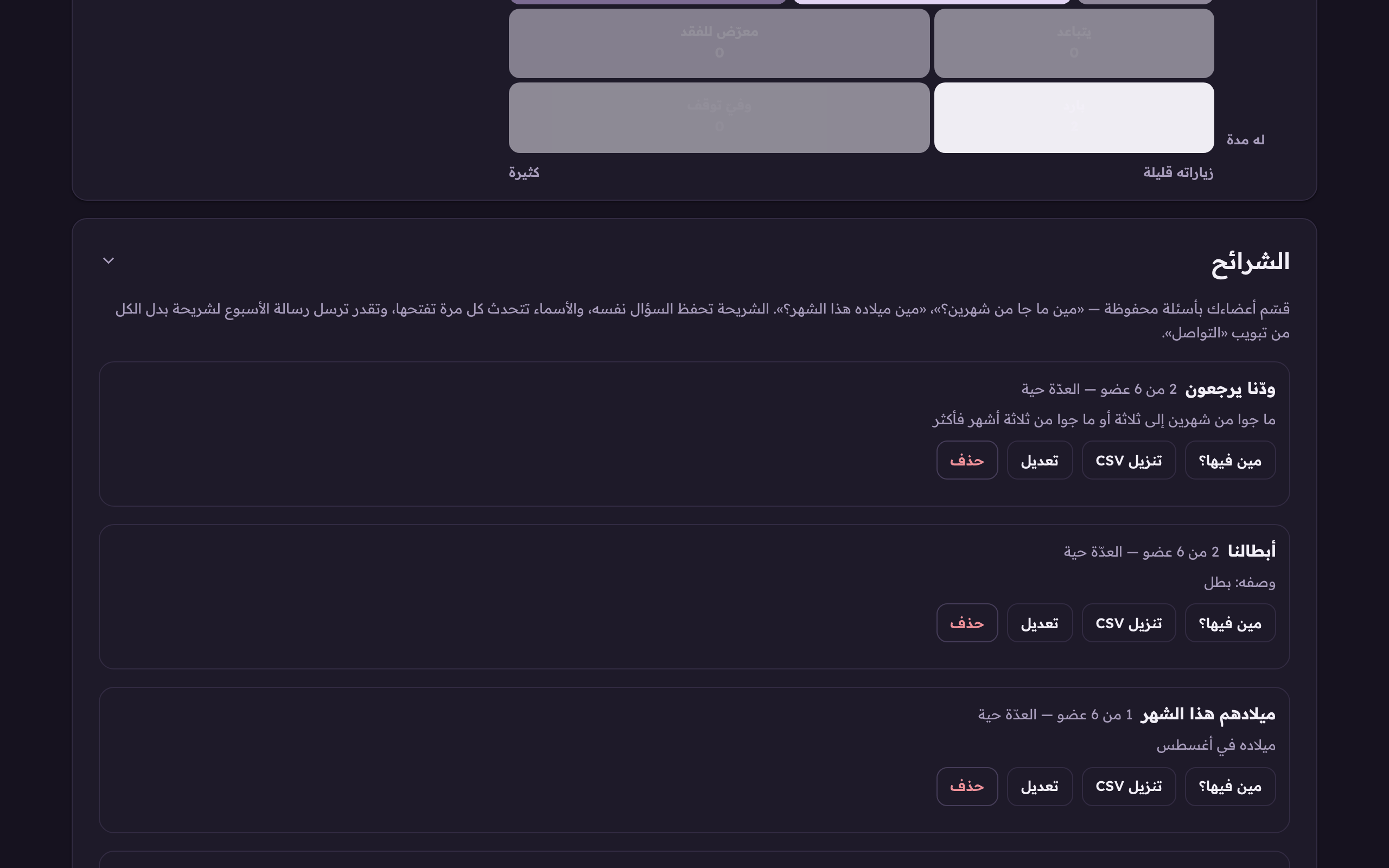
Open the «Segments» tab under the «customers» group. Your member map is at the top, and your saved segments under it. Each with its LIVE count as of now and its own buttons. (Web)Every saved segment with its LIVE count. The question is answered afresh on every open, with «who is in it?» and «download CSV» beside each.
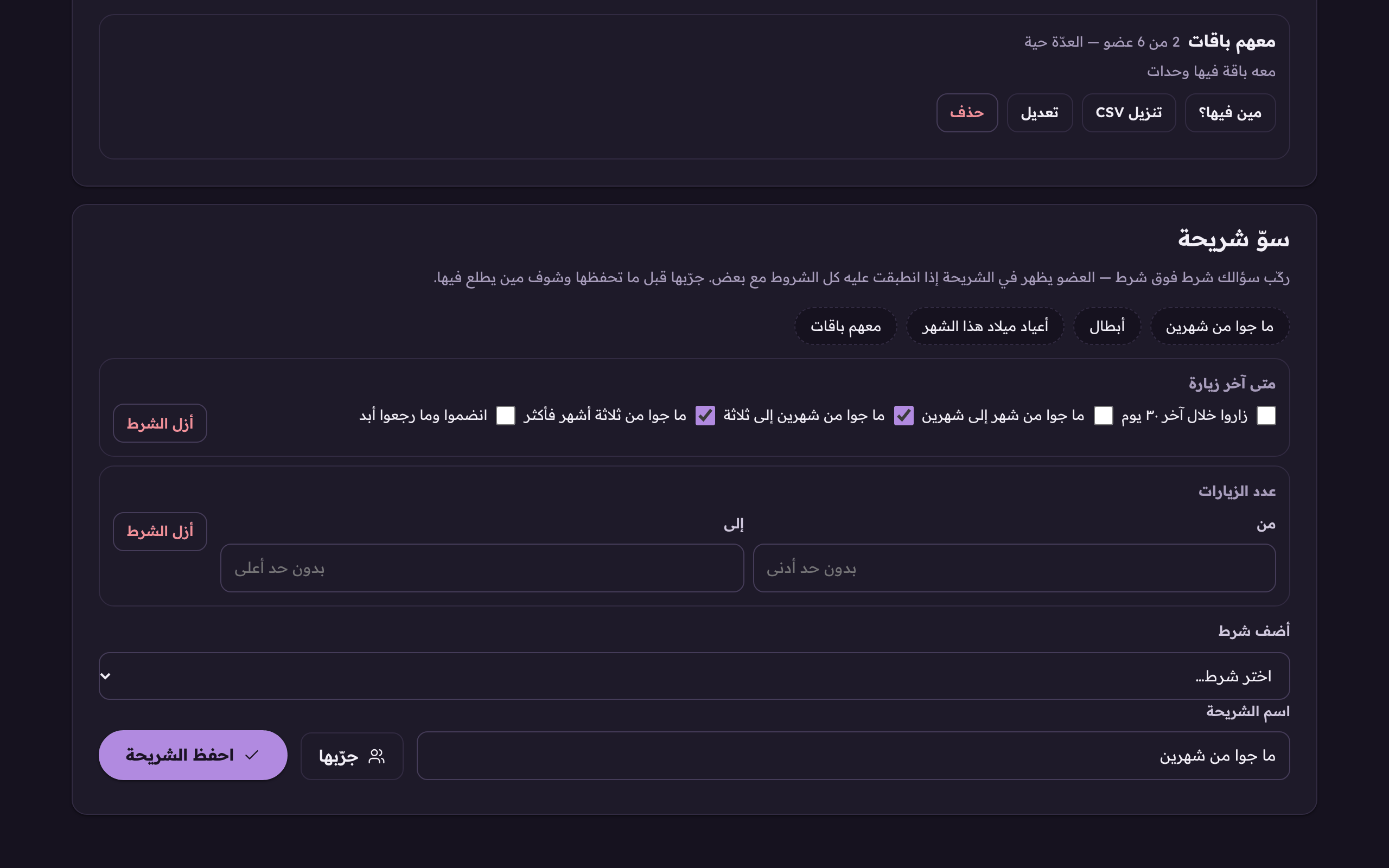
The fastest start: press one of the four examples, «gone two months», «champions», «birthdays this month», «holding packages», it fills the conditions and the name for you, and you adjust from there.«Add a condition» stacks one more on top. A member shows in the segment only when every condition holds at once.
Stack conditions from «add a condition». Conditions always work together: a member shows only when ALL of them hold, so every condition you add narrows the segment, never widens it.
When they last visited
The dashboard's own buckets: visited within the last 30 days, or gone one to two months, two to three, more than three, or joined and never came back.
Our word for them
The words explained in the «customer profile» article: champion, promising, at-risk, cold and their siblings.
The tier
Their rung on your tier ladder: silver, gold, or «no tier» for anyone below the first rung.
The tags
Carries the tags you pick. All of them at once, up to 5 tags in one condition.
Visit count
Their total visits with you, from so many to so many. Leave either end empty for no bound.
Lifetime earned
Their stamps or points earned since joining. The same figure their tier is computed from.
Recorded spend
Amounts the till actually typed, from so-many to so-many SAR. A customer whose visits never carried an amount NEVER matches a «spent at least» condition, even with the floor at zero, because we do not know their spend, and we do not guess it.
Birthday month
Their birthday falls in the month you pick, for members who gave a birth date.
Packages
Holds a package with live units, or holds none. Both directions are useful: the first to remind them to use it, the second to offer them their first.
Banked prizes
Holds a prize they earned and have not collected. A ready-made invitation back to the shop.
Missed their order
The till recorded so many pre-arrival no-shows against them, or more.
When they joined
Joined since or before a date: «joined this month» and «with me from day one» both come from here.
Bought a specific dish
Ever bought the dish you pick from your menu, down to the exact option if you like. It sees recorded baskets only, like «what they buy» on the profile.
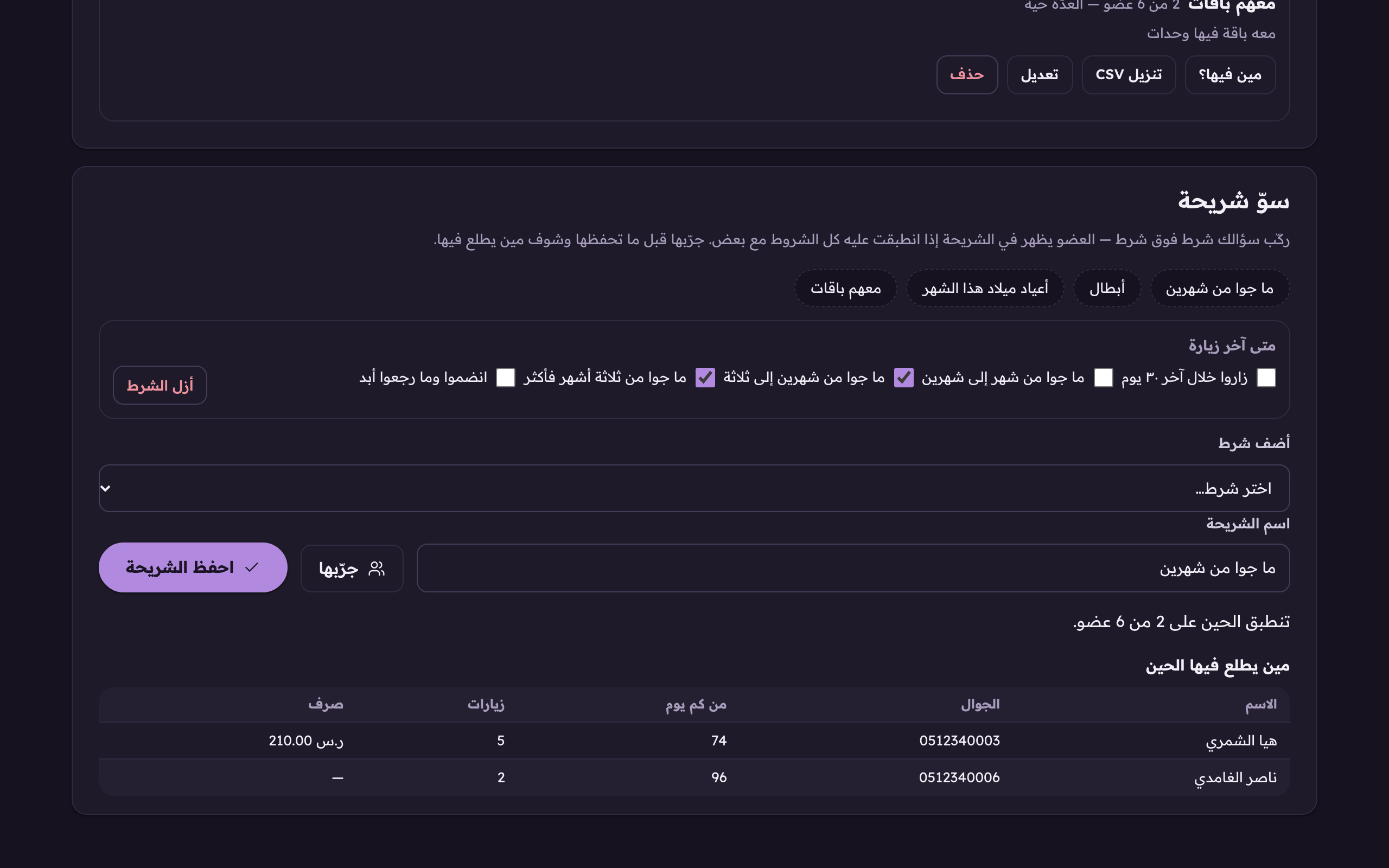
Press «try it» before saving: the count and the names as of now, most valuable first, highest recorded spend, then most visits. An empty spend cell «—» means the till recorded no amounts for them, not that they spent nothing.«Try it» before saving: the count and the names as of now. An empty spend cell «—» means the till never recorded amounts for them, not that they spent nothing.
Name it in «segment name» and press «save the segment». Picked a wrong condition? «Remove the condition» sits on its row.
On every saved segment's row: «who is in it?» shows today's names, «download CSV» saves them as a file that opens in Excel, a ready call list, «edit» brings its conditions back into the builder, and «delete» removes the question itself.
 Aloke
Aloke