 Aloke
AlokeMessaging a segment
The same weekly message, but to the people you choose, and the audience is worked out on the day it goes.
- Aloke Owners
- Web, iPhone and iPad, Android
Everything about the weekly message stays as the «weekly message» article describes it: one message every seven days, 300 characters, read by us before it reaches anyone, delivered only to people with the app who kept offer notifications on. What is new is one line above the text box: «who gets it?».
- In the Aloke Owners app, open «Your customers» from the home screen, then «Segments». (iPhone and iPad, Android)
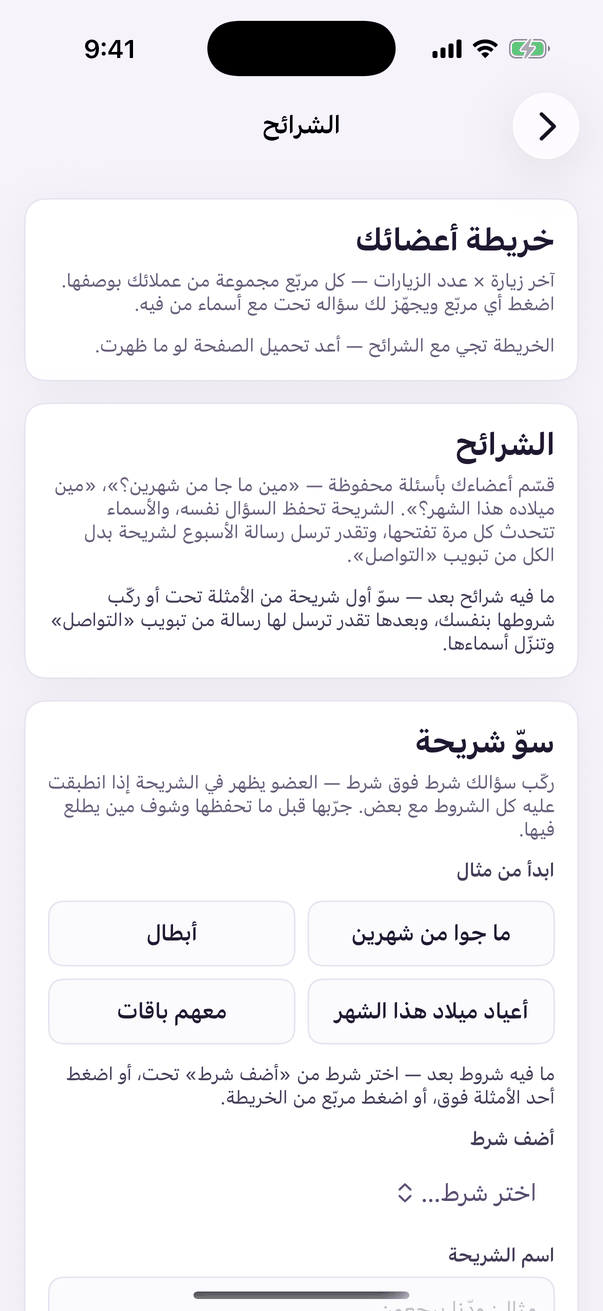
«Segments»: saved groups of customers. - In the «reach» tab, pick from «who gets it?»: «all members» as ever, or one of your segments. Each shown with its member count as of now. (Web)
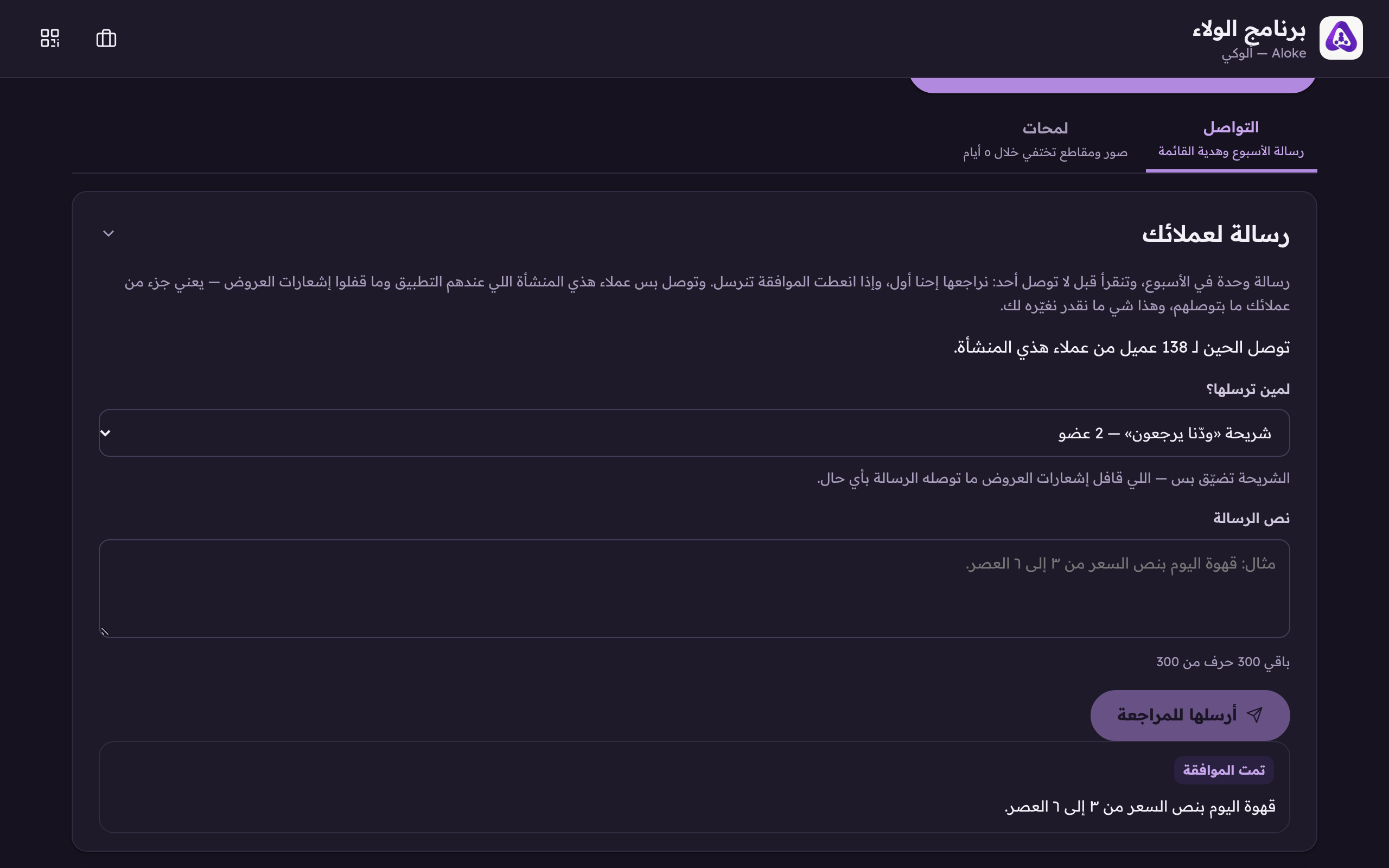
«Who gets it?»: «all members» as before, or a saved segment. A segment only narrows, and anyone who switched offers off is never reached either way. - Write your message and press «send for review», exactly the same road, with our approval step as every week.
The audience is counted on sending day
A segment is a question, and the question is answered on the day the message GOES, not the day you drafted it. A day can pass between your submission and our approval: whoever came back and visited in that day leaves the «gone two months» segment on their own, and is not sent a «where have you been?» message the day after sitting in your shop. The message reaches whoever matches on the day it actually goes, which is exactly as it should be.