 Aloke
AlokePrograms, the schedule and the urgent message
How the screen is split, what plays where and when, and a message over everything.
- Aloke Display
- Web, iPhone and iPad, Android
- In the Aloke Owners app, open «Loyalty & marketing» from «Every section» on the home screen, then «Programs». (iPhone and iPad, Android)
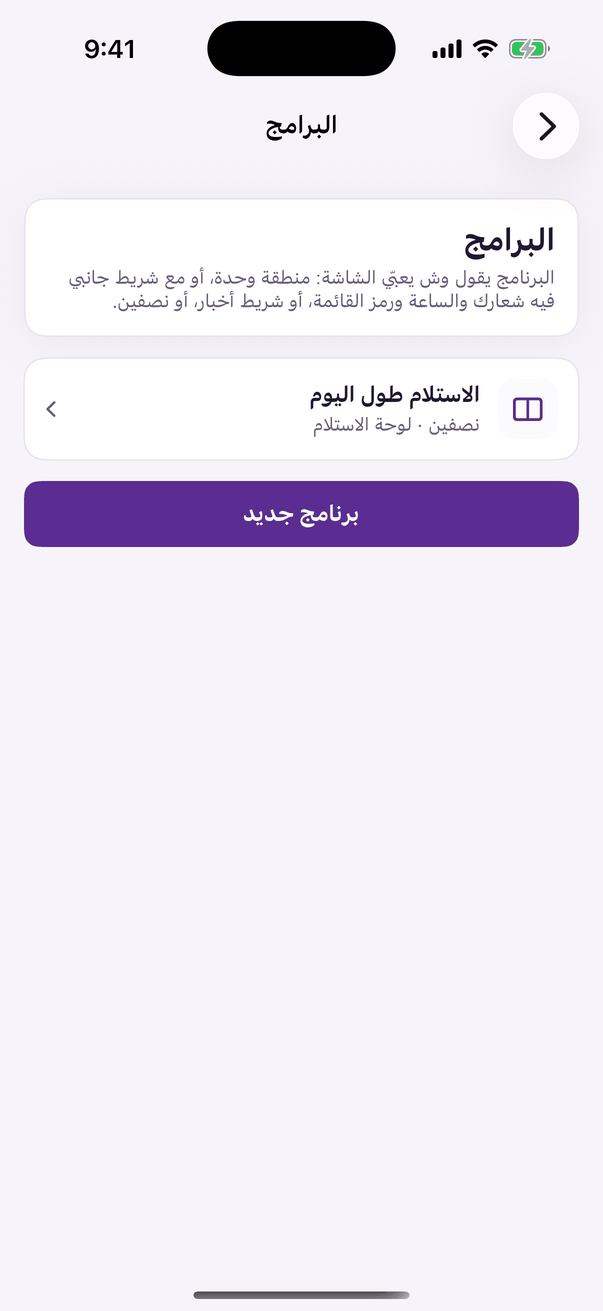
«Programs»: how the screen is split, and «New program». - «برنامج جديد» (New program) and choose «التقسيم» (Layout): full screen, with the «الشريط الجانبي» (Side panel) holding your logo, the clock and your codes, with the «شريط الأخبار» (Ticker), or two halves.
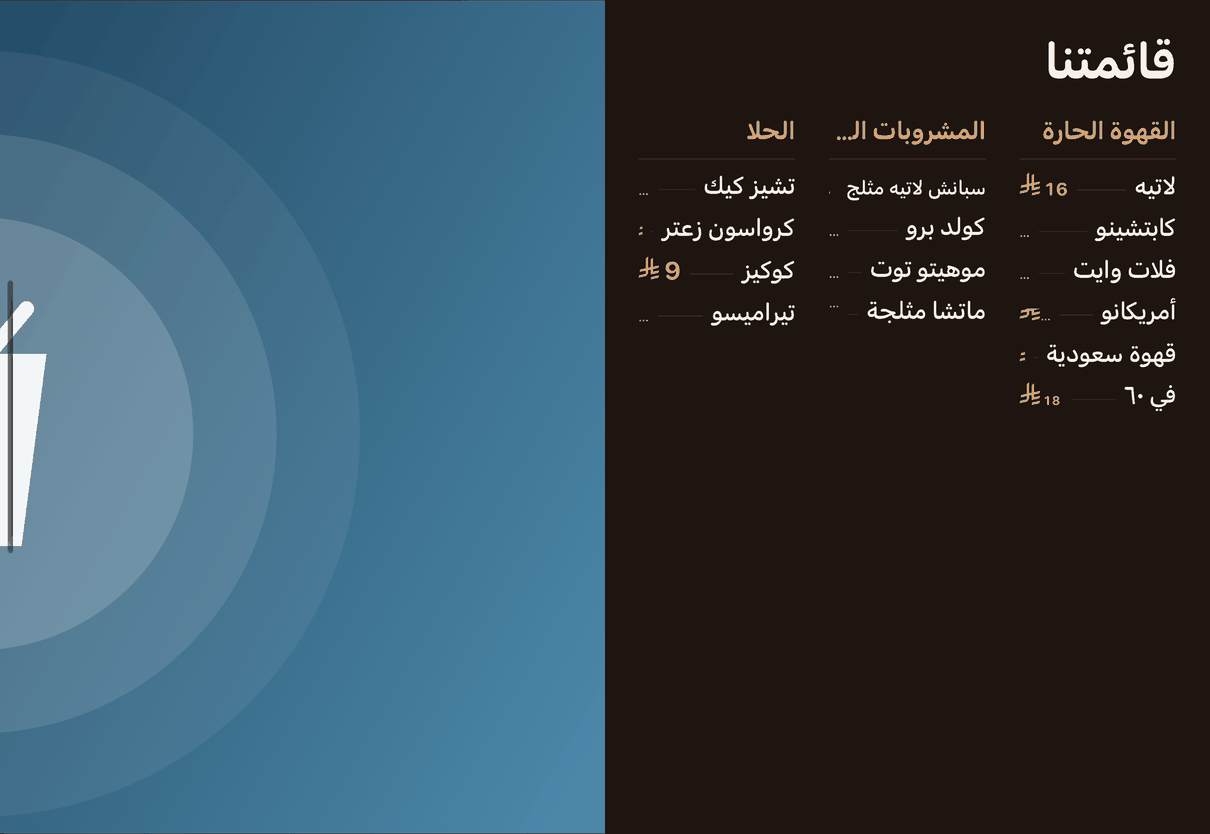
A program in two halves: the menu on one, your advert on the other. - In the Aloke Owners app, open «Loyalty & marketing» from «Every section» on the home screen, then «Schedule». (iPhone and iPad, Android)
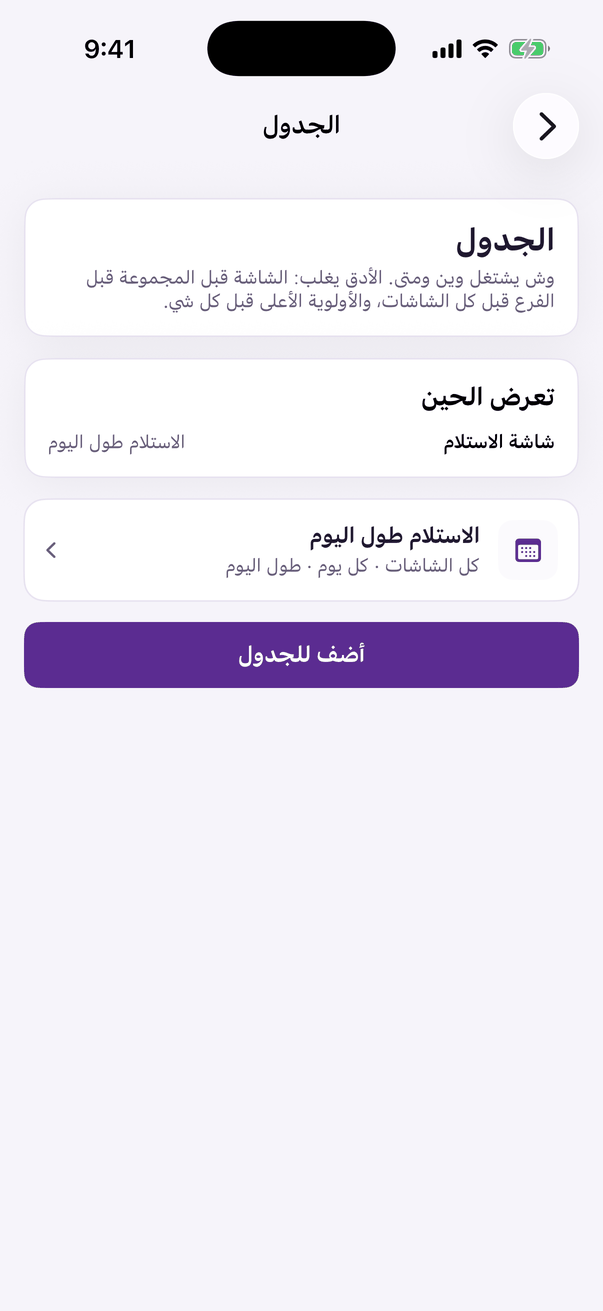
«Schedule»: what plays where and when, and «Add to the schedule». - «أضف للجدول» (Add to the schedule): pick the program and where it plays: every screen, a branch, a group from «المجموعات» (Groups), or one screen, and when, by days and hours.
- In the Aloke Owners app, open «Loyalty & marketing» from «Every section» on the home screen, then «Urgent message». (iPhone and iPad, Android)
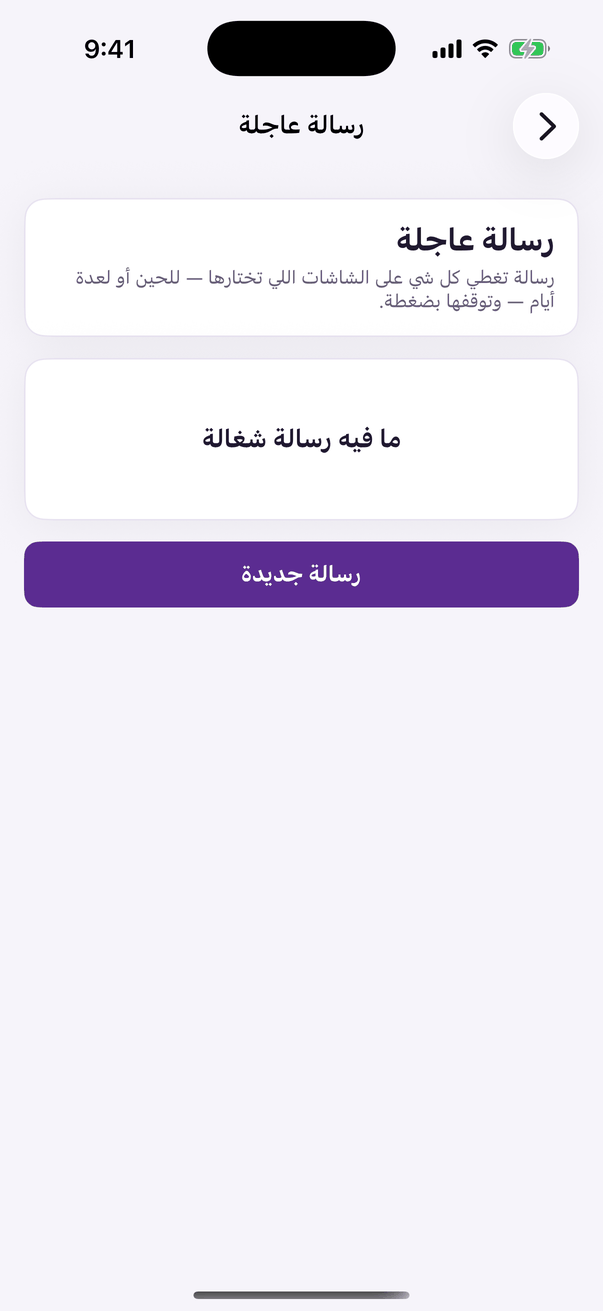
«Urgent message»: a message over the screens you pick, and «New message». - «رسالة جديدة» (New message): a message, a picture or a clip that covers everything on the screens you choose, from 15 minutes to a week. It stops in one tap.
An «Urgent message» covers everything on the screen until its time ends or you stop it.